![enginehire logo thin dark 1.0.png]](https://learn.enginehire.io/hs-fs/hubfs/enginehire%20logo%20thin%20dark%201.0.png?height=40&name=enginehire%20logo%20thin%20dark%201.0.png)
For demonstration purposes, this article uses a candidate profile as an example. Follow the same steps to configure auto-assign rules for client profiles.
Let’s get started 🚀
Access Conditional Settings
Use either of the following ways to open and configure conditional rules.
From a Profile
Open the conditional settings directly from a candidate profile to configure response-based auto-assign rules.
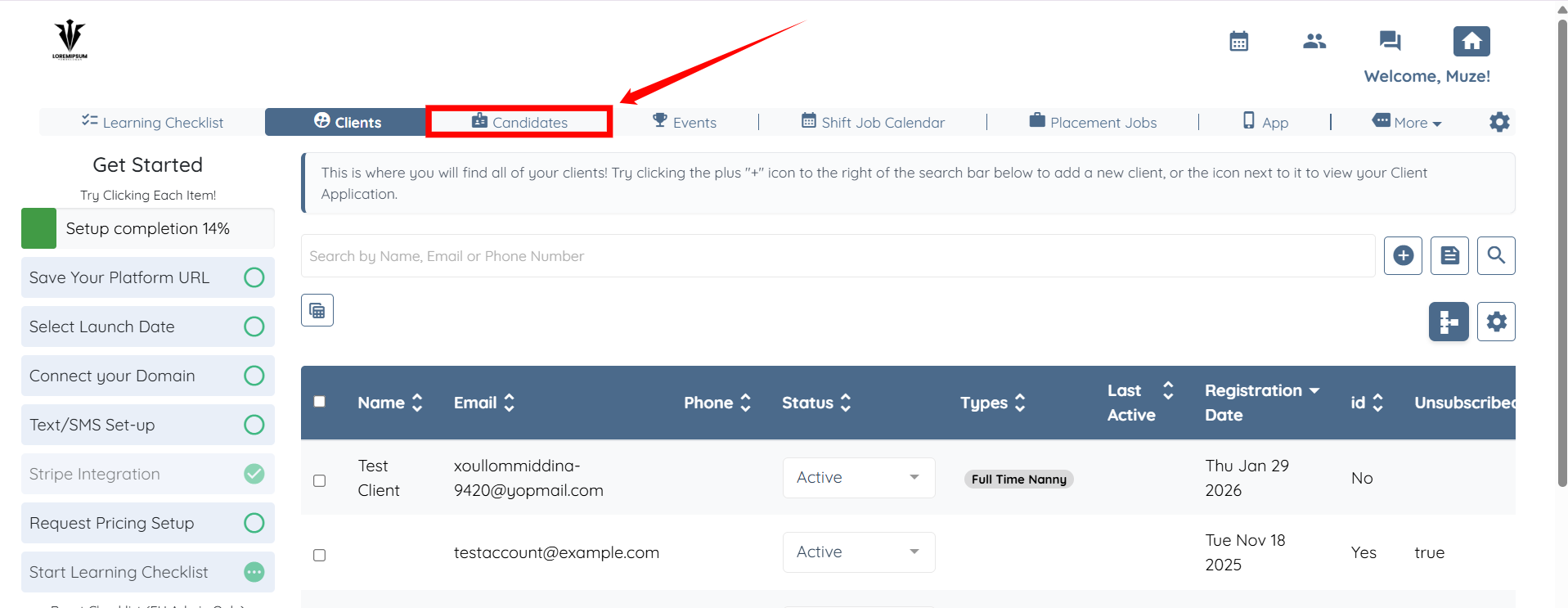
Step 1: Log in to your agent dashboard and click Candidates in the navigation bar.
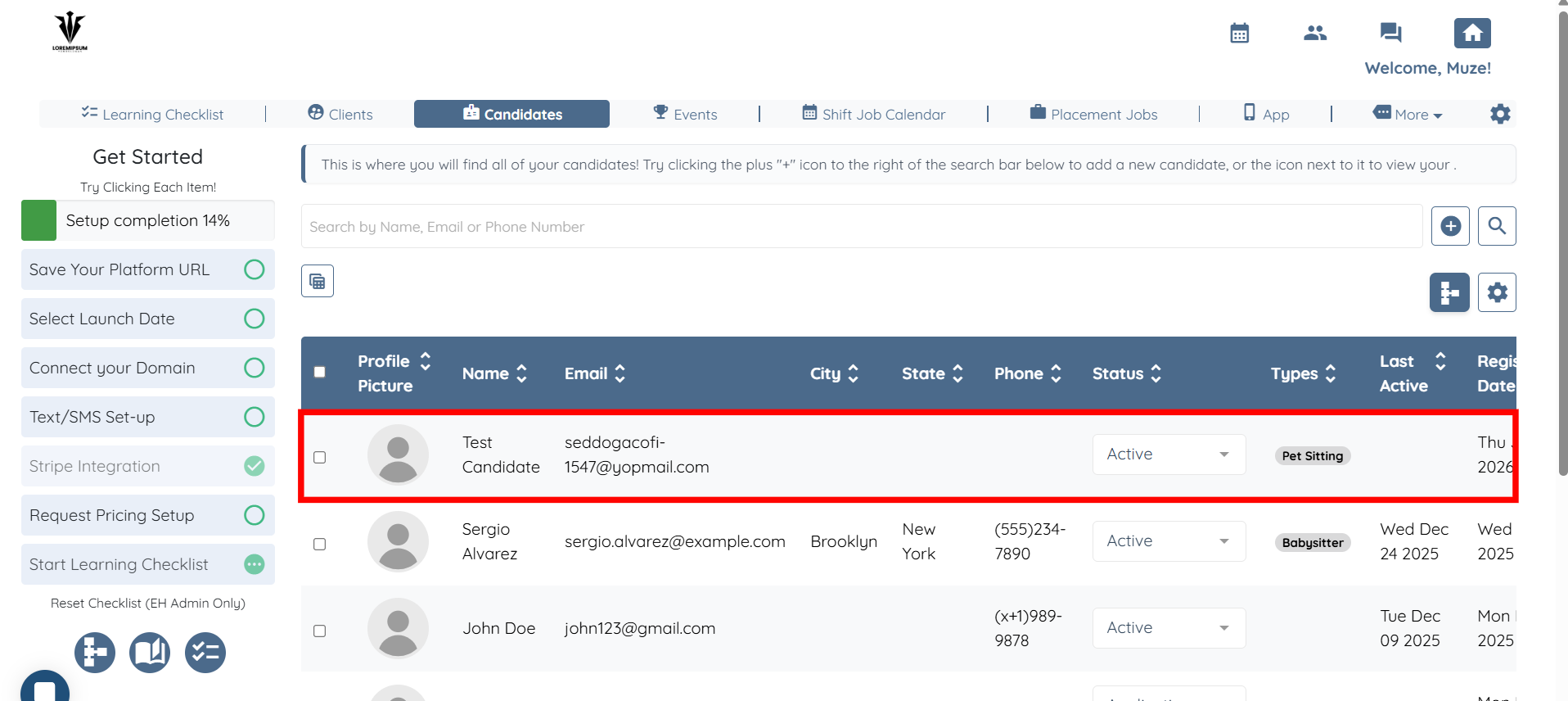
Step 2: Click on any candidate from the list.
Although the configuration is accessed within a single profile, the setting is global and applies to all candidates across the system.
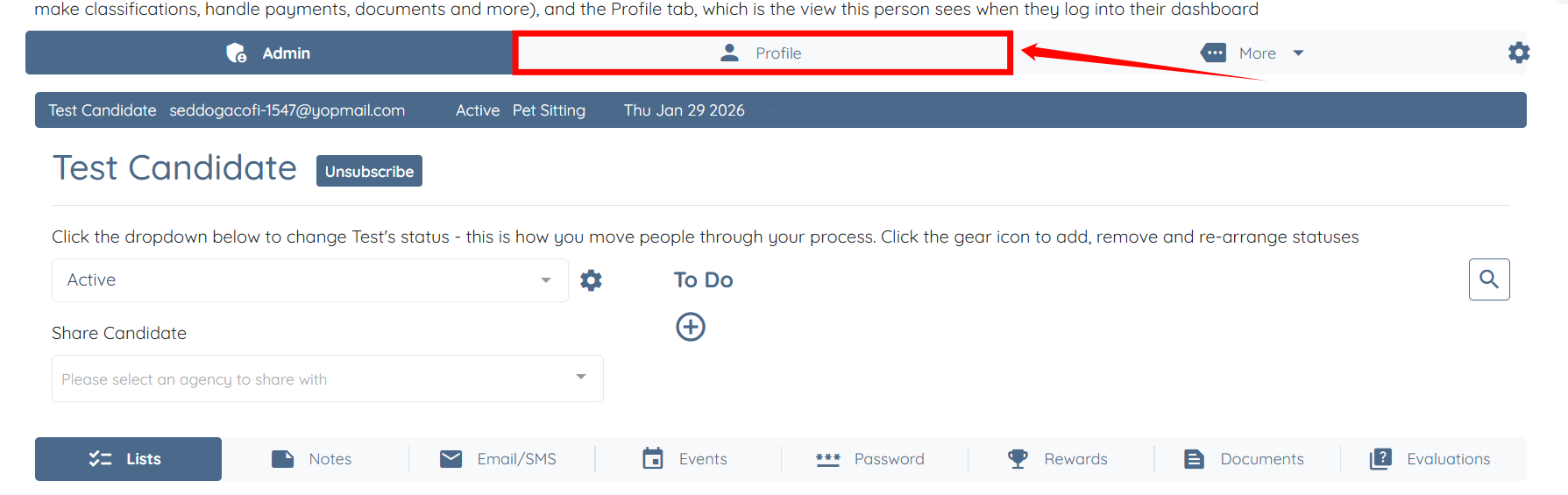
Step 3: Click the Profile tab to open the candidate’s profile.
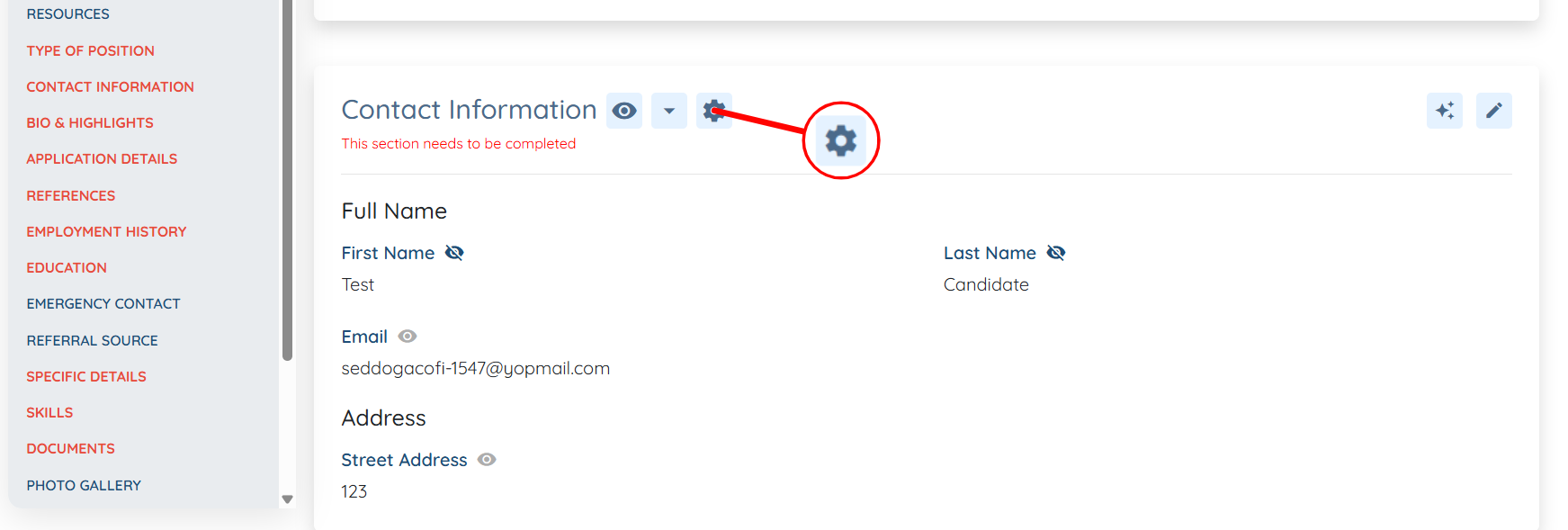
Step 4: Scroll to the section that contains the question you want to link, then click the Gear icon in the section header.
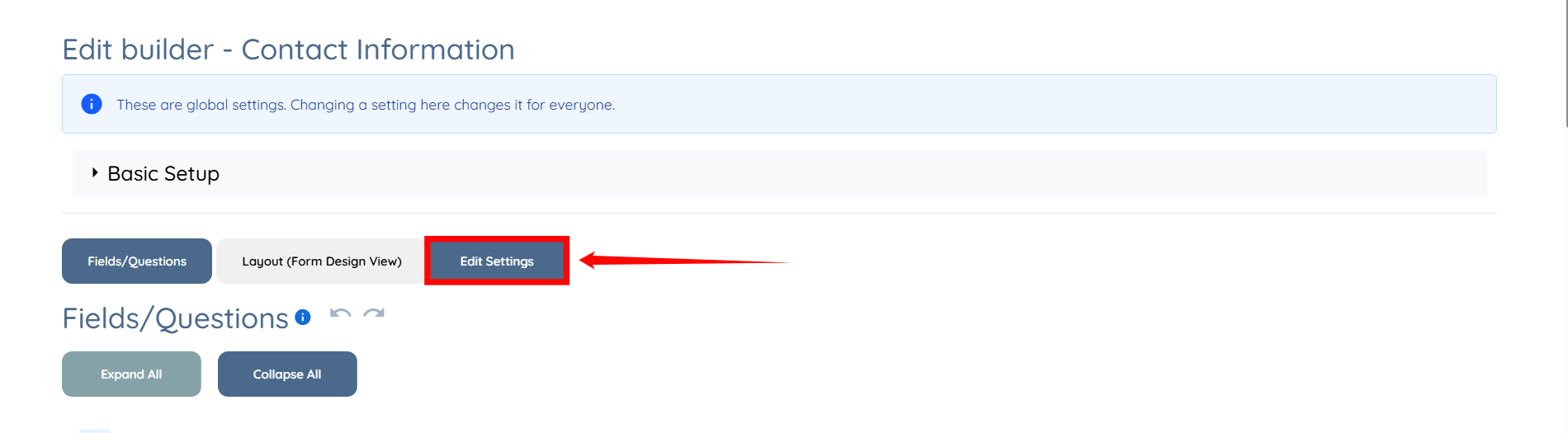
Step 5: Click the Edit Settings button.
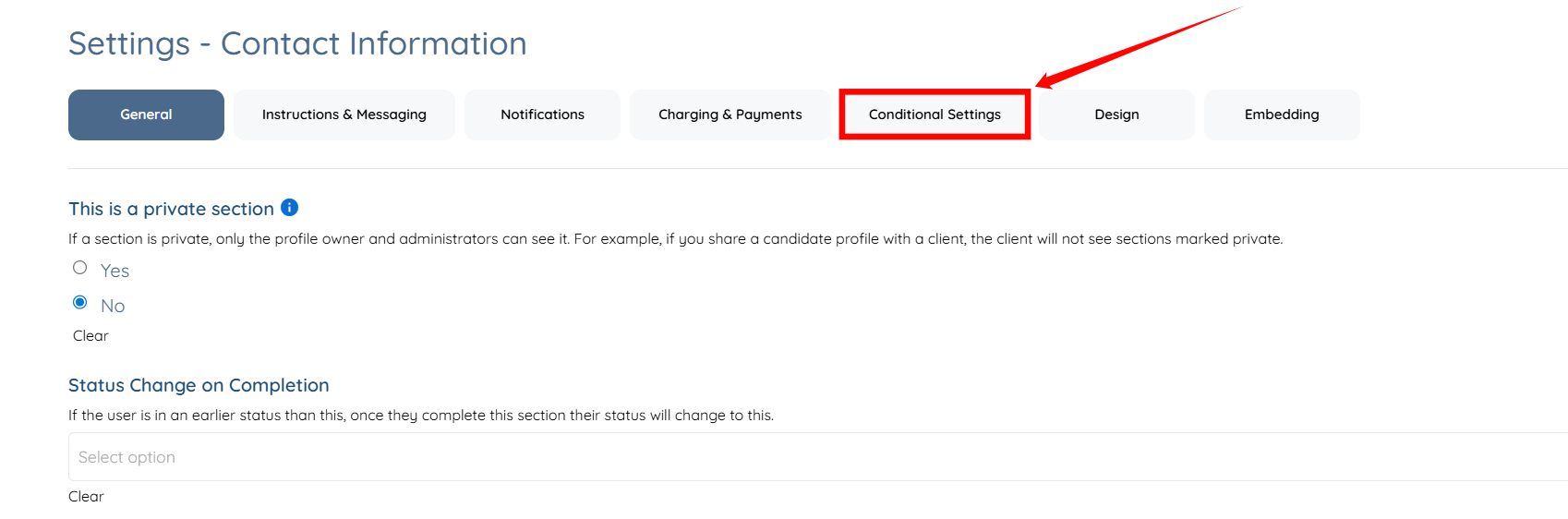
Step 6: Click the Conditional Settings tab to access the available conditional settings.
From the Application & Profile Builder
Access the conditional settings from the Application & Profile Builder to configure response-based auto-assign rules.
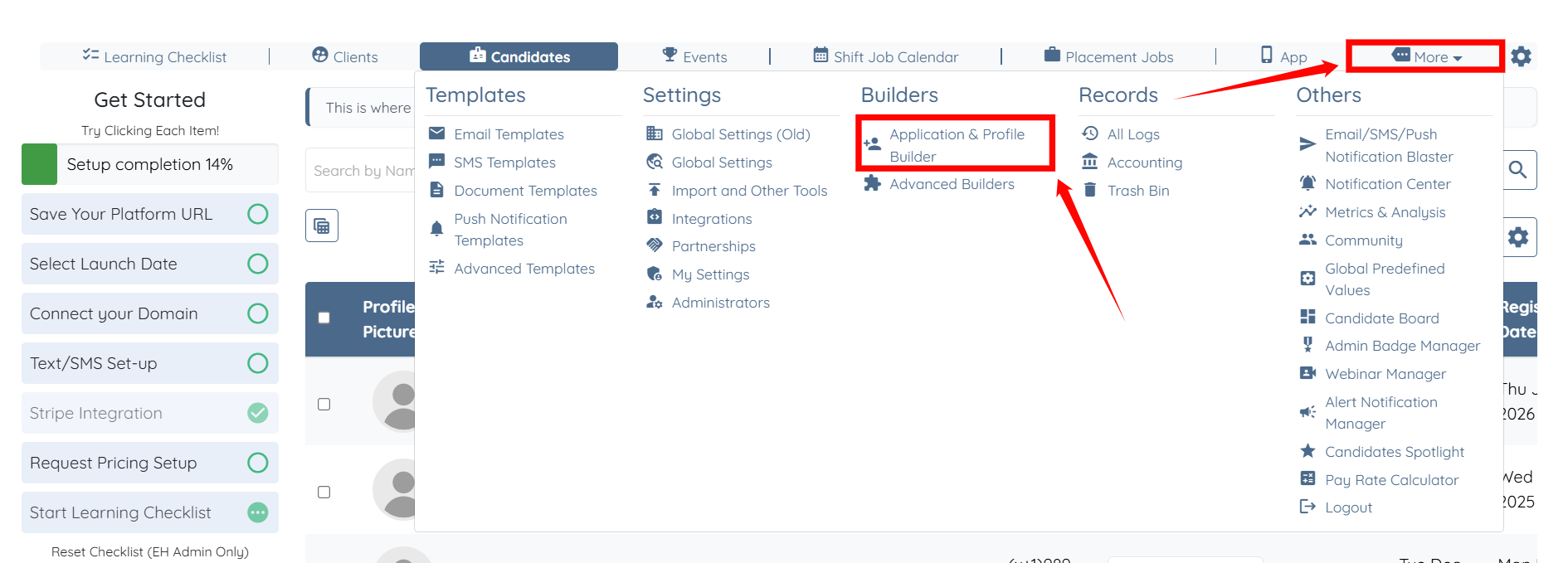
Step 1: On your agent dashboard, click More > Application & Profile Builder, as shown in the screenshot below.
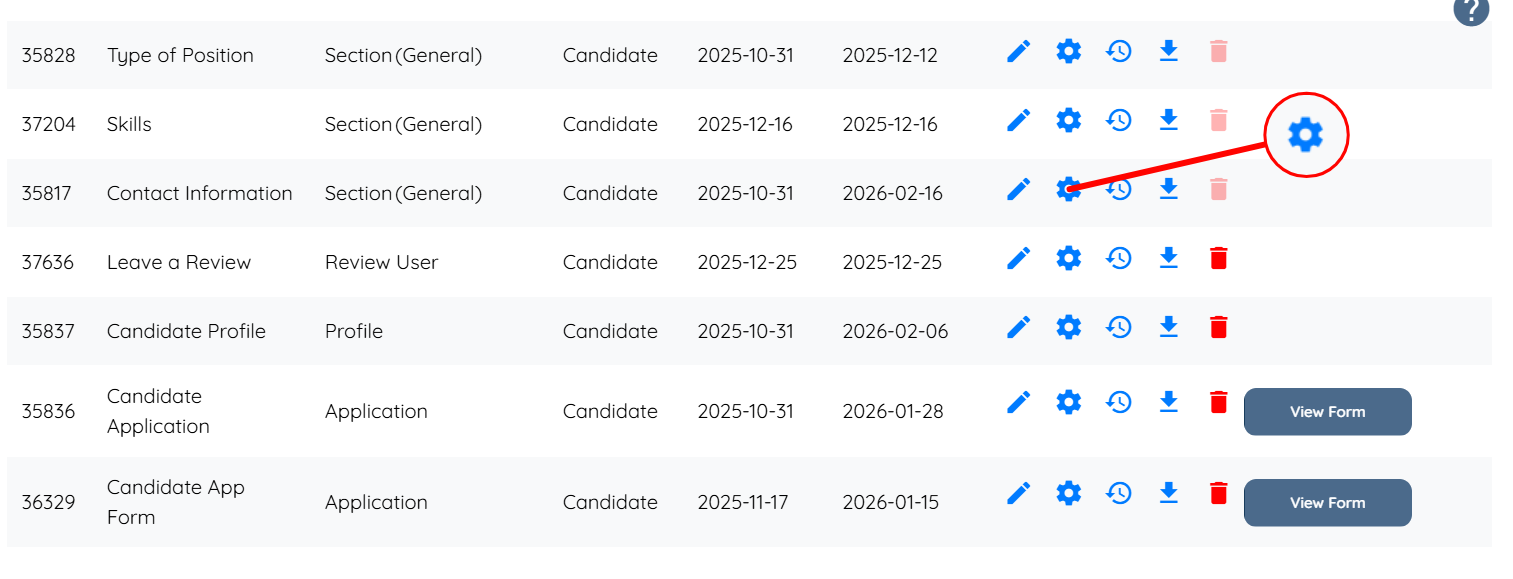
Step 2: Scroll to the section that contains the question you want to link, then click the corresponding Gear icon.
Step 3: Click the Conditional Settings tab to access the available conditional settings.
Add a Condition
Define the condition that will trigger the automatic assignment based on a user’s response to a specific question.
In this example, a Type condition is used to automatically assign a profile type based on a form response. The same process applies to other condition types.
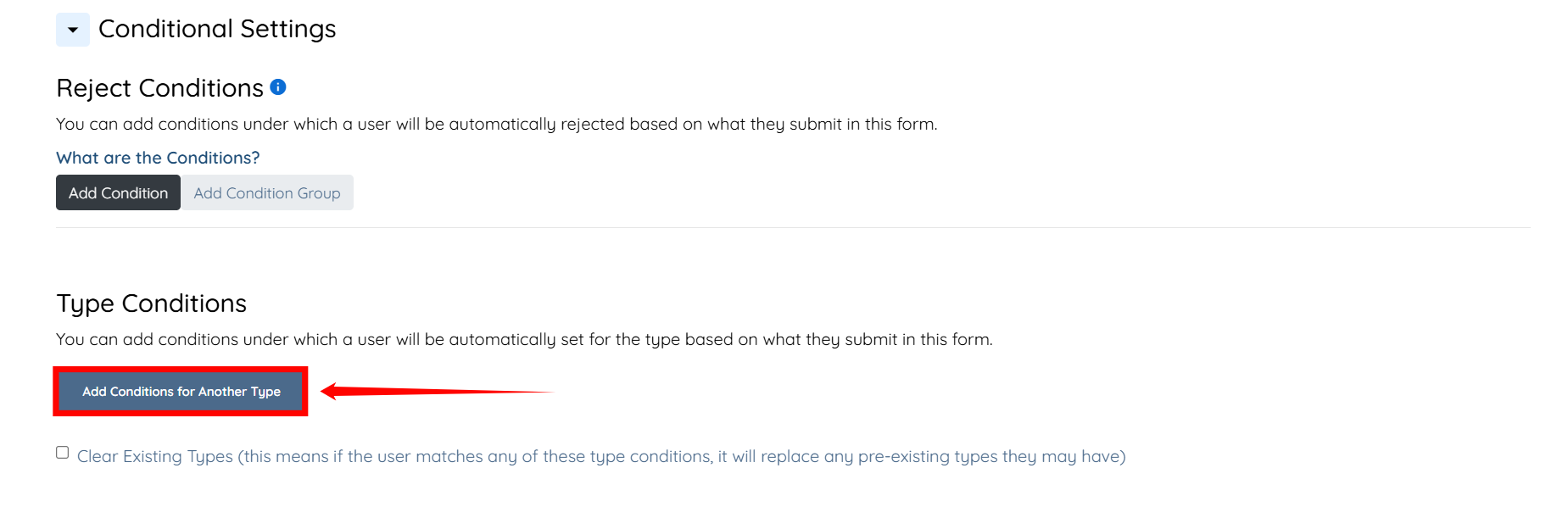
Step 1: Under the Type Conditions heading, click the Add Conditions for Another Type button to begin adding the condition.
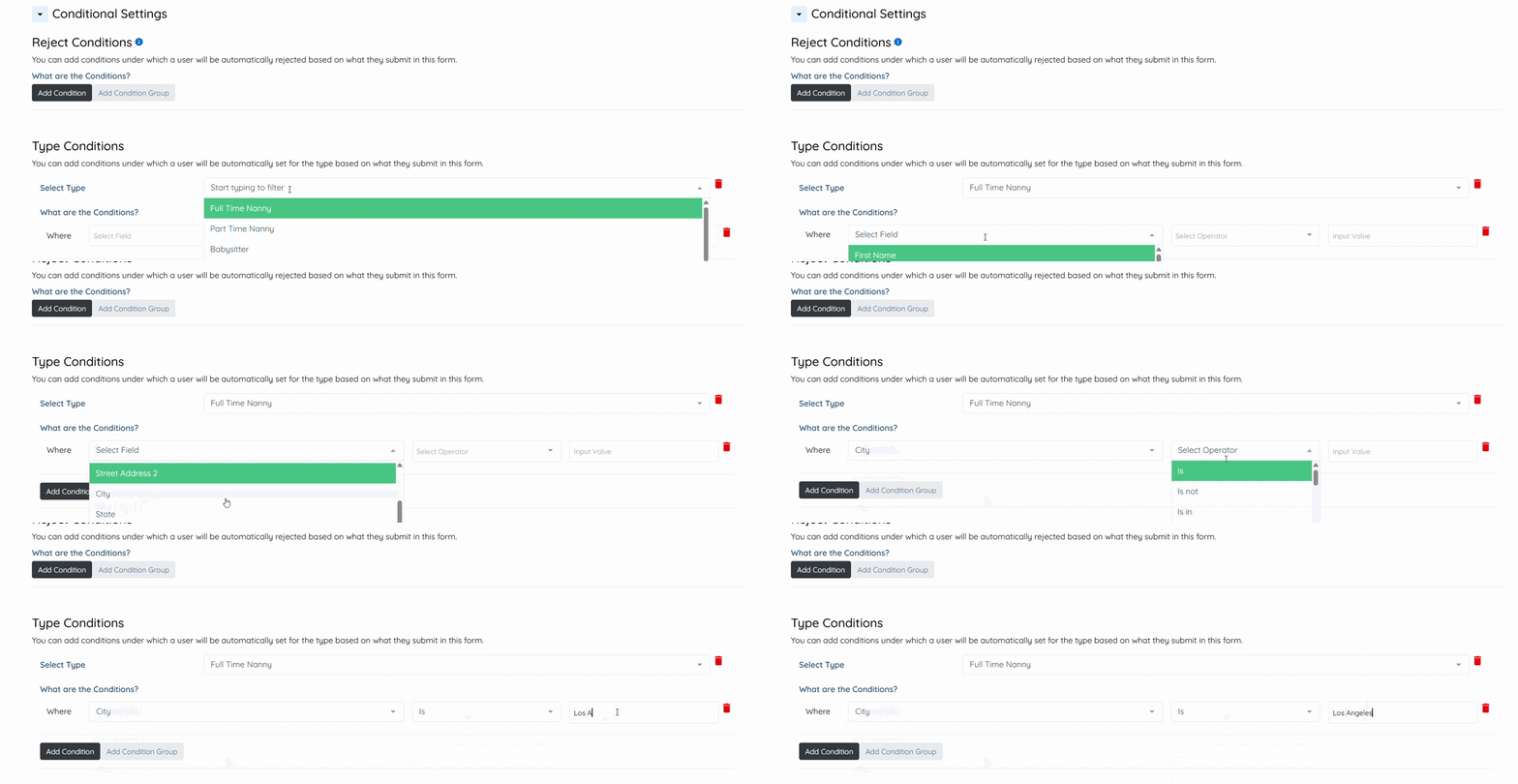
Step 2: Enter the type you want to set automatically, then select the question or field that will trigger the selected type based on the input value you set.
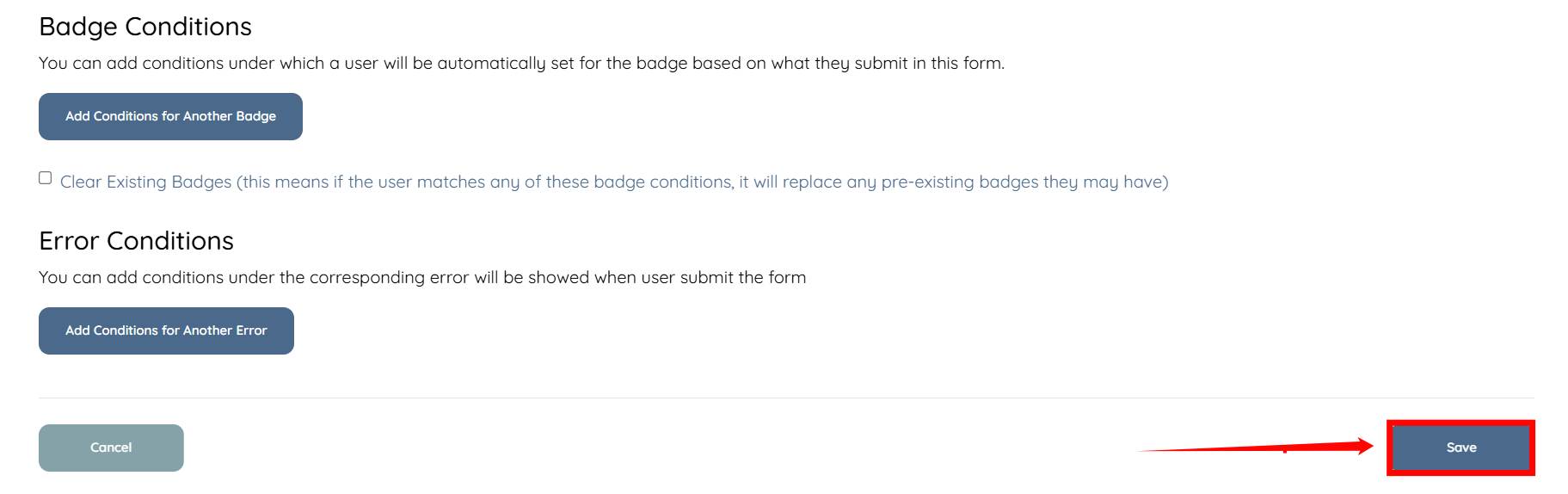
Step 3: Scroll down and click the Save button to confirm the changes.
Outcome
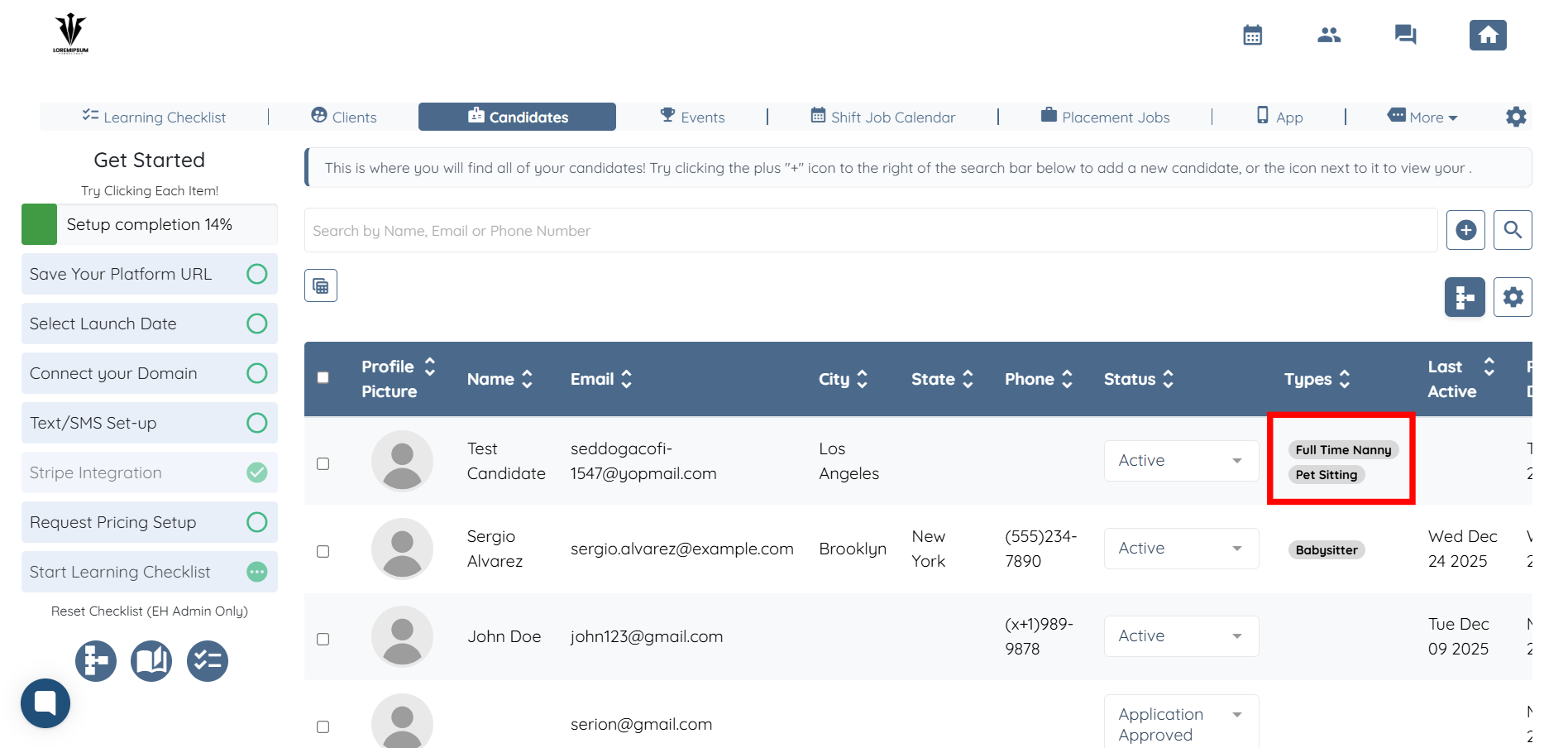
Now, whenever a candidate enters “Los Angeles” as their city, the system will automatically add the “Full Time Nanny” type to that candidate’s profile.
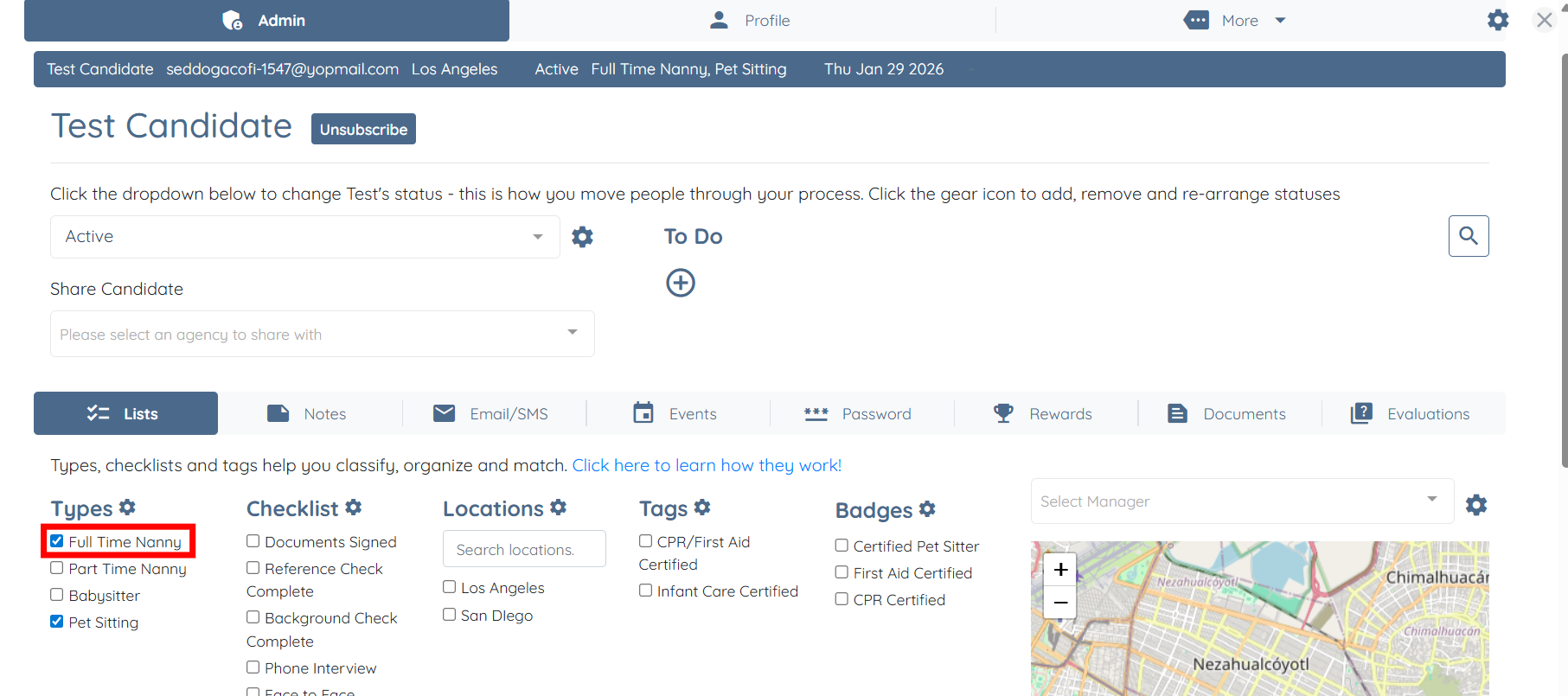
You can also view this updated type in the candidate table.
To automatically remove assigned profile attributes when conditions are no longer met, see Auto-Remove Profile Attributes When Conditions Change article.