![enginehire logo thin dark 1.0.png]](https://learn.enginehire.io/hs-fs/hubfs/enginehire%20logo%20thin%20dark%201.0.png?height=40&name=enginehire%20logo%20thin%20dark%201.0.png)
This behavior applies only when applicants are added manually by an admin.
Let's get started 🚀
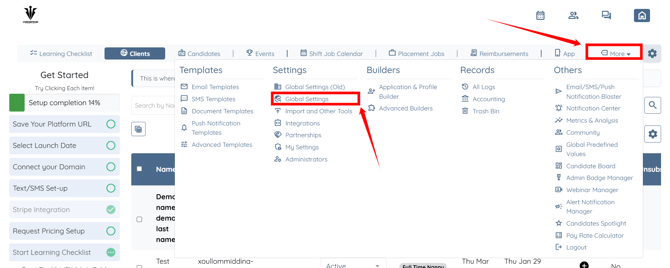
Step 1: Log in to your agent dashboard and click More > Global Settings as shown in the screenshot below.
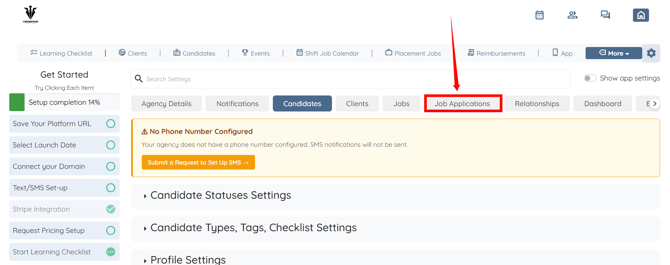
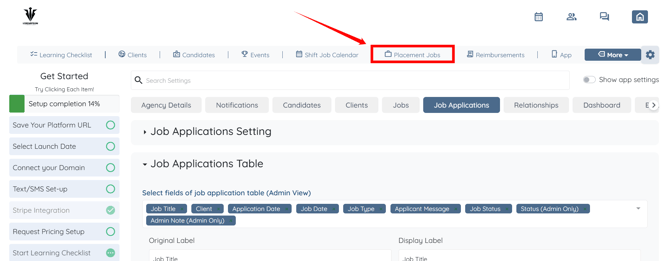
Step 2: Click the Job Applications tab from the available tabs.
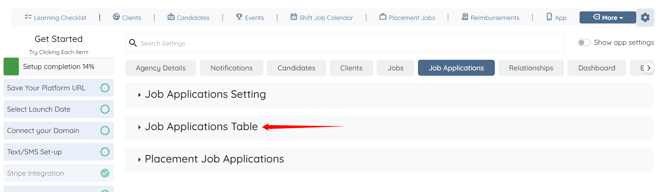
Step 3: Click the Job Applications Table option to expand its details.
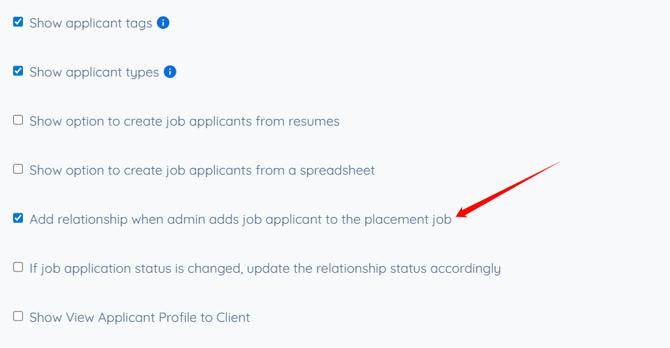
Step 4: Scroll down and check the Add relationship when admin adds job applicant to the placement job checkbox. The settings will be saved automatically.
Step 5: Go to the Placement Jobs in the navigation bar.
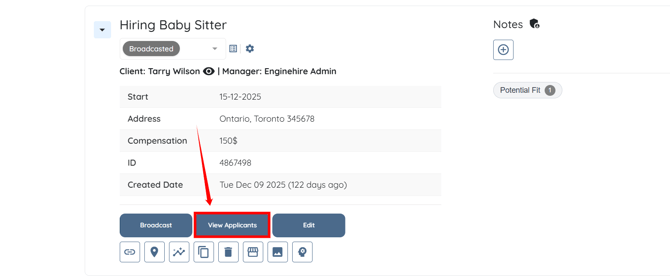
Step 6: Scroll down to the job in which you want to add the applicant to the Matches section on the client side.
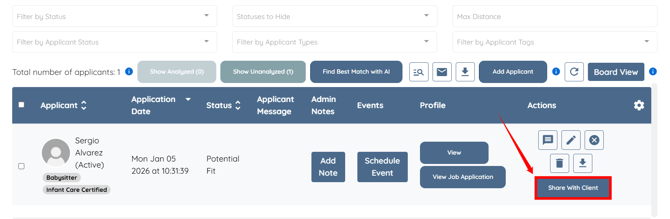
Step 7: Click the corresponding Share With Client button for the desired applicant.
Step 8: Select the status you want to set for the candidate. For demonstration purposes, we select Potential Fit from the dropdown list.
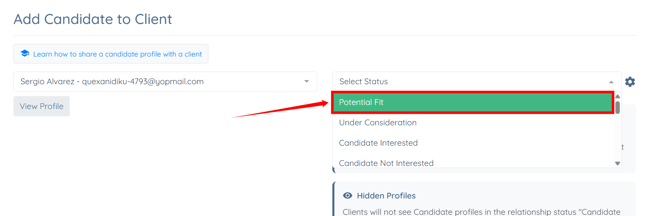
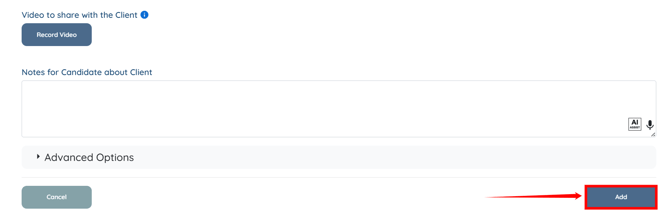
Step 9: Scroll down and click the Add button to proceed.
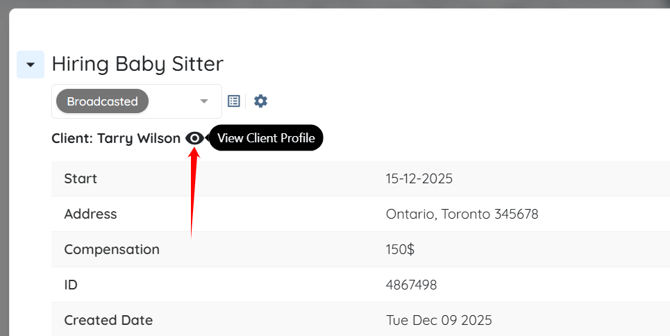
Step 10: Scroll up and click the eyeball icon next to the client name to view the client profile.
Step 11: Under the Admin tab, click on the Matches tab, as shown in the screenshot below.
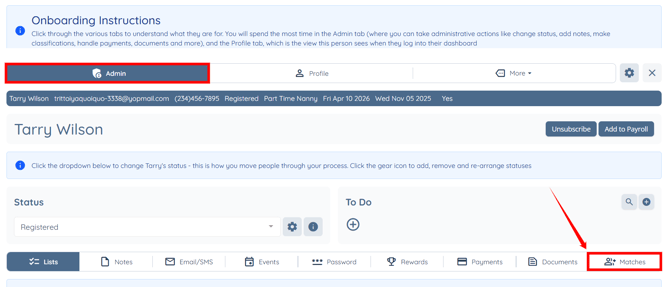
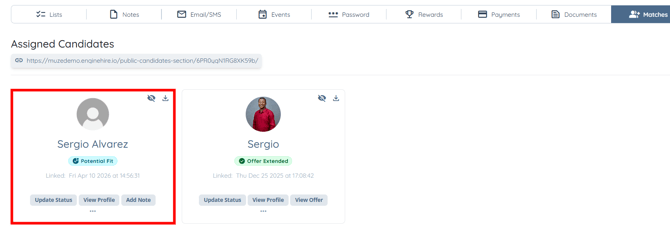
The desired candidate will be successfully added to the Matches section in the client profile.