![enginehire logo thin dark 1.0.png]](https://learn.enginehire.io/hs-fs/hubfs/enginehire%20logo%20thin%20dark%201.0.png?height=40&name=enginehire%20logo%20thin%20dark%201.0.png)
Let’s get started 🚀
Create a Task Template
Configure a task template that will automatically assign a task to candidates whenever they are assigned to a shift job.
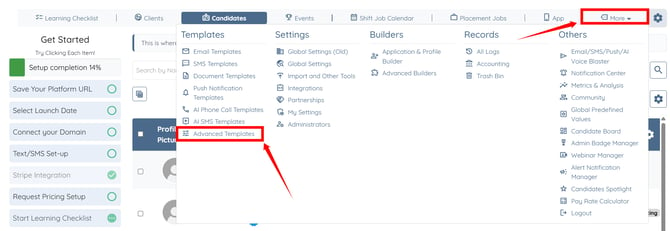
Step 1: Log in to your agent dashboard and click More > Advanced Templates as shown in the screenshot below.
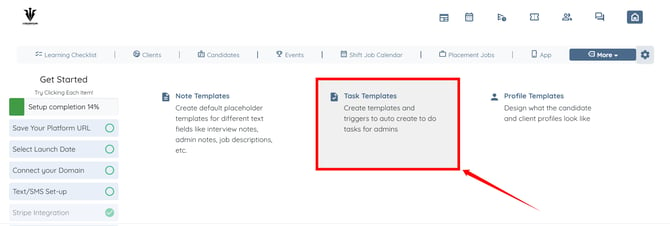
Step 2: Click the Task Templates option.
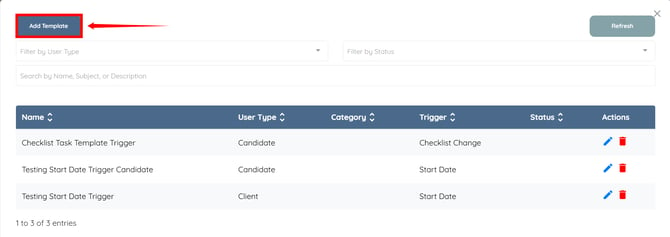
Step 3: Click the Add Template button.
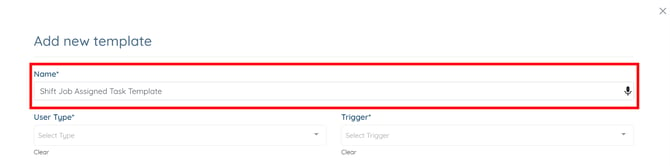
Step 4: Enter a name for your task template.
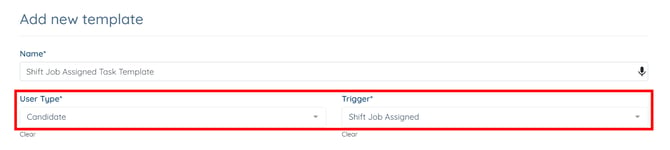
Step 5: Select Candidate as the User Type and Shift Job Assigned as the Trigger.
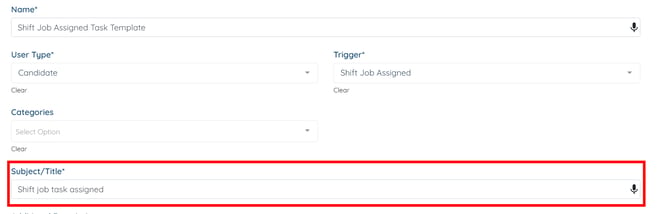
Step 6: Enter the Subject/Title of your task template.
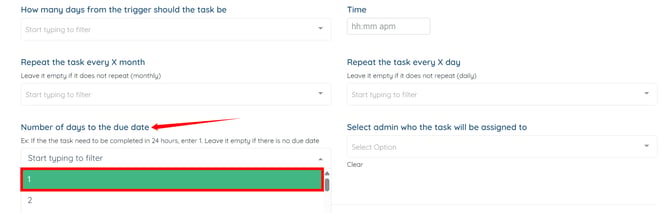
Step 7: Scroll down and select the number of days within which the assigned task must be completed.
For demonstration purposes, we are selecting 1 from the dropdown, which means the task must be completed within 24 hours of being assigned.
Step 8: Click the Create button to proceed.
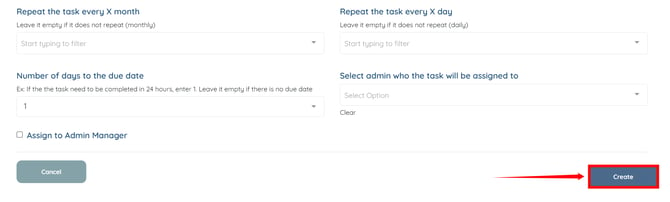
The task template will be created successfully.
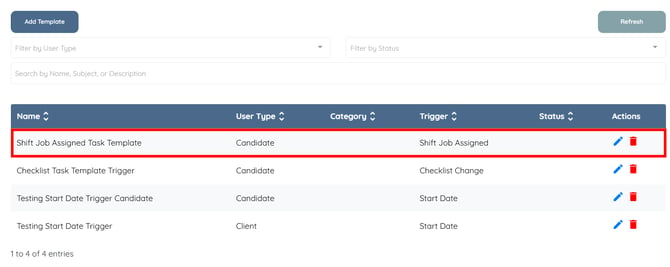
Create a Shift Job
Create a shift job and assign it to a candidate to trigger the automated task assignment. To learn how to create a shift job, refer to the Create a Shift Job article.
Check the Automatically Created Task
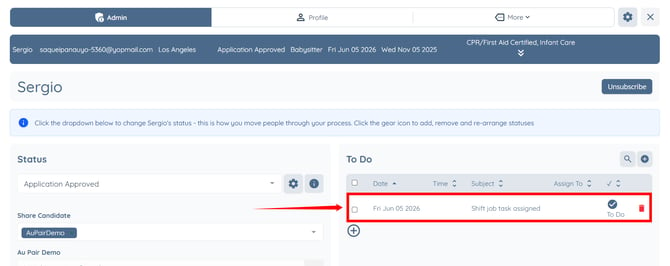
After assigning the shift job, verify that the task has been automatically created and assigned to the candidate.
Under the Candidates section, click the candidate to whom the shift job was assigned.
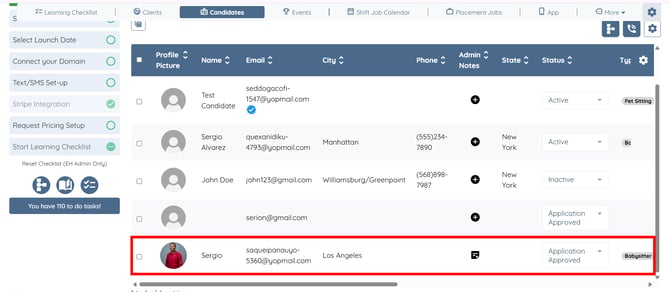
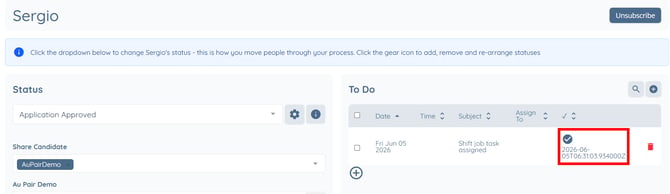
The assigned task will appear under the To Do section.
Complete the Assigned Task
Once the task has been assigned, the candidate can access and mark it as completed from their dashboard.
Candidates can view the assigned task under the My Jobs tab in their dashboard.
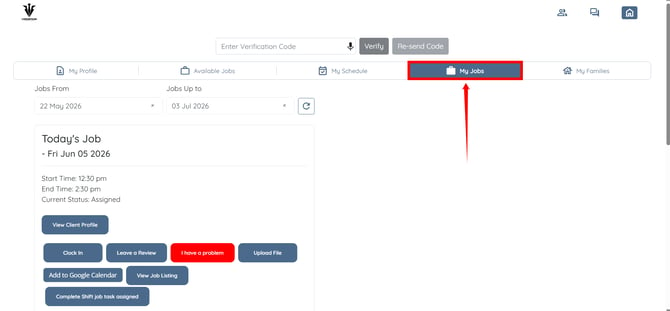
After completing the assigned task, they will click the Completed Shift Job Task Assigned button.
The button text will vary based on the Subject/Title entered in the task template.
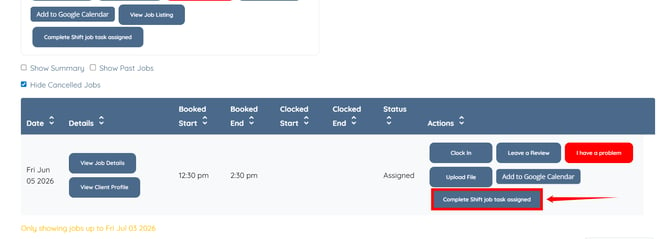
When the candidate marks the task as completed, the completion status and timestamp will also be reflected in the candidate details on the agency side.