![enginehire logo thin dark 1.0.png]](https://learn.enginehire.io/hs-fs/hubfs/enginehire%20logo%20thin%20dark%201.0.png?height=40&name=enginehire%20logo%20thin%20dark%201.0.png)
Overview
If your agency manages multiple candidates working at the same location, approving clock-in and clock-out times individually can be time-consuming.
Enginehire's Bulk Clock-In/Out Approval feature allows clients to review all bookings awaiting approval, select multiple bookings, and approve or disapprove them in one action.
Agencies can also require clients to provide one signature for the entire batch, eliminating the need to sign off on each booking individually.
How to Enable Bulk Clock-In/Out Approval
Note: These settings apply globally to all clients and candidates within your agency's Enginehire account.
Step 1: Open a Candidate Profile
From your Enginehire dashboard, navigate to Candidates and select any candidate from the list.

Step 2: Navigate to My Jobs
Open the My Jobs tab within the candidate's profile.

Step 3: Open the My Jobs Settings
Click Customize Candidate experience settings with upcoming jobs to open the My Jobs Table Settings window.

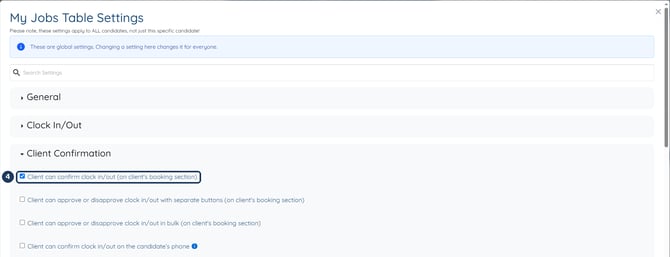
Step 4: Enable Client Confirmation
Expand the Client Confirmation section and enable:
- Client can confirm clock in/out (on client's booking section)
This reveals additional client approval settings.
Step 5: Enable Bulk Approval
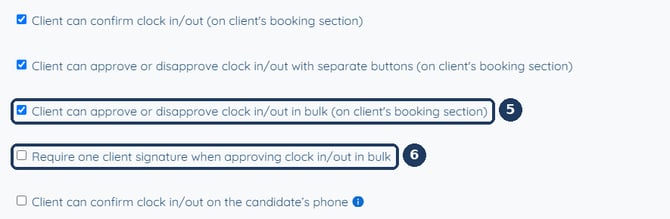
Select the following option:
- Client can approve or disapprove clock in/out in bulk (on client's booking section)
Step 6: Configure Signature Requirements (Optional)
If your agency requires clients to sign off on approved hours, enable:
- Require one client signature when approving clock in/out in bulk
When enabled, clients will provide a single signature covering all bookings selected for approval.
Tip: Clients who are already logged in may need to log out and back in before the newly enabled approval options appear.
How Clients Can Approve Multiple Bookings
Once bulk approval is enabled, clients can review and approve pending clock-in and clock-out times directly from their dashboard.
Step 1: View Bookings Awaiting Approval
From the client dashboard, navigate to the Bookings section where the booking calendar is displayed.
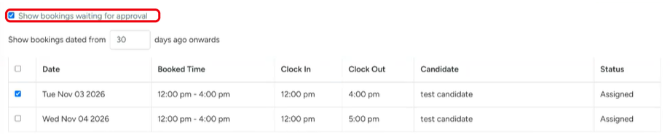
Select Show bookings waiting for approval to switch from the calendar view to a list of bookings with clock-in and clock-out times awaiting approval.
To include older bookings, adjust the Show bookings dated from ... days ago onwards setting.
Step 2: Select Bookings to Approve
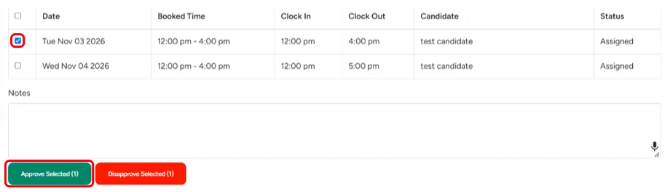
Review the pending bookings and check the box next to each booking you would like to approve.
Once selected, click Approve Selected.
The button displays the number of bookings currently selected.
To reject the recorded times instead, select the applicable bookings and click Disapprove Selected.
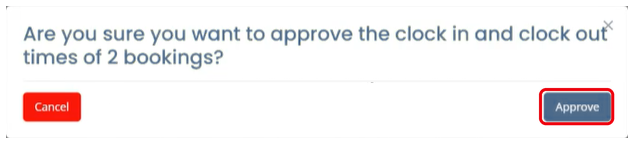
Step 3: Confirm Your Selection
Click Approve in the confirmation window to proceed with approving the selected bookings.
Step 4: Provide a Signature (If Required)
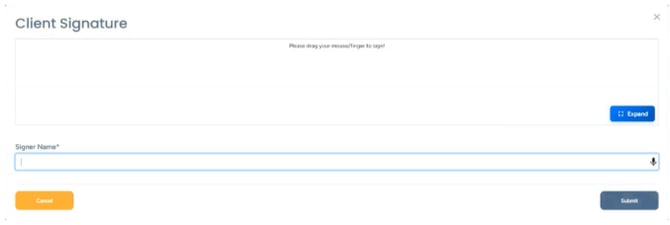
If your agency has enabled the signature requirement, a Client Signature window will appear.
- Sign in the signature box using your mouse or touchscreen.
- Enter your name in the Signer Name field.
- Click Submit to complete the approval.
Only one signature is required, regardless of how many bookings were selected.
Step 5: Verify Approval
Once completed, a confirmation message displays the total number of bookings successfully approved.
Each approved booking is marked Client Approved and is automatically removed from the list of bookings awaiting approval.

Additional Information
- Bulk approval is optional. Clients can still approve bookings individually when needed.
- Signature requirements are configurable. Agencies can allow bulk approval with or without requiring a signature.
- Clients can approve or disapprove bookings in bulk. Both actions are available from the pending approval list.
- Approved bookings are automatically removed from the pending list. This helps clients focus on bookings that still require their attention.
Related articles
Client Shift Time Approval
Client Confirmation
Configure the My Jobs Tab for Candidates