![enginehire logo thin dark 1.0.png]](https://learn.enginehire.io/hs-fs/hubfs/enginehire%20logo%20thin%20dark%201.0.png?height=40&name=enginehire%20logo%20thin%20dark%201.0.png)
This is a Branded App Feature Only. To learn more about getting the Branded App for your team, select the App tab in your dashboard's main table.
Let’s get started 🚀
Enable Support Chat
Configure the chat settings to allow clients and candidates to start conversations with admins directly from the app.
Step 1: Log in to your agent dashboard and click More > Global Settings (Old) as shown in the screenshot below.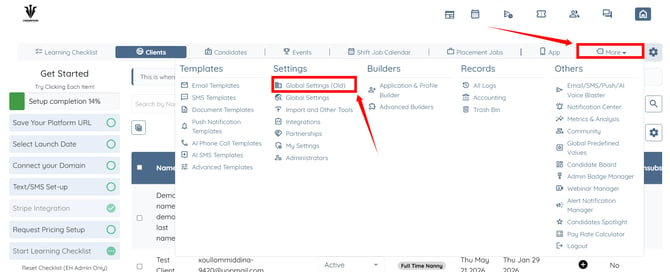
Step 2: Click the App tab from the available tabs.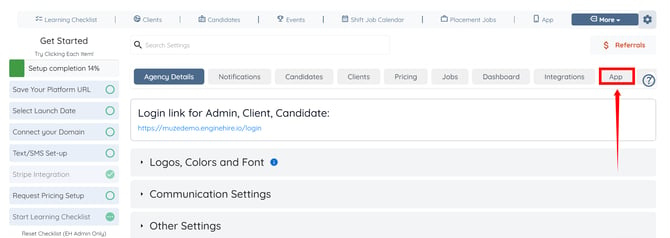
Step 3: Click the Chat option to expand its details.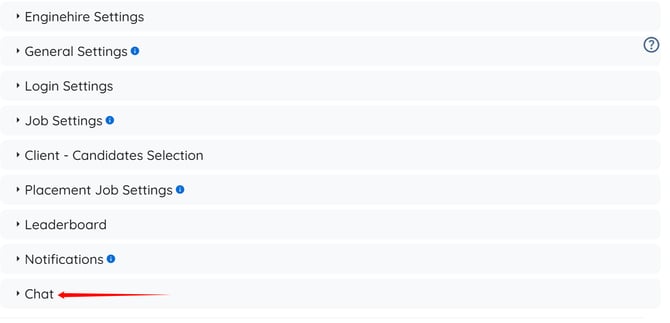
Step 4: Check the Use chat feature checkbox.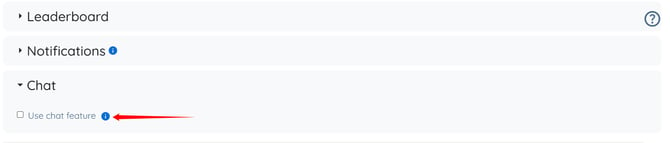
Step 5: Check the Enabled support chat checkbox. 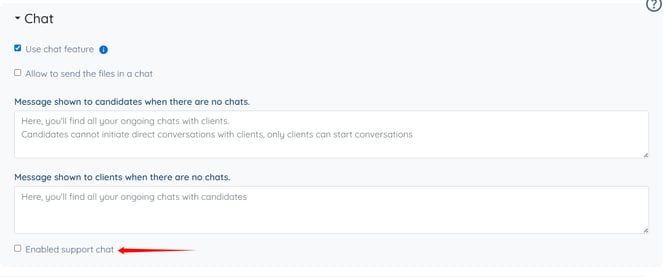
Step 6: Select the admin manager in the Default agent to whom new support chats are assigned if necessary field to assign new support chats automatically. 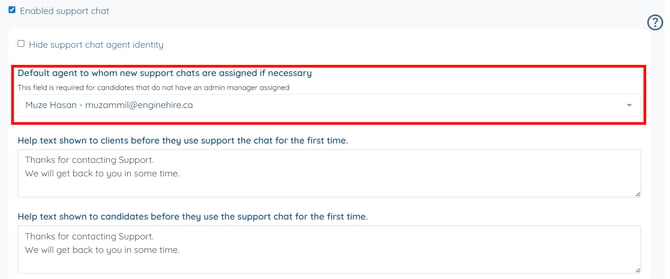
Clients and candidates will now be able to initiate support chats with admins successfully.
Initiate a New Chat
Initiate a new support chat from the app to communicate directly with the assigned admin.
Step 1: Log in to your app and click the chat icon.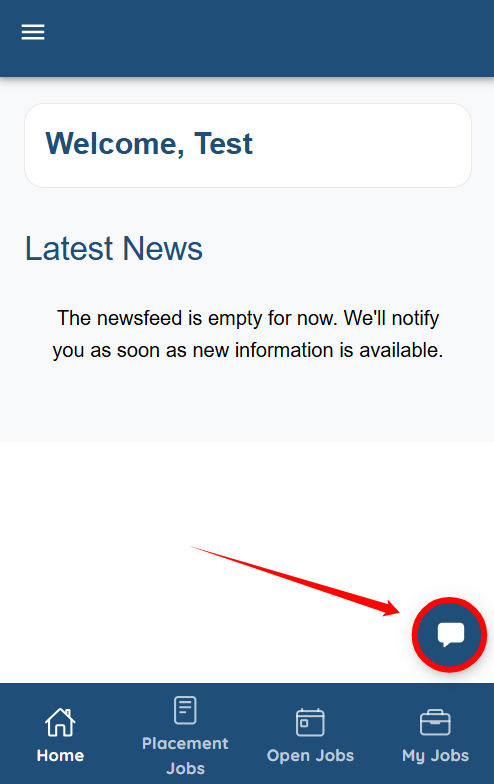
Step 2: Click the green icon to initiate a conversation.
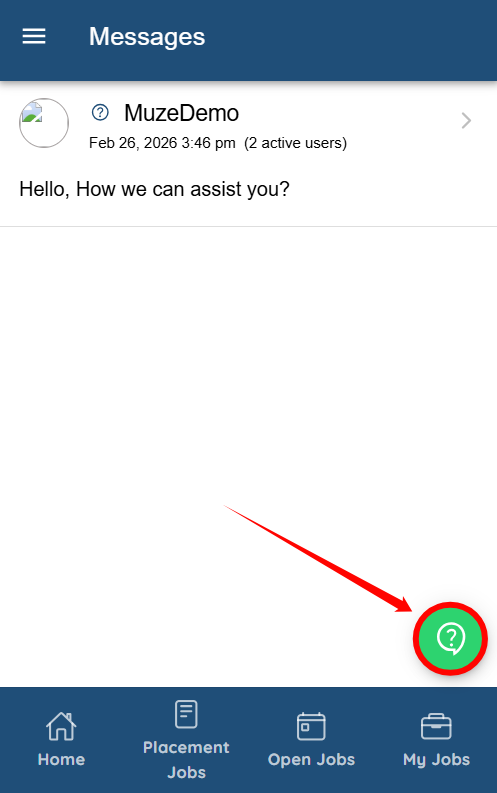
Step 3: Enter your message and click the send button.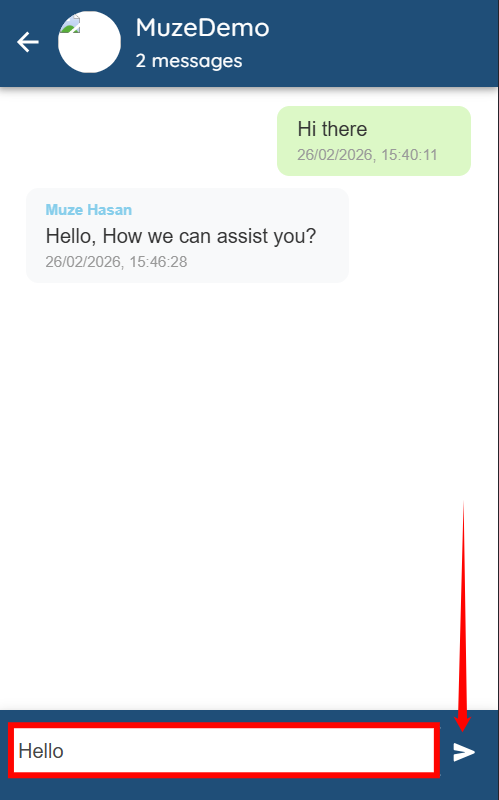
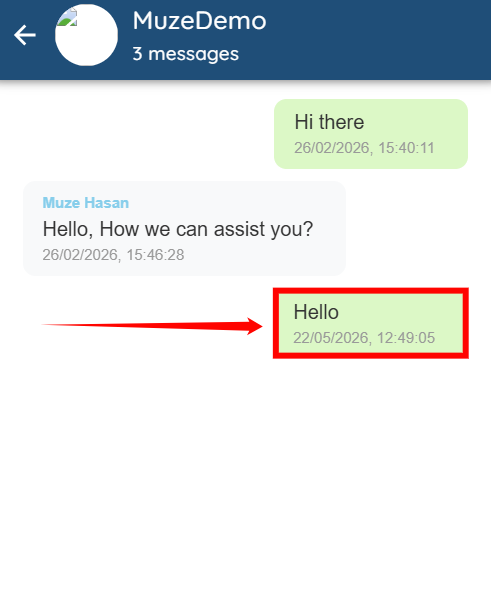
The message will be sent successfully to the admin.
Agency Side
Access and manage incoming support chats from clients and candidates through the agent dashboard.
Step 1: On your agent dashboard, click the Chat Messages icon.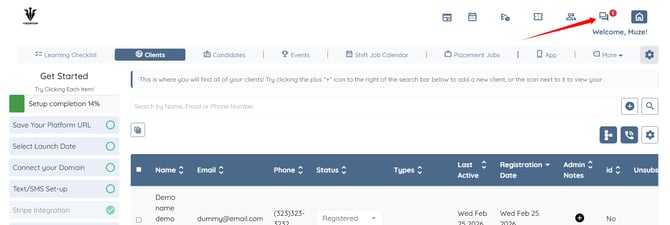
Step 2: Click the new chat conversation to open it. 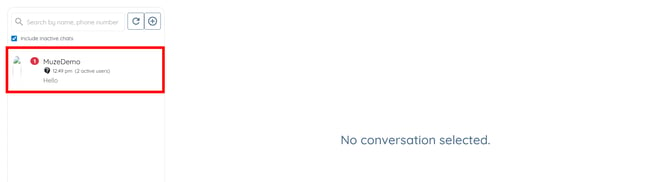
You can now view the received messages in detail and reply to them accordingly.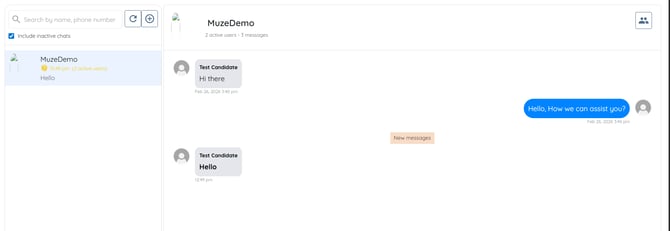
You can also assign a specific manager to a client or candidate for support chats. To learn how, refer to the Assign a Manager for Support Chats section in the Configure and Use the Chat Feature article.