![enginehire logo thin dark 1.0.png]](https://learn.enginehire.io/hs-fs/hubfs/enginehire%20logo%20thin%20dark%201.0.png?height=40&name=enginehire%20logo%20thin%20dark%201.0.png)
Keeping caregiver availability current makes it much easier to staff shifts. The Availability Check trigger on an AI SMS template does this for you: the AI texts caregivers who haven't added availability for next week, saves the availability they reply with on their profile, and can follow up with an AI phone call when they don't reply.
How the AI SMS Availability Check works
Every day, Enginehire checks the caregivers in the status you choose on the template. It texts two groups: caregivers who haven't added any availability for next week, and caregivers who haven't logged in for 2 weeks, so they can confirm their availability is still correct. Each caregiver gets at most one Availability Check text per week.
When a caregiver replies with their availability, the AI saves it on their profile. If you've connected an AI phone call template and the caregiver doesn't reply within the number of hours you set, the AI calls them, asks for their availability and saves what they share. If they don't pick up, the call follows the retry schedule prompt on that phone call template.
Before you start
Setting up an AI SMS template doesn't activate the AI agent on its own. If your agency hasn't used AI SMS before, contact Support to finish activation.
If you want the AI to call caregivers who don't reply, create the phone call first: an outbound AI phone call template with Availability Check as its trigger. Only templates with that trigger can be selected on the SMS template. For how to build one, see Set Up AI Voice Agents with AI Phone Call Templates.
Set up an AI SMS template with the Availability Check trigger
Let’s get started 🚀
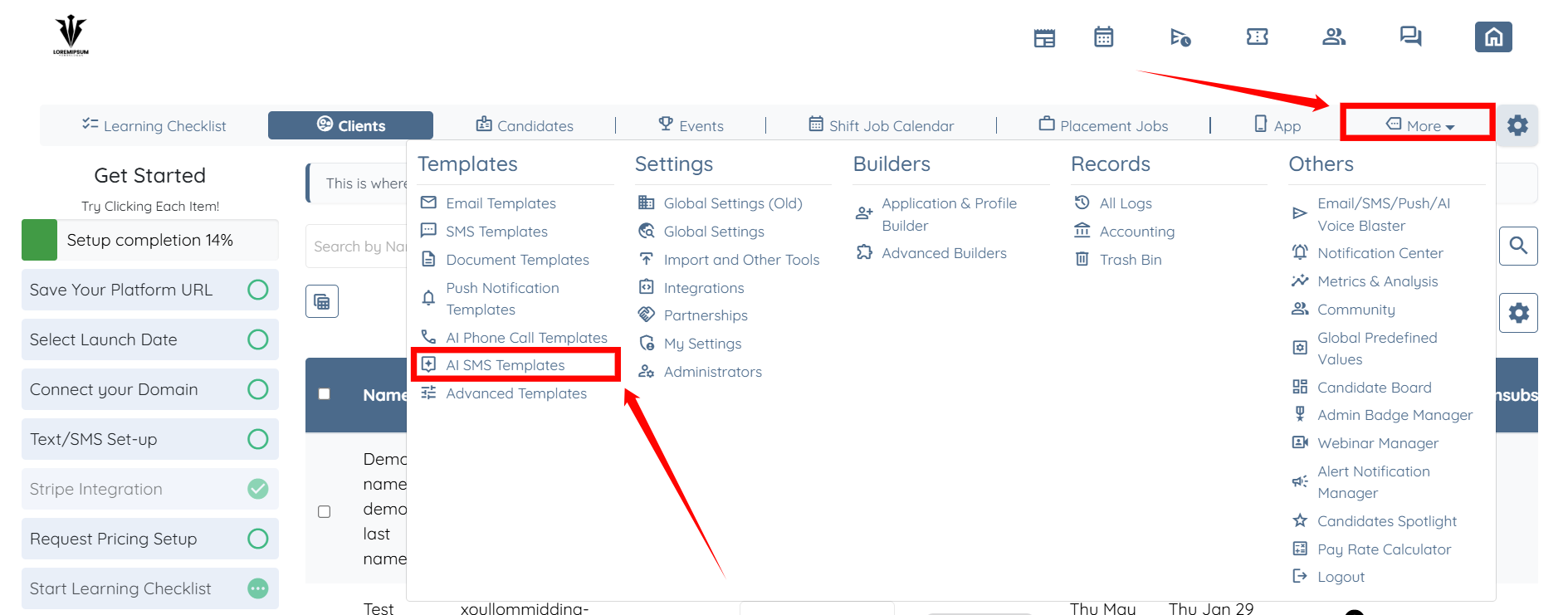
Step 1: Log in to your agent dashboard, then click More > AI SMS Templates.
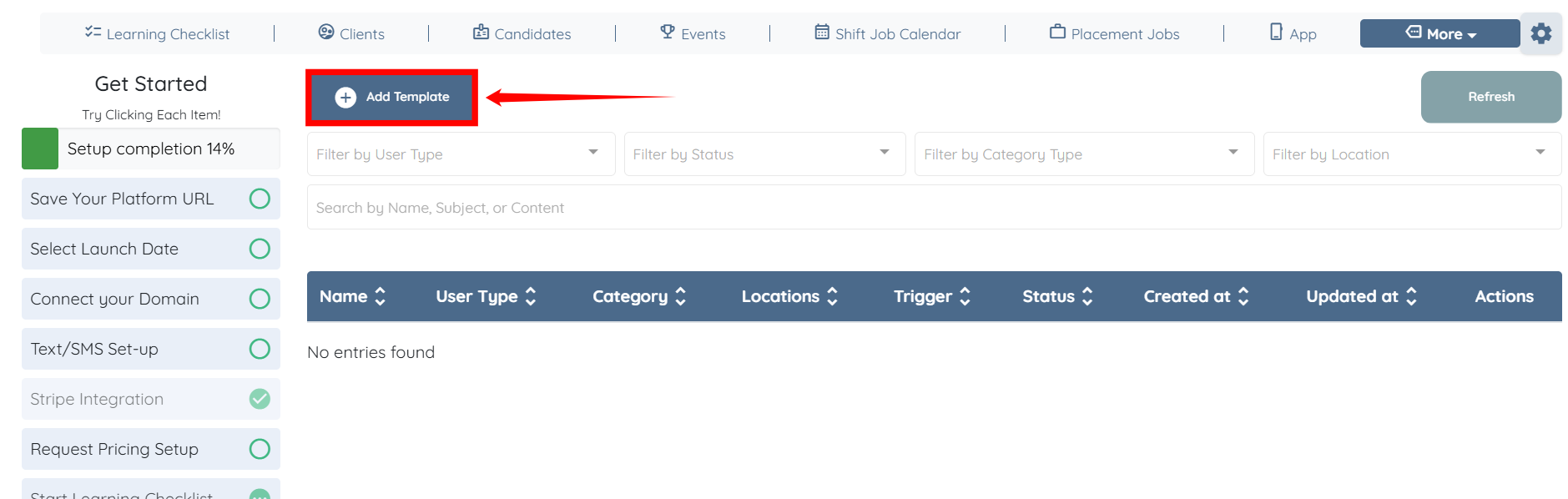
Step 2: Click Add Template and give the template a name.
Step 3: Select Candidate as the Type and Availability Check as the Trigger. A short description of how the trigger works appears below it.

Step 4: In Status, choose the status of the caregivers you want checked, such as your active caregivers. This field is required, and only caregivers in this status are checked. To limit the check to certain types of caregivers, select them in Categories. Leave Categories blank to include every type.

Step 5: In Notification email, add the addresses that should get an email when a caregiver completes an SMS conversation. Click Add to include more than one. Check Send SMS only in business hours if the texts should only go out during your business hours.

Step 6: To call caregivers who don't reply, select your phone call template in AI phone call if the caregiver does not reply, then enter the Hours to wait for a reply before calling, for example 3. Leave the phone call empty if you only want to send the text.

Step 7: Fill in the message and prompt fields the same way as any AI SMS template, using them to explain why you're texting and to ask for the caregiver's availability for next week. Then click Create. For details on these fields, see Set Up AI SMS Workflow Agent.
Check replies and updated availability
Every Availability Check conversation is recorded in AI SMS Logs.
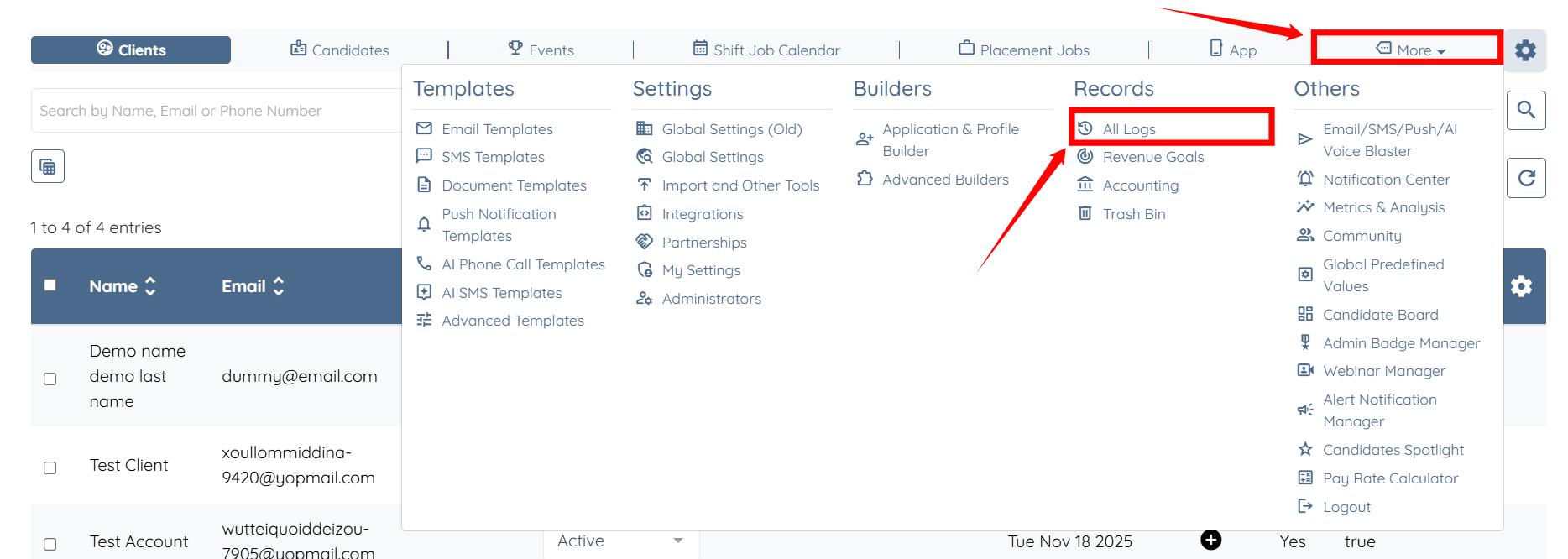
Step 1: Click More > All Logs.
Step 2: Click AI SMS Logs.
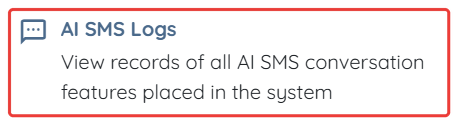
Each row shows the caregiver, the SMS type, the attempt and the conversation status. Use the Messages and Structured Output columns to review what was said and what the AI captured.

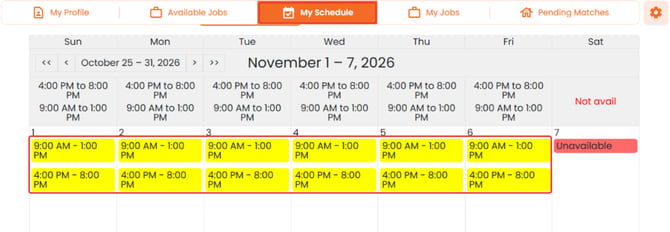
To see the availability the AI saved, open the caregiver's profile and go to My Schedule. Next week's availability shows on the calendar.
Good to know
The check runs on a schedule, not the moment something changes, so a caregiver who just moved into the selected status won't get the text right away.
Once a conversation is complete, the AI doesn't reply to new texts from that caregiver. If a caregiver texts again later to change their availability, update it on their profile.