![enginehire logo thin dark 1.0.png]](https://learn.enginehire.io/hs-fs/hubfs/enginehire%20logo%20thin%20dark%201.0.png?height=40&name=enginehire%20logo%20thin%20dark%201.0.png)
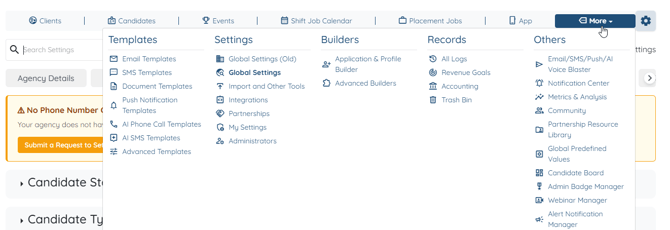
Open the More menu in the top navigation bar and select Global Settings from the Settings column.
Inside Global Settings you'll see a row of tabs across the top: Agency Details, Notifications, Candidates, Clients, Jobs, and more. Candidates and clients are configured separately, so start with the tab for the group you want to change. Scroll down within that tab until you reach the Access Control and Visibility Settings section, and expand it if it's collapsed.
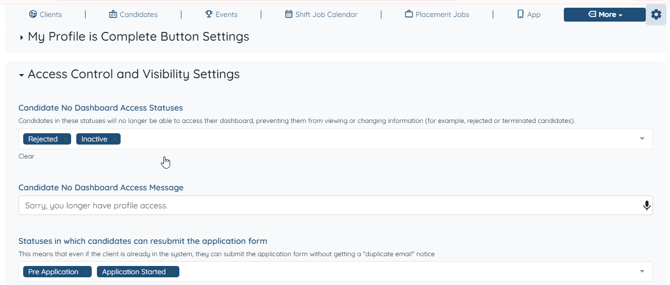
Block dashboard access for candidates by status
On the Candidates tab, the first field in Access Control and Visibility Settings is Candidate No Dashboard Access Statuses. Click into the field and select any status that should lose access. Each status you pick is added to the field as a tag, and you can remove one by clicking the small x on that tag or wipe the whole field using the Clear link underneath it.

Candidates who move into one of these statuses will no longer be able to reach their dashboard, which means they can't view or change any of their information. Rejected and terminated candidates are the most common reason agencies use this, but any status in your list can be added.
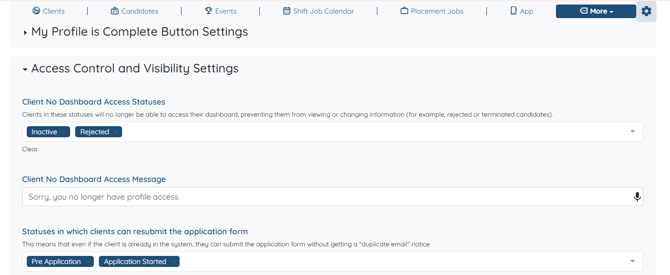
Block dashboard access for clients by status
The Clients tab works exactly the same way. Expand Access Control and Visibility Settings and use the Client No Dashboard Access Statuses field to choose the statuses that should lose access.

Keep in mind that candidate statuses and client statuses are two separate lists. Blocking Inactive candidates does nothing to your clients, so if you want the same rule on both sides, set it in both tabs.
Customize the message they see
Directly below the status field is Candidate No Dashboard Access Message on the Candidates tab, and Client No Dashboard Access Message on the Clients tab. Whatever you write here is what a blocked candidate or client sees in place of their dashboard, so it's worth being brief and clear about what happened and who they should contact if they think it's a mistake. Something like "Your profile is no longer active. Please reach out to our office if you have questions" reads better than a bare error.
Still have questions? Contact us here and we'll help you get it set up.