![enginehire logo thin dark 1.0.png]](https://learn.enginehire.io/hs-fs/hubfs/enginehire%20logo%20thin%20dark%201.0.png?height=40&name=enginehire%20logo%20thin%20dark%201.0.png)
Let’s get started 🚀
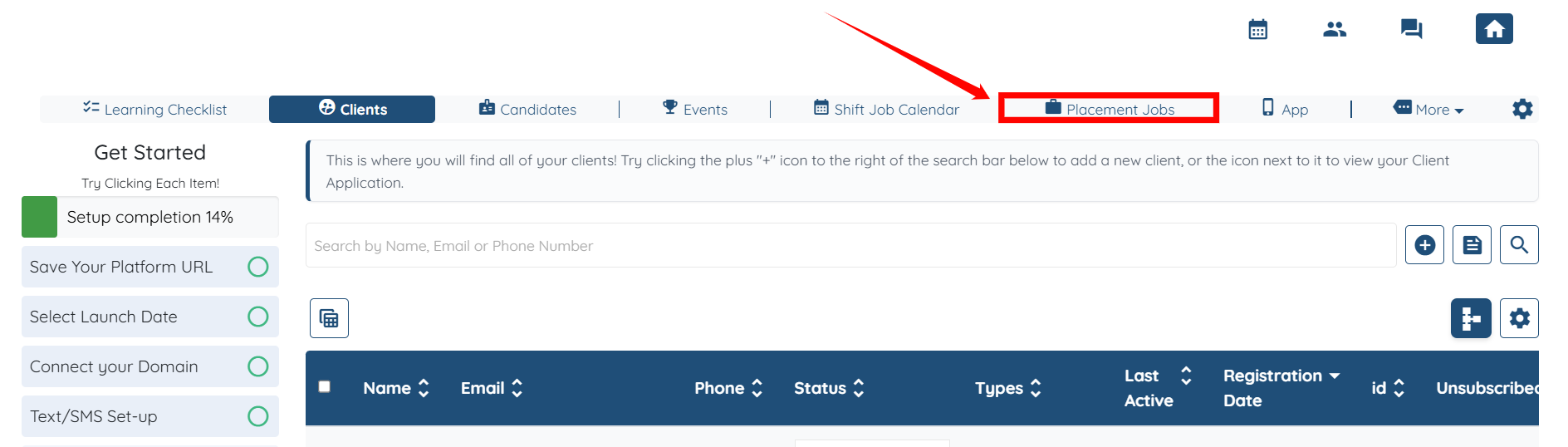
Step 1: Log in to your agent dashboard, then click on the Placement Jobs option in the top navigation bar.
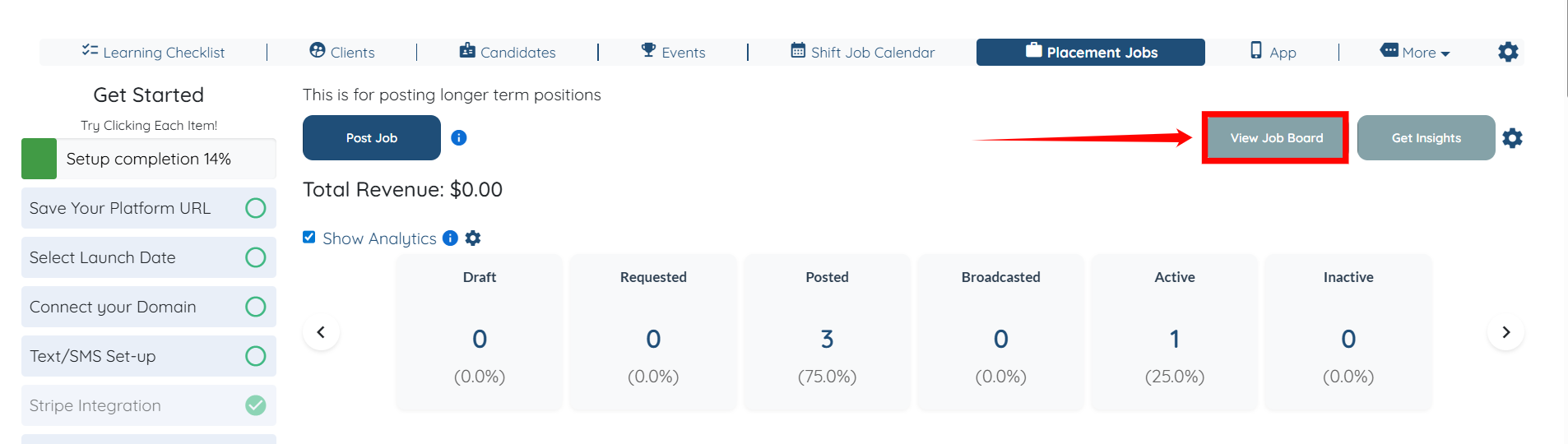
Step 2: Click the View Job Board button on the right-hand side.
Step 3: Click the Gear icon located next to the Placement (Part Time and Full Time) Opportunities heading.

Step 4: Locate the Select Fields of the Job Board option and click the box to open the dropdown.
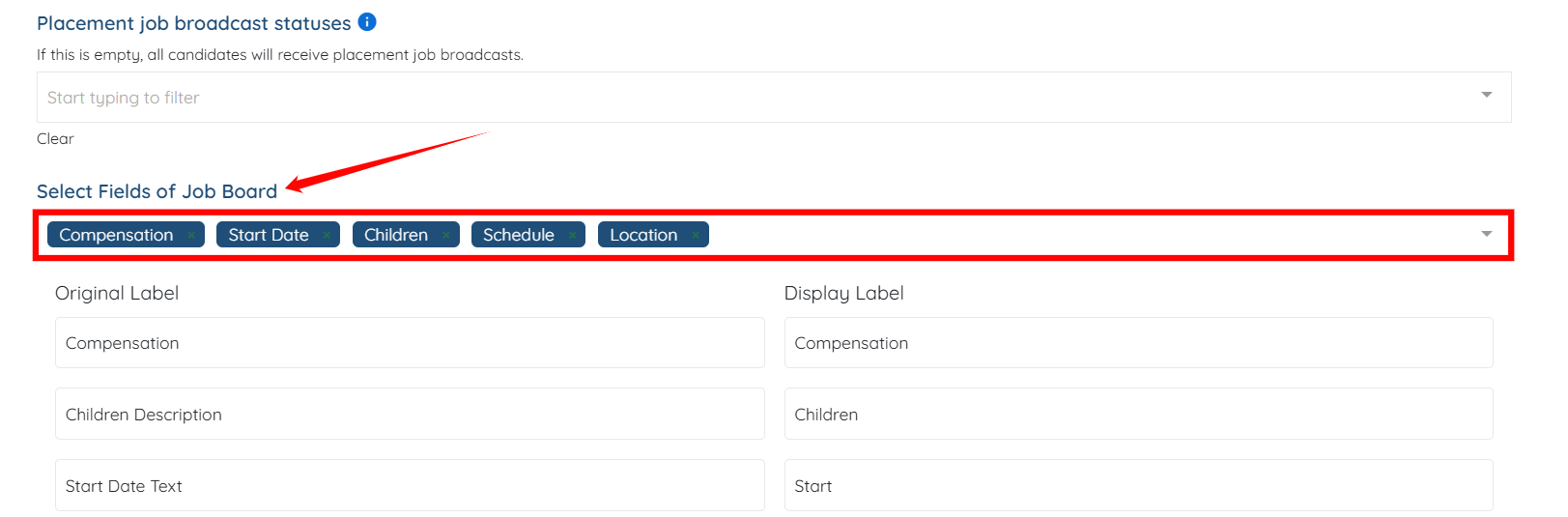
Step 5: Select the fields you want to add from the dropdown, for example, the Title field.
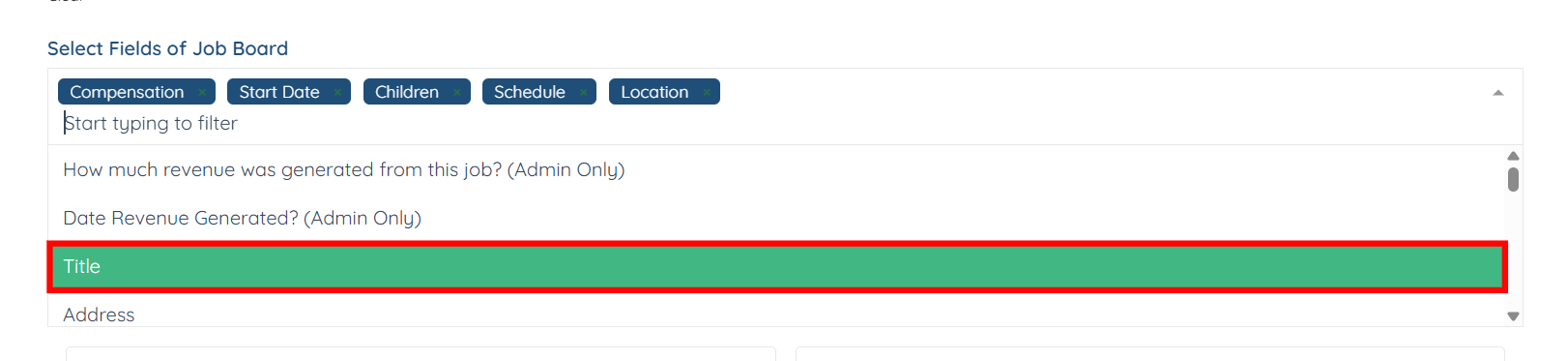
Step 6: You can also remove the field from the job board by hovering over the selected field and clicking the cross icon if it is no longer needed.

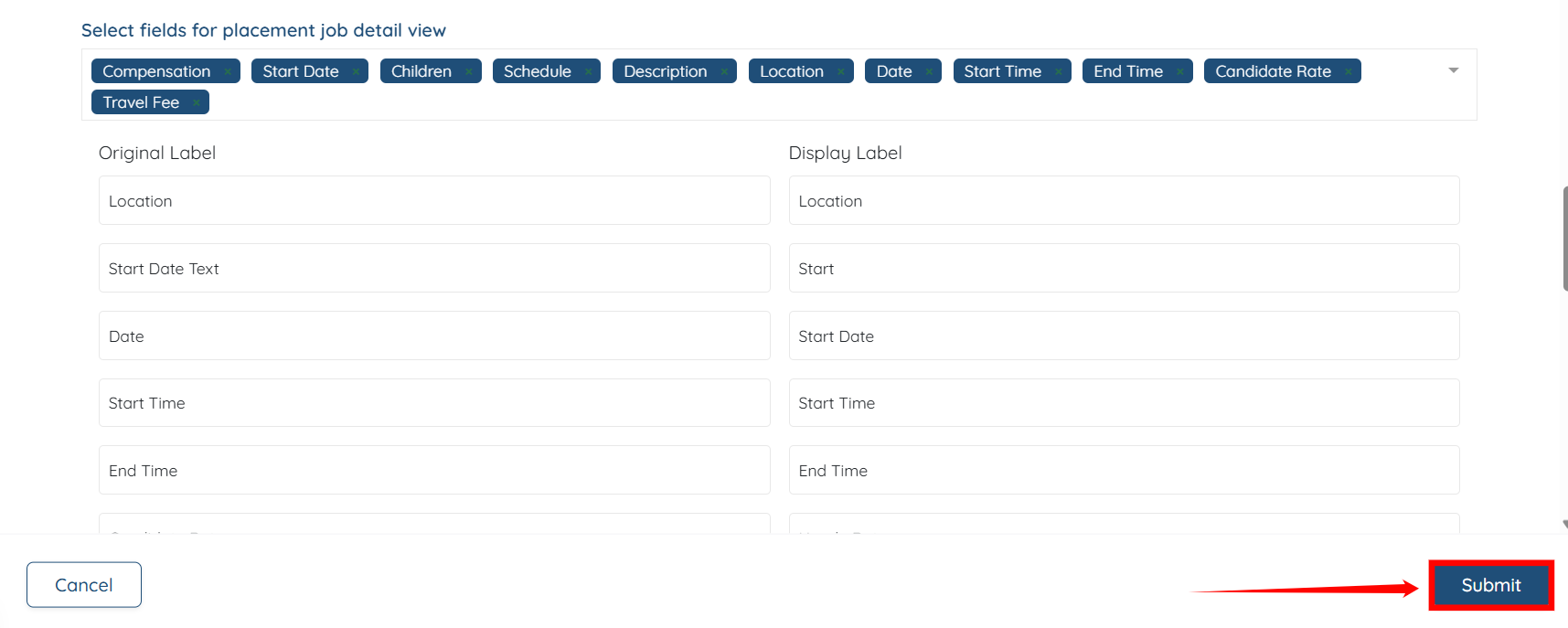
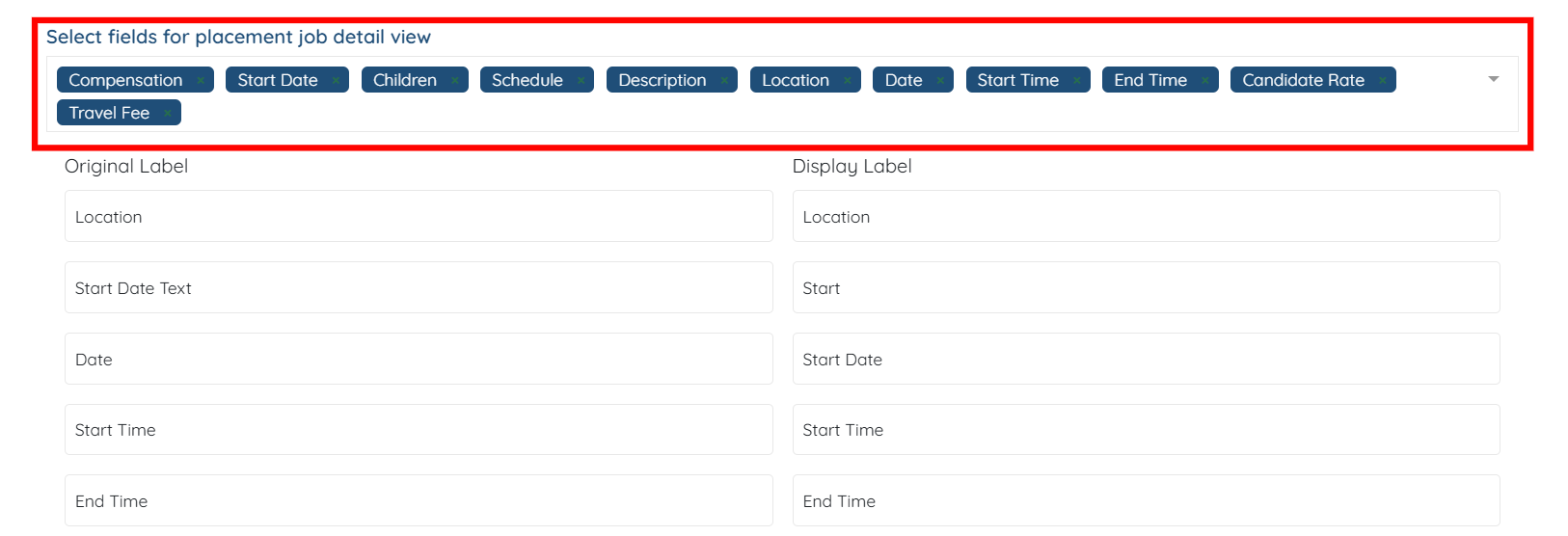
Step 7: Similarly, you can add or remove fields on the job board that are displayed to the candidate when they click the 'Read More' button for any job.
Step 8: Click the Submit button to proceed after making the required changes.