![enginehire logo thin dark 1.0.png]](https://learn.enginehire.io/hs-fs/hubfs/enginehire%20logo%20thin%20dark%201.0.png?height=40&name=enginehire%20logo%20thin%20dark%201.0.png)
Let’s get started 🚀
Note: The procedure is the same for both candidate and client profiles. This guide illustrates the process using a candidate profile as an example.
Step 1: Navigate to the Candidate Section.
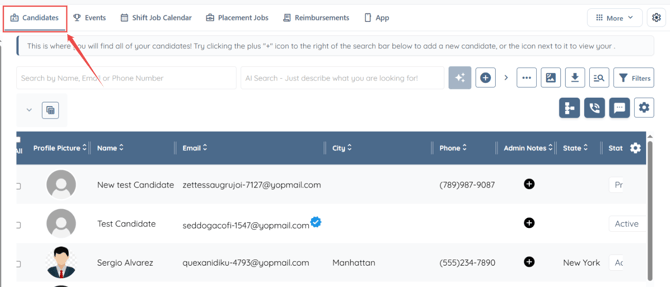
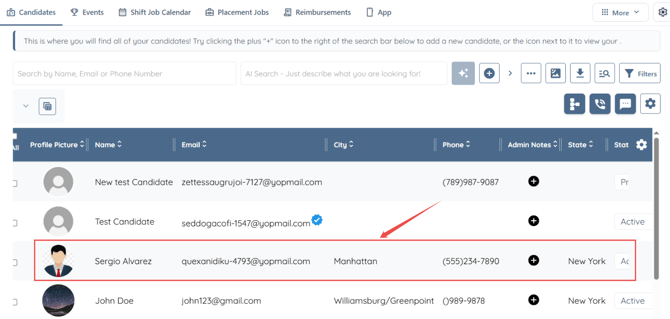
Step 2: Choose the candidate profile to which you would like to append notes.
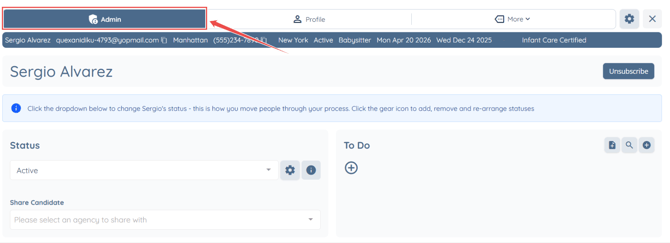
Step 3: Navigate to the Admin tab.
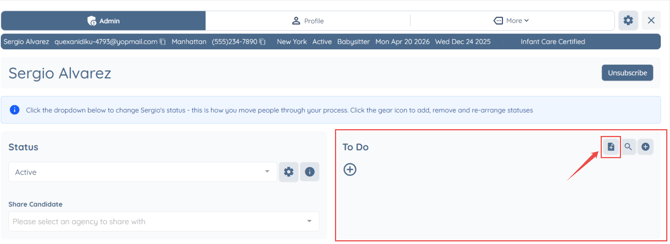
Step 4: When no To-Do list is present, you can still add Notes by clicking on the Notes icon, as demonstrated in the screenshot below.
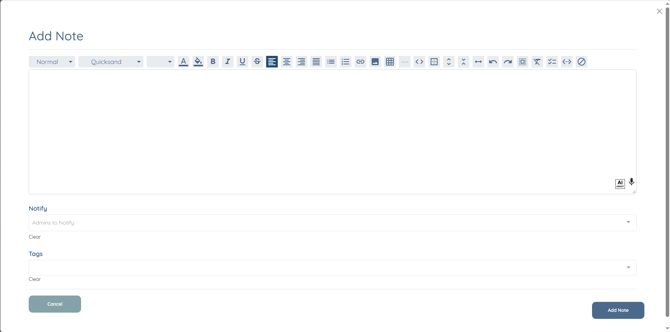
Step 5: A pop-up window will prompt you to enter the required information:
- Description: Provide all relevant details regarding the note.
- Notify: Choose the administrators you wish to notify from the drop-down menu.
- Tags: Choose the tags you would like to associate with this note.
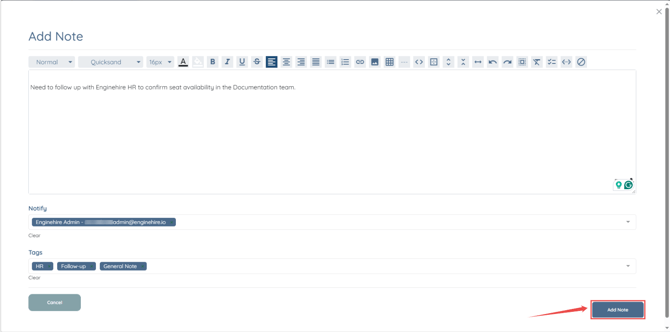
Step 6: After entering the information, click the Add Note button to save the note.
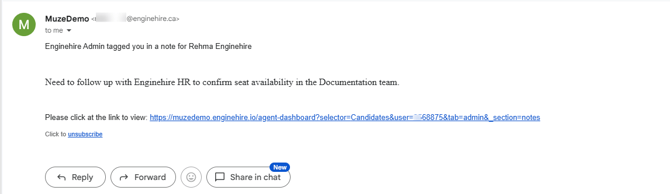
Step 7: As shown below, the administrator selected from the Notify drop-down menu will receive an email notification.
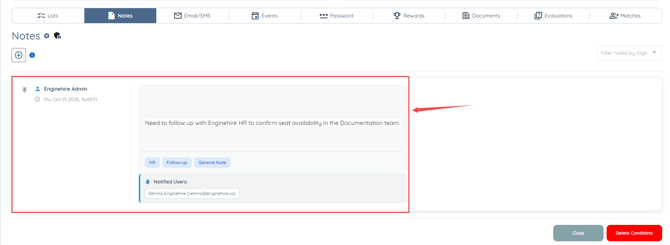
Step 8: Notes can be viewed directly within the Notes section of the Admin dashboard.
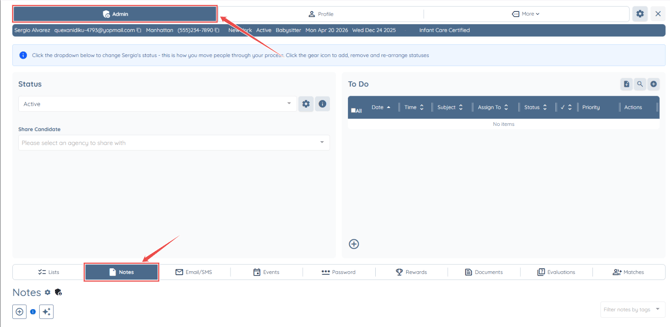
You are all set! Once added, notes created in the To-Do list section will be displayed here automatically.
If you need any further assistance, feel free to contact our support team by clicking here: https://share.hsforms.com/1yIx2IRKyQQaVcMJW8kLbJg39wil