![enginehire logo thin dark 1.0.png]](https://learn.enginehire.io/hs-fs/hubfs/enginehire%20logo%20thin%20dark%201.0.png?height=40&name=enginehire%20logo%20thin%20dark%201.0.png)
Let’s get started 🚀
Note: The procedure is identical for both candidate and client profiles. This guide illustrates the process using a candidate profile as an example.
Step 1: Navigate to the Candidate Section.
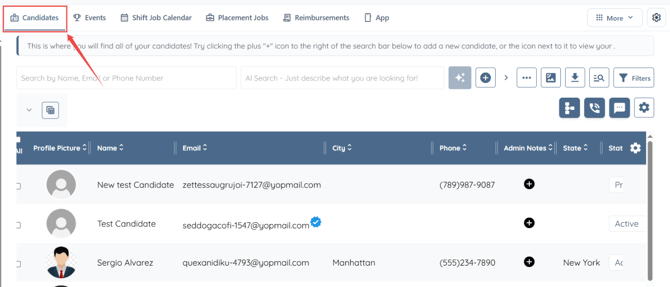
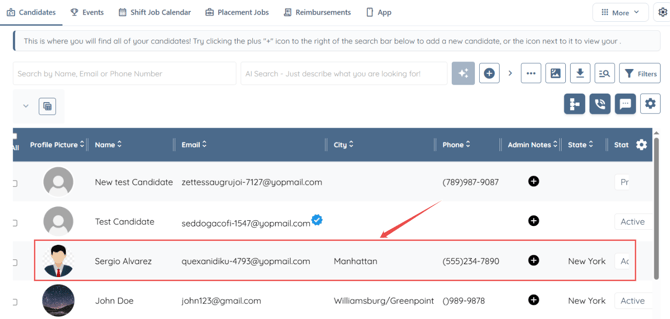
Step 2: Choose the candidate profile to which you would like to add a secondary login email.
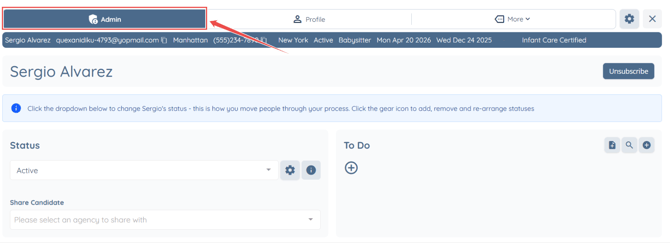
Step 3: Navigate to the Admin tab.
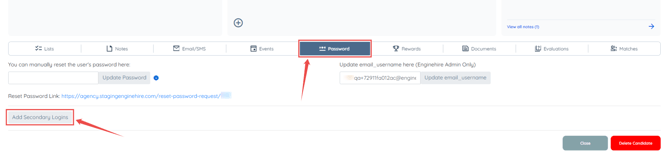
Step 4: Scroll down to locate and select the Password tab, then click the Add secondary Logins button.
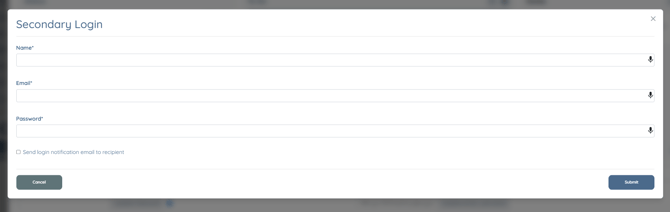
Step 5: A pop-up window will prompt you to enter the required information such as Name, Email, and Password:
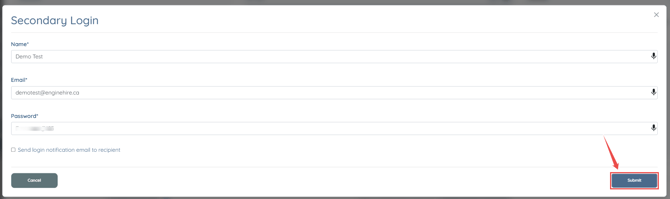
Step 6: After entering the information, click the Submit button.
Step 7: It will start reflecting the Password tab.
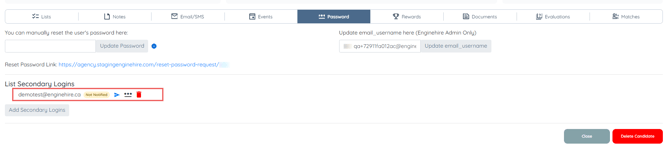
Note: You can also set up multiple secondary logins as needed.
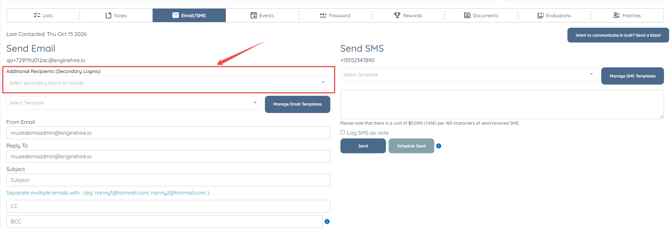
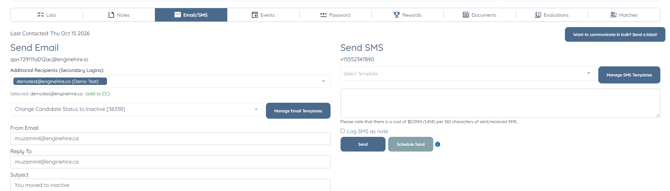
Step 8: Navigate to the Email/SMS tab.
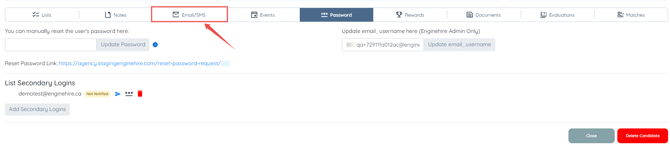
You are all set! Once saved, this new secondary login email will be listed as an available recipient, allowing you to send any email template directly to them.
If you need any further assistance, feel free to contact our support team by clicking here: https://share.hsforms.com/1yIx2IRKyQQaVcMJW8kLbJg39wil