![enginehire logo thin dark 1.0.png]](https://learn.enginehire.io/hs-fs/hubfs/enginehire%20logo%20thin%20dark%201.0.png?height=40&name=enginehire%20logo%20thin%20dark%201.0.png)
Bright Horizons Instant Book jobs are routed through a dedicated Enginehire dashboard, BrightHorizonsInstantBook (agency 1204). Before an agency can be assigned Instant Book jobs, each of its Bright Horizons providers has to be added there in BH Provider Manager and linked to the agency's own Enginehire dashboard.
A provider is identified by its Provider ID, a GUID that Bright Horizons assigns to each provider account in the format xxxxxxxx-xxxx-xxxx-xxxx-xxxxxxxxxxxx. An agency with several Bright Horizons locations has a separate provider, and a separate Provider ID, for each one.
The process has four steps:
- Turn on Instant Book in the agency's dashboard.
- Get the Provider ID for each of the agency's providers.
- Add each provider in BH Provider Manager.
- Link caregivers to their provider.
This is done in the agency's own dashboard. Until it's on, the agency doesn't appear in the Agency list when you add a provider in Step 3.
- In the agency's dashboard, go to More > Global Settings.
- Type instant in the search bar.
- In the Agency Details tab, under Enginehire Admin Settings, check Allow this agency to be assigned jobs from BH instant book.

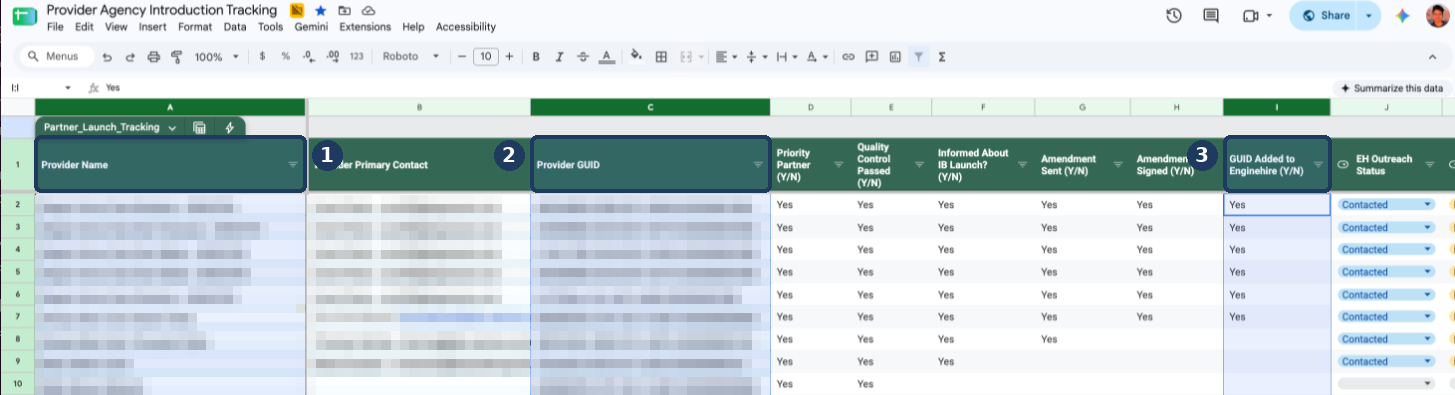
The Provider Agency Introduction Tracking sheet lists the Provider Name and Provider GUID for the agencies Bright Horizons has shared with us, in the IB Launch Priority Partners tab. These GUIDs were provided by Bright Horizons, so they can be used as they are.
- Find every row for the agency in the Provider Name column. Agencies with several locations have one row per location.
- Copy the Provider Name and Provider GUID for each row.
- Check GUID Added to Enginehire (Y/N). A row marked Yes has already been added, so skip it.
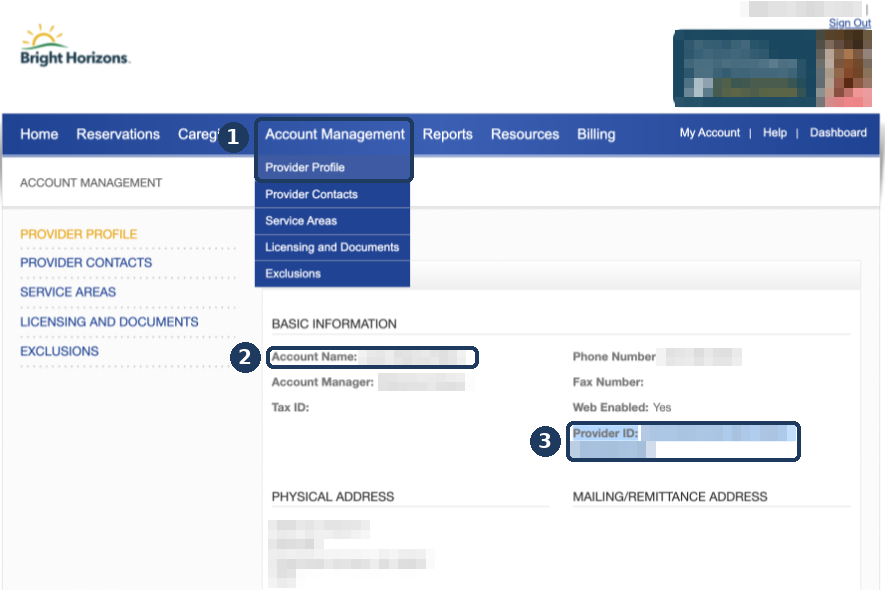
Get the Provider ID from the agency's Bright Horizons provider portal (providernetwork.brighthorizons.com).
- Log in to the agency's Bright Horizons portal.
- Go to Account Management > Provider Profile.
- Under Basic Information, copy the Account Name (this is the provider name) and the Provider ID (this is the GUID).
- If the agency has more than one Bright Horizons portal, repeat this in each one.
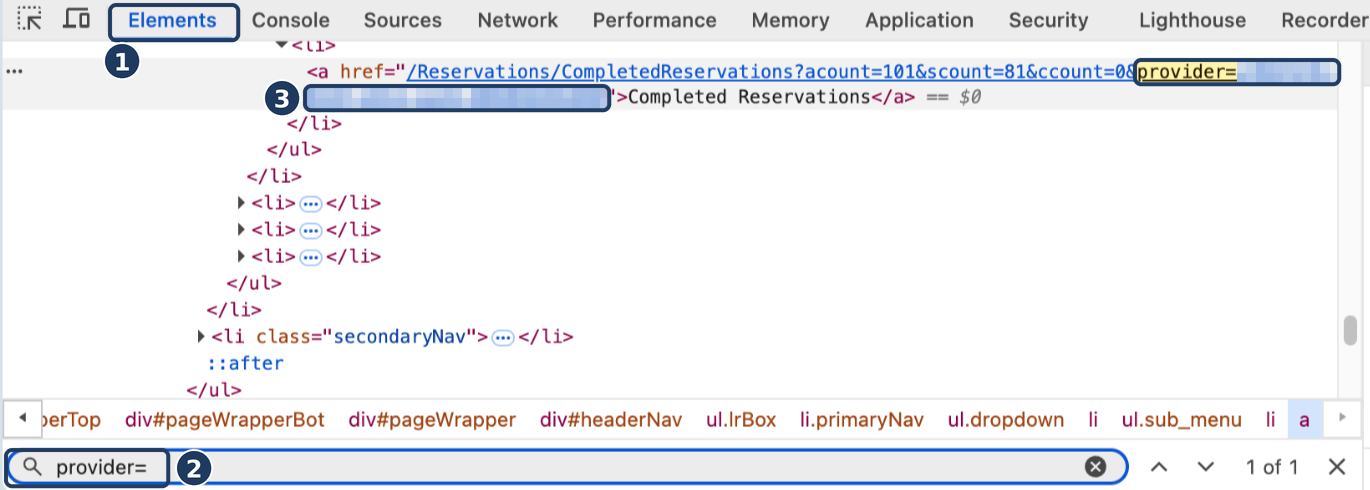
You can also find the Provider ID in the portal’s page code:
- In the agency’s Bright Horizons portal, right-click anywhere on the page and select Inspect (or Inspect Element).
- Open the Elements tab.
- Press Ctrl+F (Cmd+F on a Mac) and search for provider=.
- In the highlighted link, copy the GUID right after provider=. This is the Provider ID.
This method only gives you the Provider ID. For the provider name in Step 3, use the Account Name under Provider Profile.
Step 3. Add the provider in BH Provider Manager- Open the BrightHorizonsInstantBook dashboard (agency 1204).
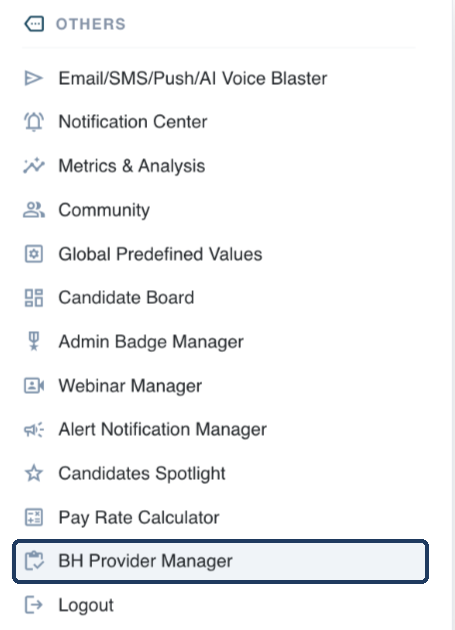
- Go to More > BH Provider Manager. It's in the Others column.
- Click Add Provider.
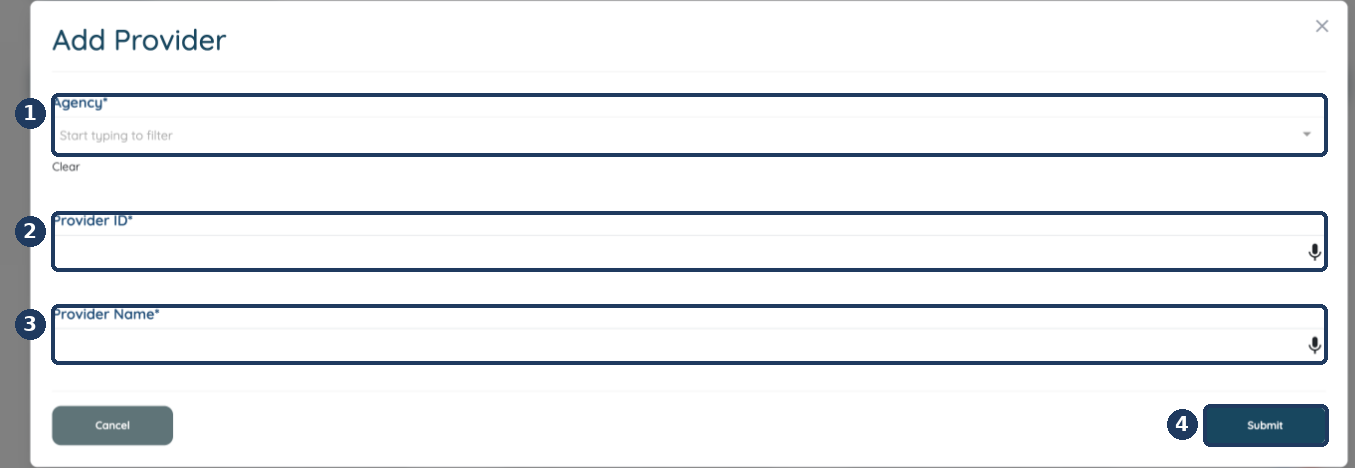
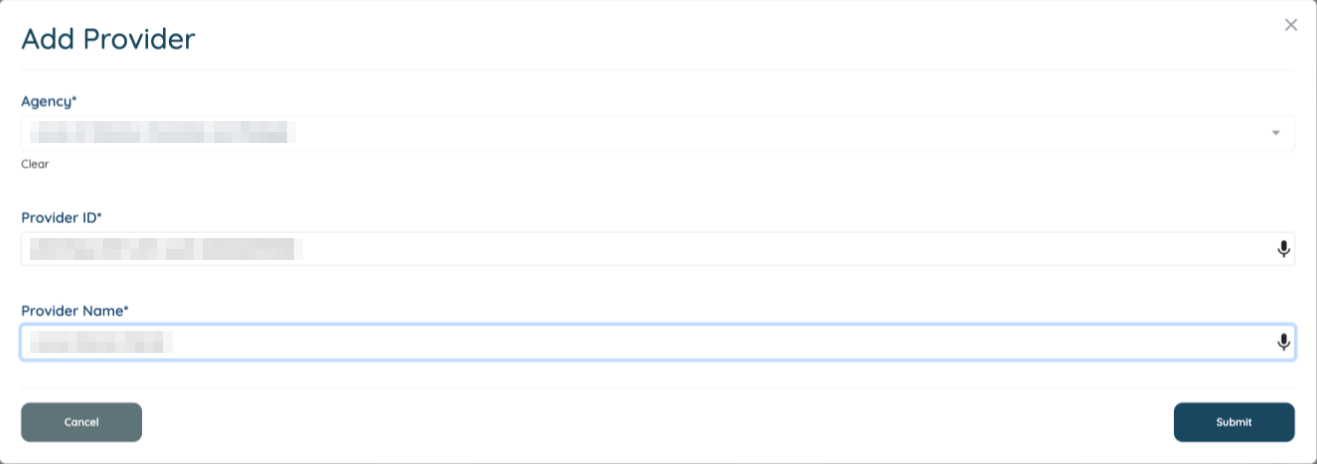
- Complete the Add Provider window using the table below, then click Submit.
- Repeat for each of the agency's providers.
|
Field |
What to enter |
Notes |
|---|---|---|
|
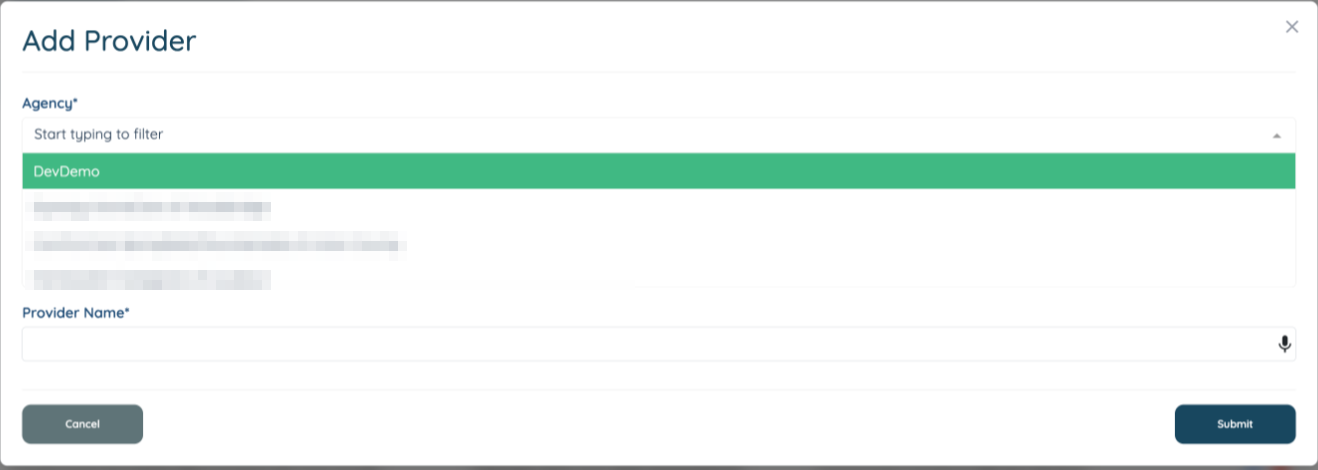
Agency |
The agency's Enginehire dashboard |
Start typing to filter. If the agency isn't listed, Instant Book isn't on yet (Step 1). |
|
Provider ID |
The Provider GUID from the tracking sheet, or the Provider ID from the portal |
Paste it exactly as copied. |
|
Provider Name |
The Provider Name from the tracking sheet, or the Account Name from the portal |
This is the Bright Horizons name, which can differ from the agency's Enginehire name. |
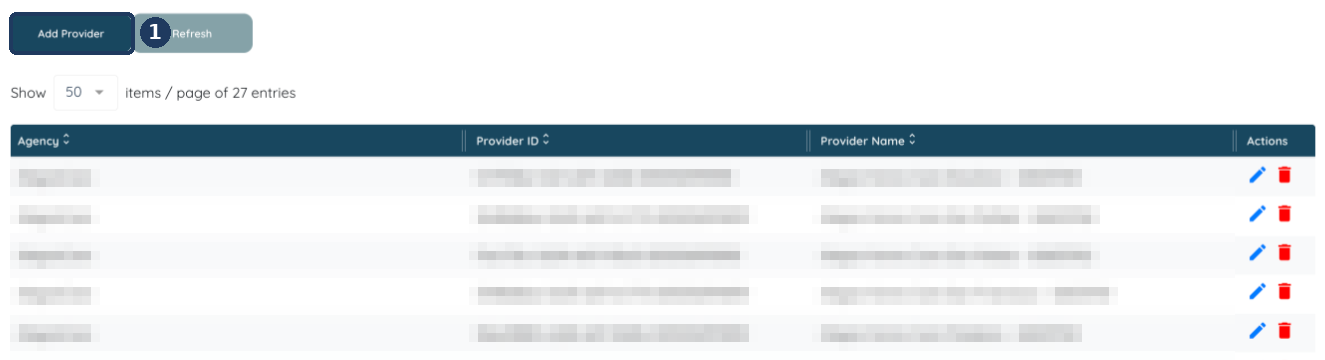
After you submit, the provider appears in the BH Provider Manager table with its Agency, Provider ID, and Provider Name. Use the pencil icon to correct an entry, or the trash icon to remove it.

If the agency is on the tracking sheet, set GUID Added to Enginehire (Y/N) to Yes for each provider you added.
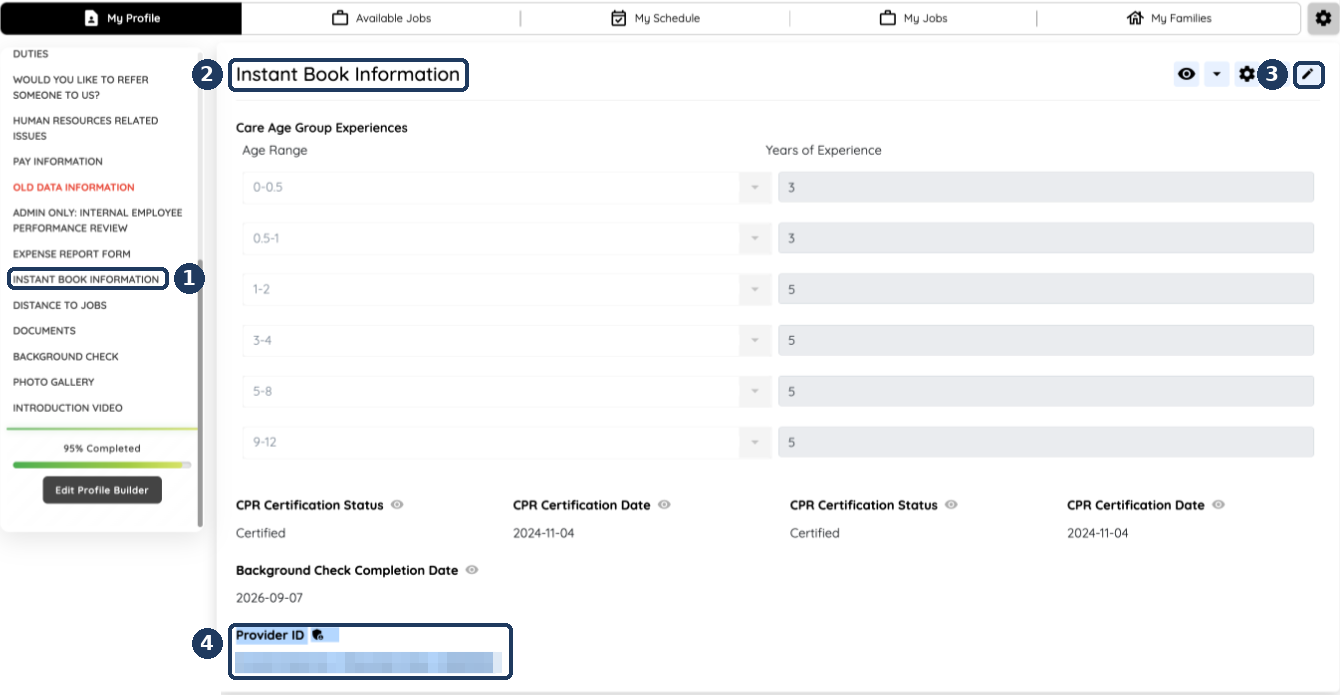
Step 4. Link caregivers to their providerEach caregiver has a Provider ID field in the Instant Book Information section of their profile in the agency's dashboard. It links the caregiver to one of the agency's Bright Horizons providers.
|
IMPORTANT: This is especially critical for agencies with more than one Bright Horizons portal. For each caregiver, select the portal they belong to. |
- In the agency's dashboard, open the caregiver's profile.
- Go to the Instant Book Information section.
- Click the pencil icon to edit the section.
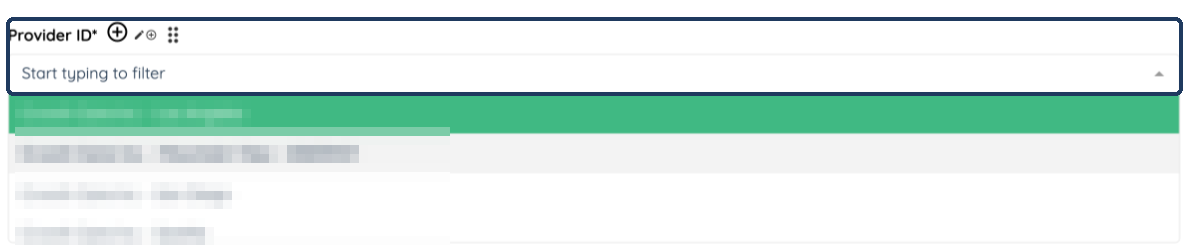
- In Provider ID, select the provider the caregiver belongs to.
|
What you see |
What to check |
|---|---|
|
The agency doesn't appear in the Agency list in Add Provider |
Instant Book isn't turned on for the agency. Check Allow this agency to be assigned jobs from BH instant book in its Global Settings (Step 1). |
|
The agency isn't on the tracking sheet |
Get the Provider ID from the agency's Bright Horizons portal under Account Management > Provider Profile (Step 2). |
|
A provider is missing from a caregiver's Provider ID list |
Confirm the provider was added in BH Provider Manager under the right agency (Step 3). |
Related articles