![enginehire logo thin dark 1.0.png]](https://learn.enginehire.io/hs-fs/hubfs/enginehire%20logo%20thin%20dark%201.0.png?height=40&name=enginehire%20logo%20thin%20dark%201.0.png)
Let’s get started 🚀
Step 1: Log in to your agent dashboard and click More > Email Templates, as shown in the screenshot below. 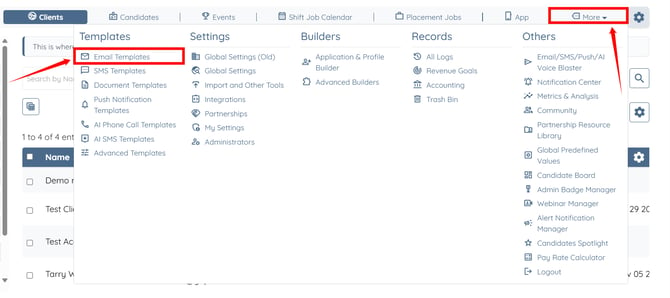
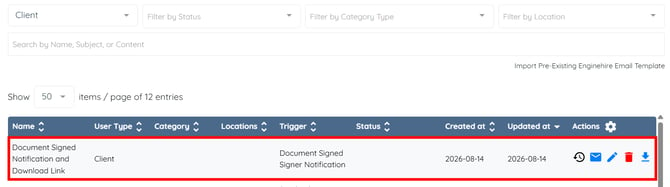
Step 2: Locate and click the email template in which you want to use the [[current_user_status]] tag.
Step 3: Click the Content button to jump to the email template content.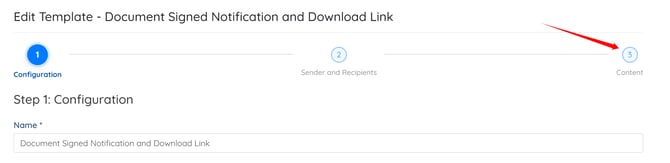
Step 4: Click the [[current_user_status]] tag to copy it, then paste it into the email Subject or Body as required. 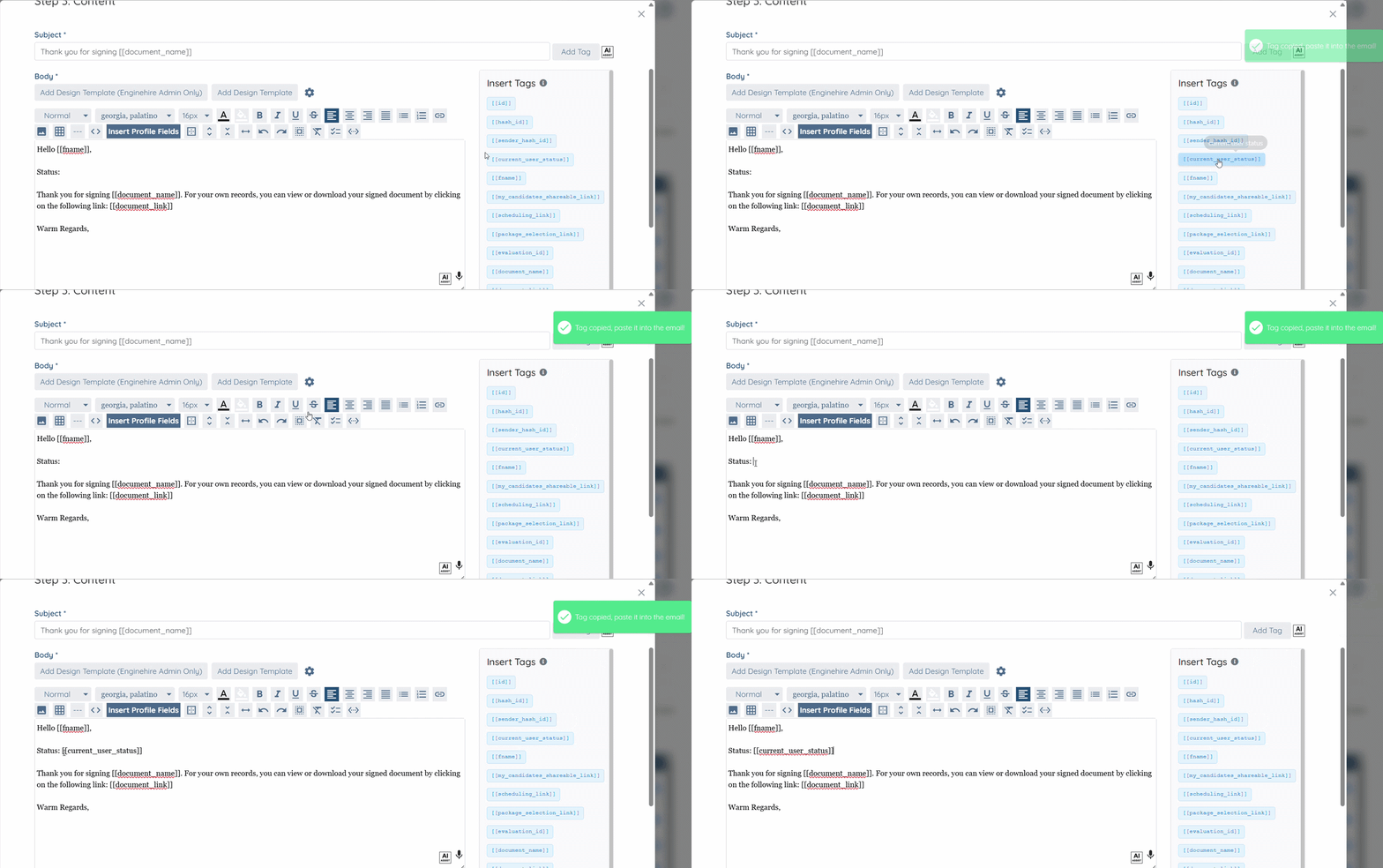
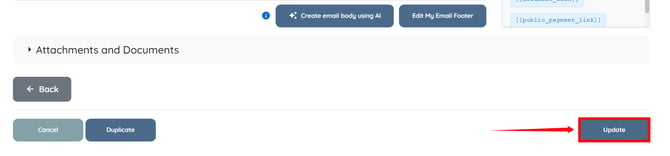
Step 5: Click the Update button to confirm your changes.