![enginehire logo thin dark 1.0.png]](https://learn.enginehire.io/hs-fs/hubfs/enginehire%20logo%20thin%20dark%201.0.png?height=40&name=enginehire%20logo%20thin%20dark%201.0.png)
Let's get started 🚀
Step 1: Log in to your agent dashboard and click More > Global Settings, as shown in the screenshot below. 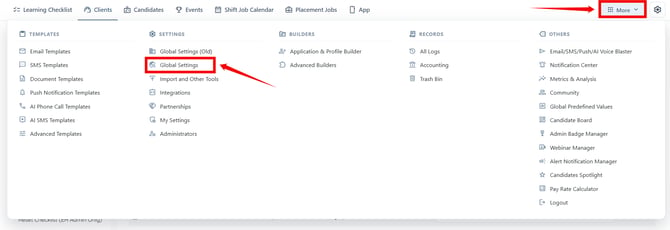
Step 2: Click the Agency Details tab from the available tabs.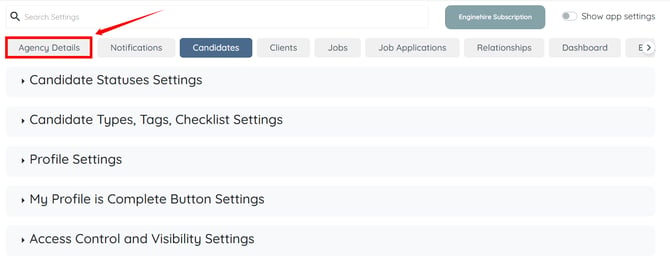
Step 3: Click the Language & Locations option to expand and view its details.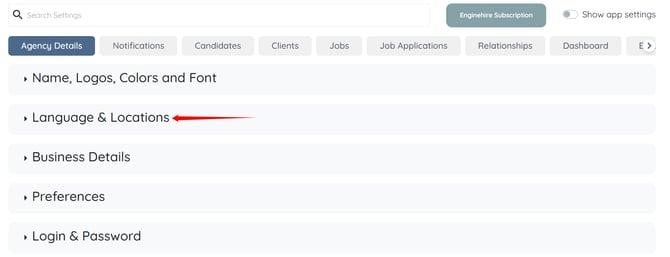
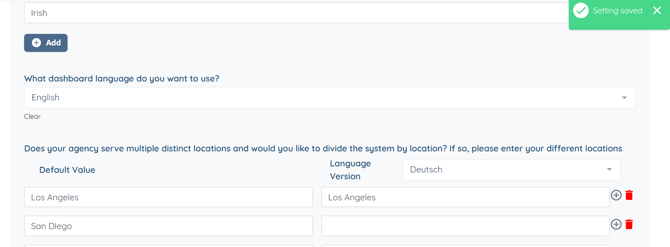
Step 4: Click the box next to the Language Version field to open the dropdown list.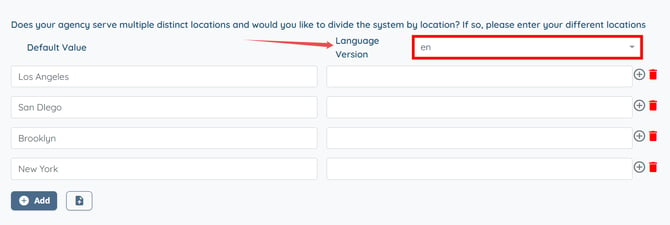
Step 5: Select the language version for which you want to add a translated location value. 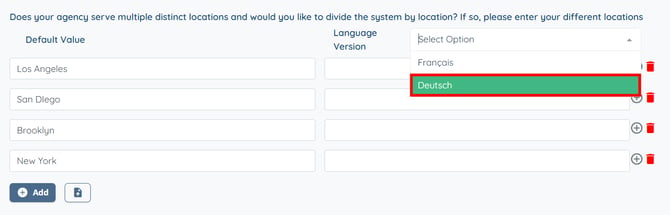
Step 6: Enter the translated location value as you selected in the previous step for the Default value.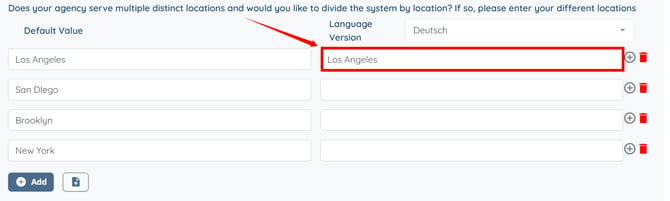
The setting will be saved automatically.