![enginehire logo thin dark 1.0.png]](https://learn.enginehire.io/hs-fs/hubfs/enginehire%20logo%20thin%20dark%201.0.png?height=40&name=enginehire%20logo%20thin%20dark%201.0.png)
The client must already have a profile created in the platform. Only then will they be able to access the package selection link.
You need to add the Package Selection section to the client profile, as this section is not displayed by default in the Client Profile Builder. First, add it to the client profile by creating a new field using the default/preset Package Selection section in the Client Profile Builder.
To learn how to add the default/preset section, refer to the Add a Preset/Default Section to Profile article.
After adding the default/preset section to the Client Profile Builder, you also need to configure the package(s) for the client in Settings. To learn how to set up packages, refer to the Set Up and Configure Client Packages article.
Let’s get started 🚀
Access Package Selection Section
Before adding the Package Selection link to an email template, make sure the client profile includes the Package Selection section.
Step 1: Log in to your agent dashboard and click the Clients tab as shown in the screenshot below.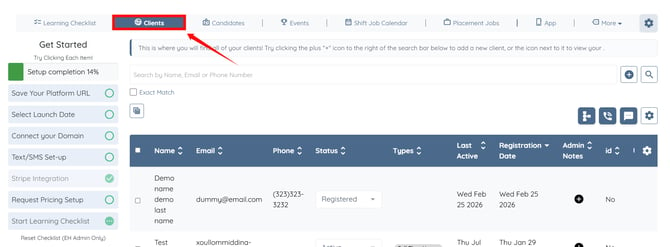
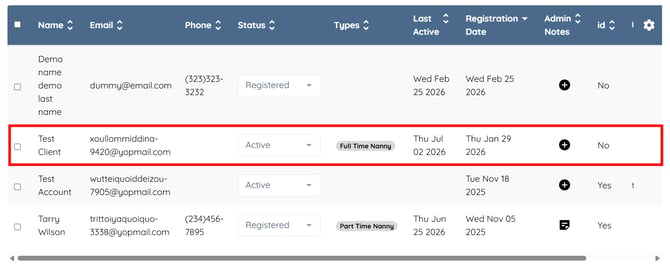
Step 2: Open the client profile for which you want to access the Package Selection section.
You will be navigated to the client profile page.
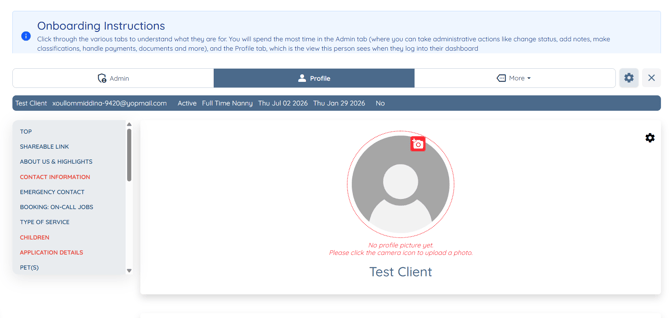
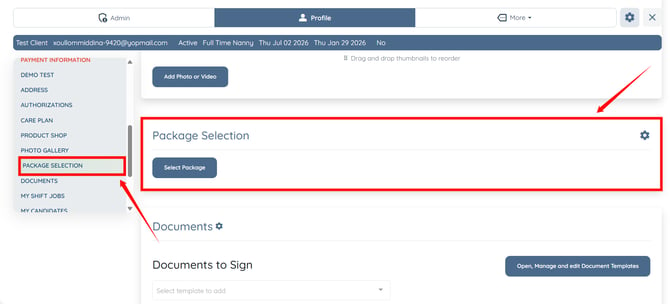
Step 3: Click Package Selection option from the left-hand side navigation menu to open the Package Selection section.
Step 4: Click the Select Package button and choose a package from the available list. 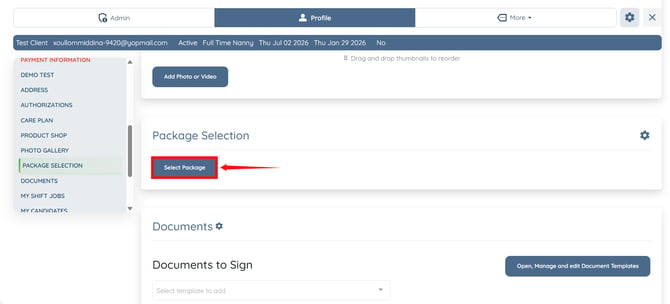
Add Package Selection Link in the Email Template
Add the package selection link to an email template so clients can access it directly from the email.
Step 1: Click More > Email Templates as shown in the screenshot below.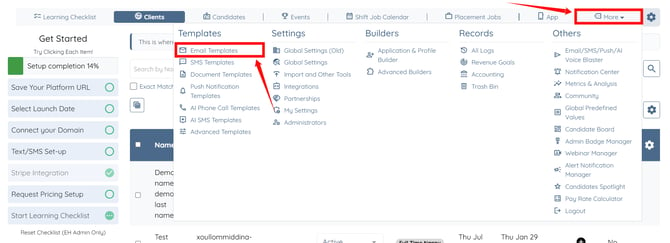
Step 2: Click Add Template to create a new email template.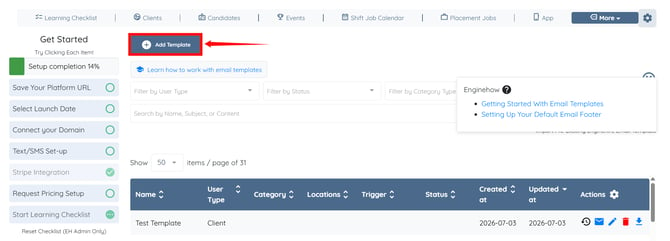
Step 3: Enter a name for the email template. 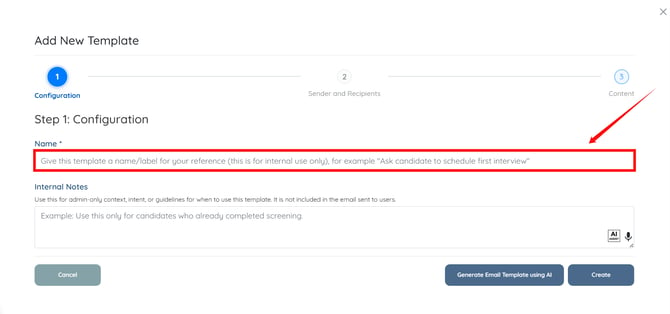
Step 4: Enter internal notes to describe when the template should be used. 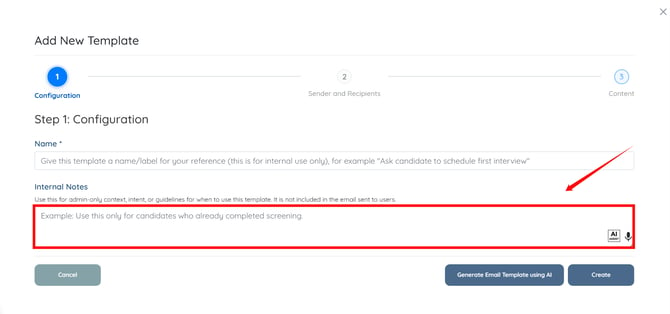
For more information about why to add internal notes to email templates, refer to the Add Internal Notes to Email Templates article.
Step 5: Select Client option in the dropdown list from the Type field.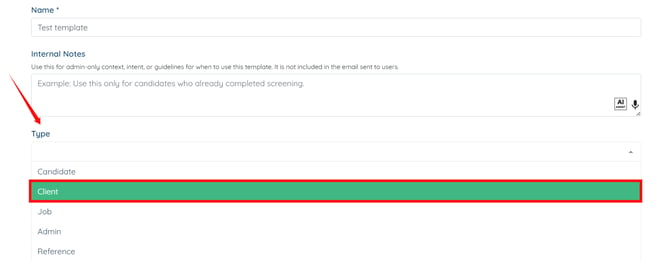
Step 6: Select the Status Change Notification trigger that determines when this email should be sent to the client. 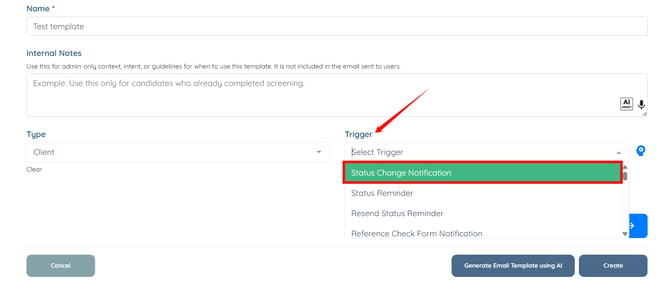
Step 7: Click the Content button to jump to the email template body. 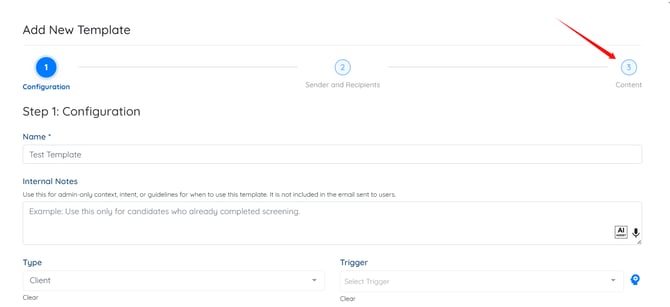
Step 8: Enter the subject of the email template.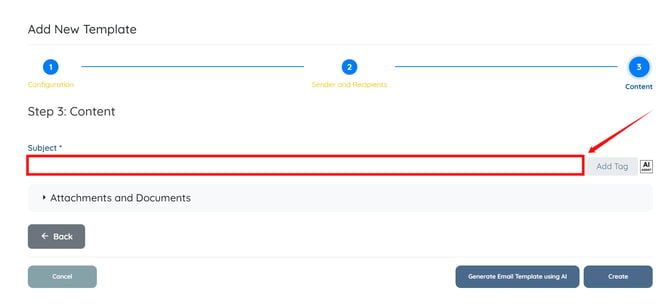
Step 9: Under the Insert Tags section, click the {package_selection_link} tag to copy it, then paste it into the email body where you want the Package Selection link to appear.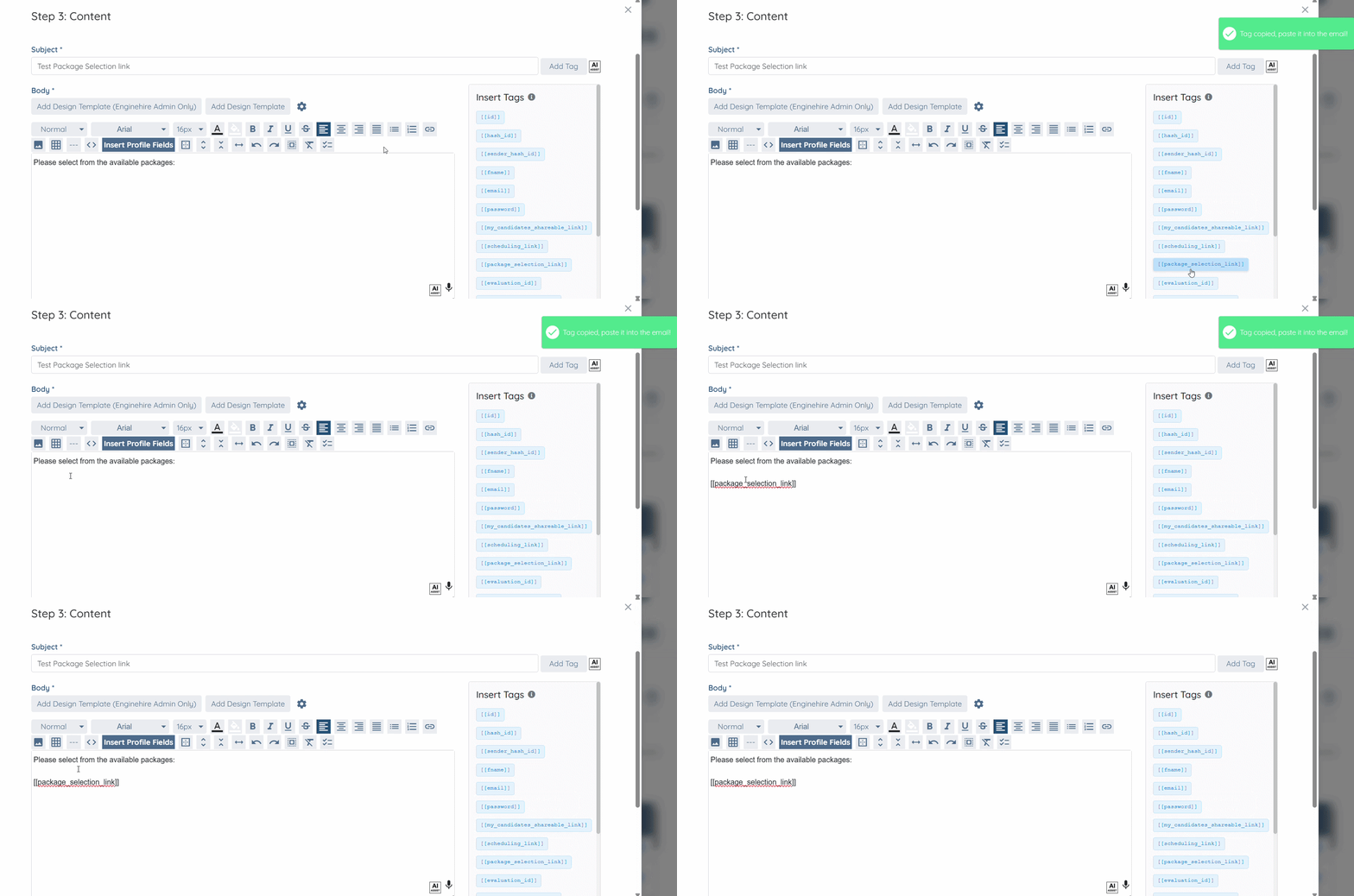
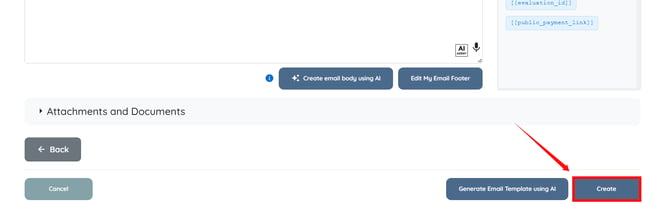
Step 10: Click Create to save the email template.
Step 11: Click the Send Test Email icon under the Actions column.
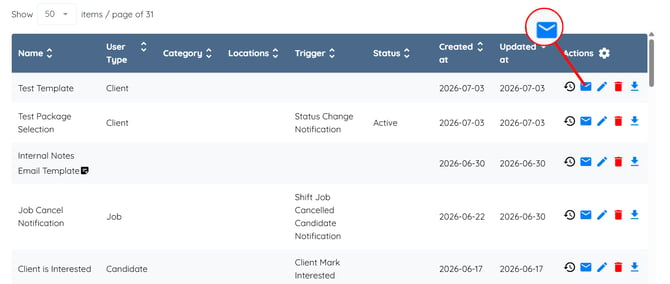
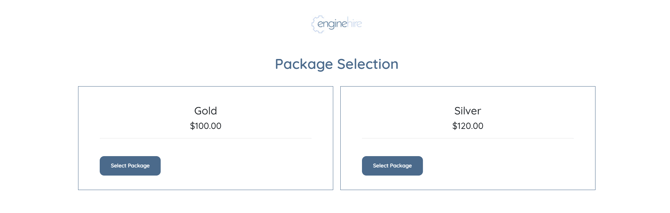
The client will receive the email containing the Package Selection link. Opening the package selection link will navigate clients to the configured packages, from where they can proceed with the package as needed.