![enginehire logo thin dark 1.0.png]](https://learn.enginehire.io/hs-fs/hubfs/enginehire%20logo%20thin%20dark%201.0.png?height=40&name=enginehire%20logo%20thin%20dark%201.0.png)
For demonstration purposes, this article uses clients as an example, but the same steps apply to candidates as well.
Let’s get started 🚀
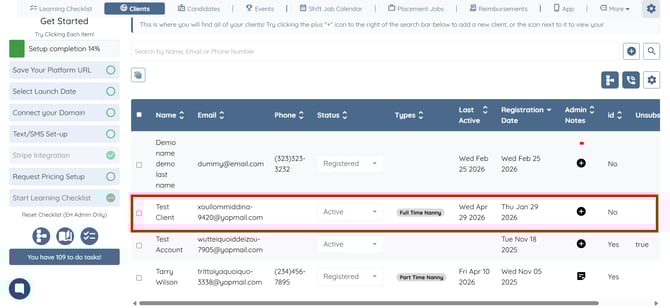
Step 1: Log in to your agent dashboard and select the client you want to send an email to.
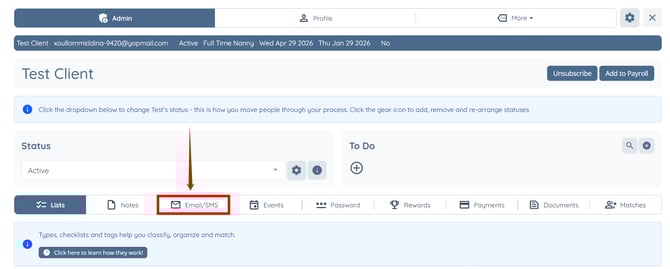
Step 2: Click the Email/SMS tab from the available tabs.
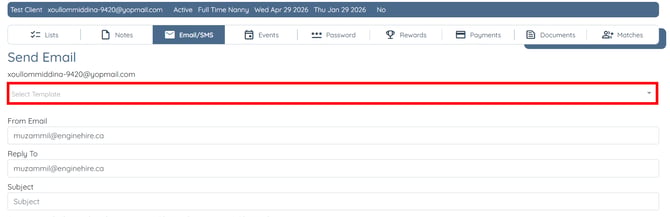
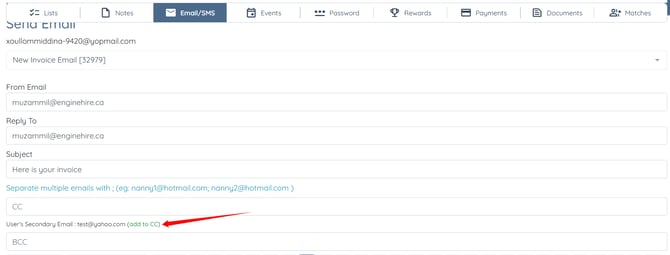
Step 3: Click the Select Template box under the Send Email heading to open the dropdown list.
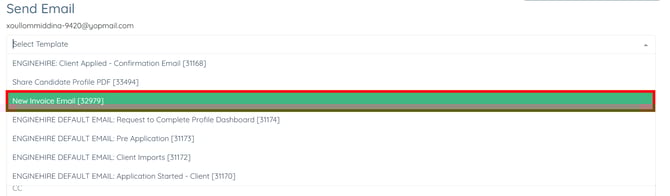
Step 4: Select the template you want to use.
Step 5: Click the add to CC to include the user’s secondary email address.
Step 6: Scroll down and click the Send button to send the email.
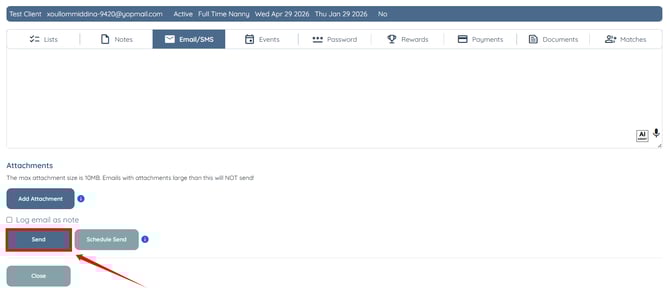
The email is sent to both the primary and secondary email addresses.
