![enginehire logo thin dark 1.0.png]](https://learn.enginehire.io/hs-fs/hubfs/enginehire%20logo%20thin%20dark%201.0.png?height=40&name=enginehire%20logo%20thin%20dark%201.0.png)
Let’s get started 🚀
Step 1: Navigate to More - Global Settings - Agency Details.
Open the Agency Details tab.Expand the Language & Locations section.
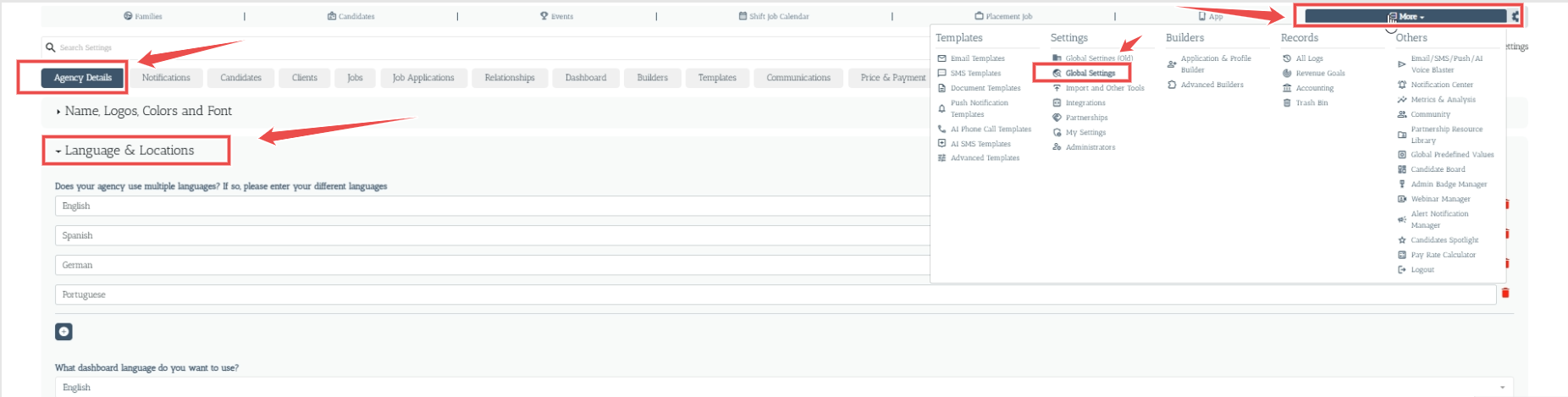
Under “Does your agency use multiple languages? If so, please enter your different languages”, add the required languages manually.
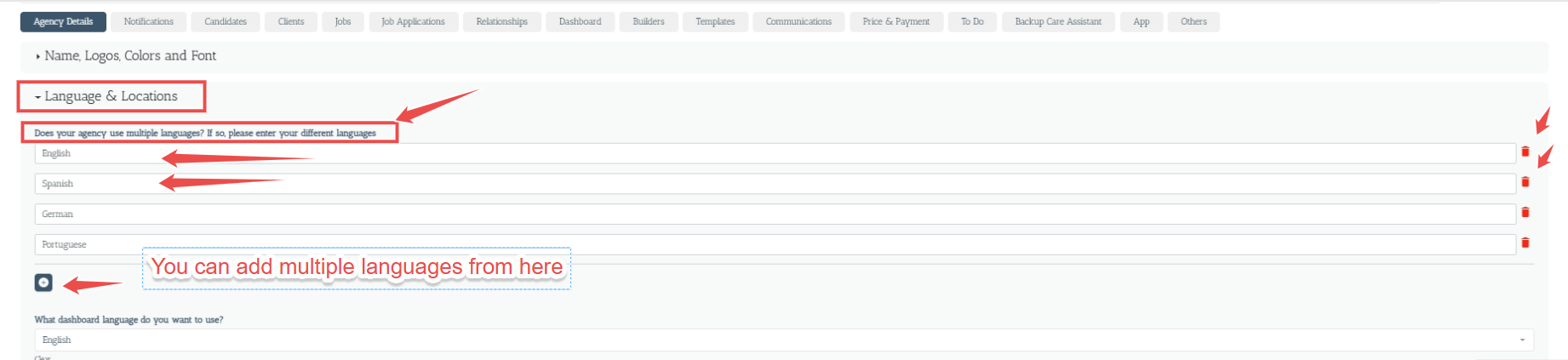
Multiple languages can be added as needed.For example: English, Spanish, German, and Portuguese.
Once the languages have been added, they will become available in the “What dashboard language do you want to use?” dropdown.
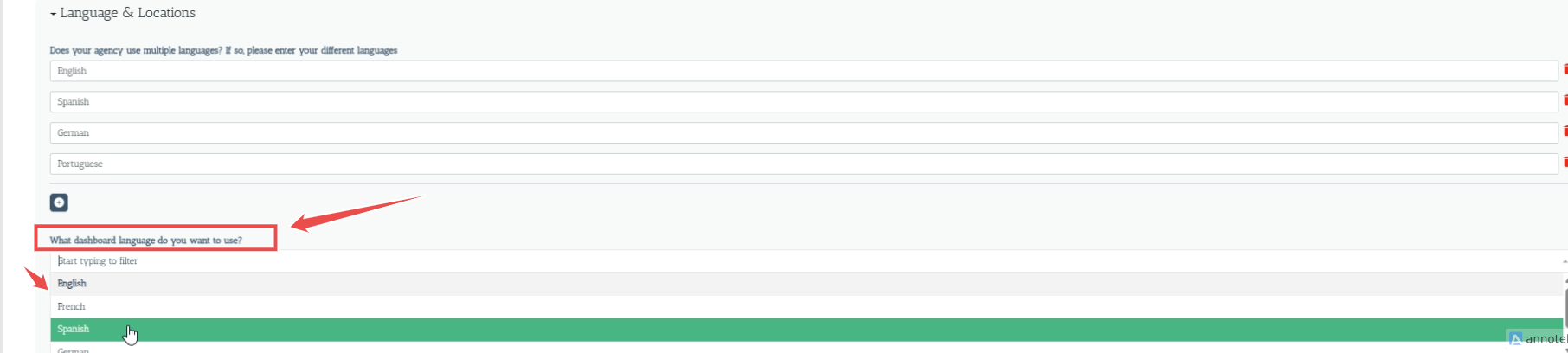
Open the dropdown and select the preferred dashboard language.
- For example, English can be selected.
Note: Languages must first be added under the multiple languages field before they can be selected from the Dashboard Language dropdown.
Applications, Profile And Sections Language & AI Translation
Once the required languages have been configured under Agency Details → Language & Locations, those languages can be used to configure and translate individual applications.
The Application Builder allows users to select a language for an application and use the Translate with AI feature to translate the application form, including its questions and fields, into the selected language
Step 4: Navigate to the More tab.Open the Application Builder.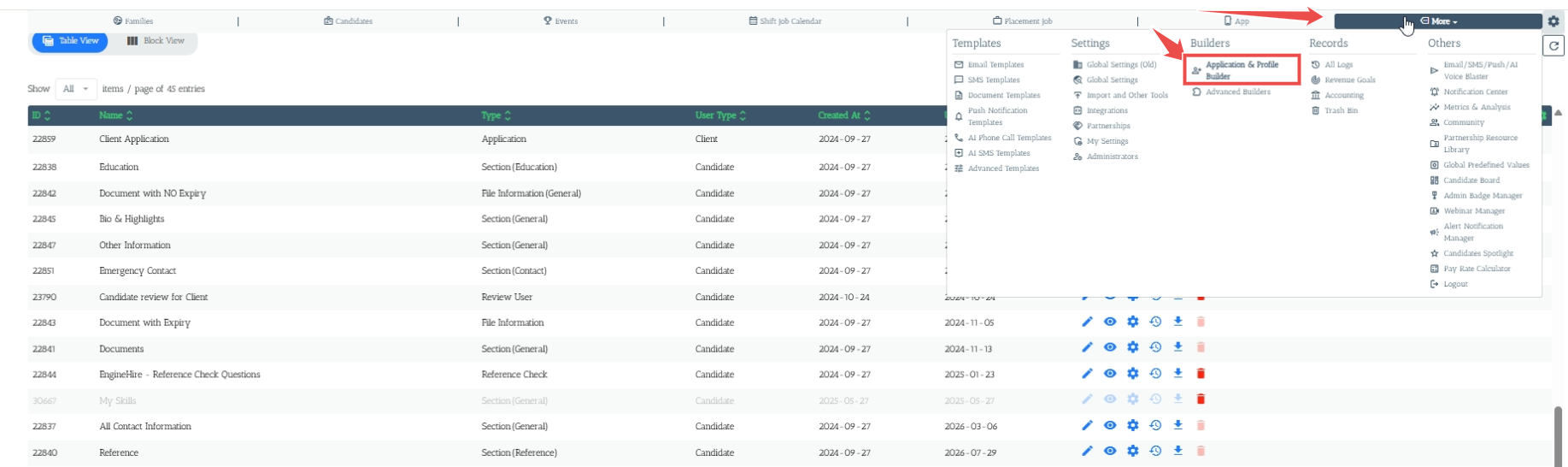
Step 5: Select an Application:
Choose the application you want to configure.For example, select the Client Application.
Step 6: Open Application Settings:Click the Settings icon for the selected application.Locate the Select Language setting.
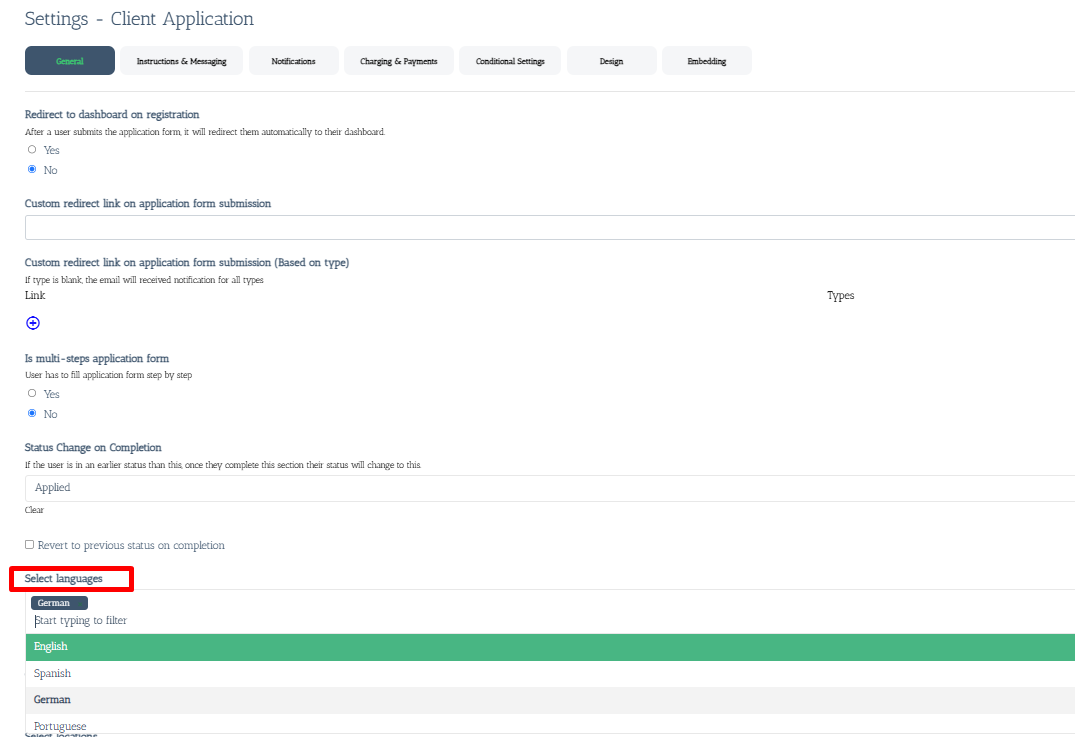
Open the Select Language dropdown. The dropdown will display the languages that were previously added under Agency Details → Language & Locations. Select the required language.
Step 8: Click Save and Exit to save the selected language.
Step 9: Click the Pencil icon to edit the application form.
Step 10: Open the Languages Tab:
In the application editor, locate and select the Languages tab.The languages configured for the application will be displayed.
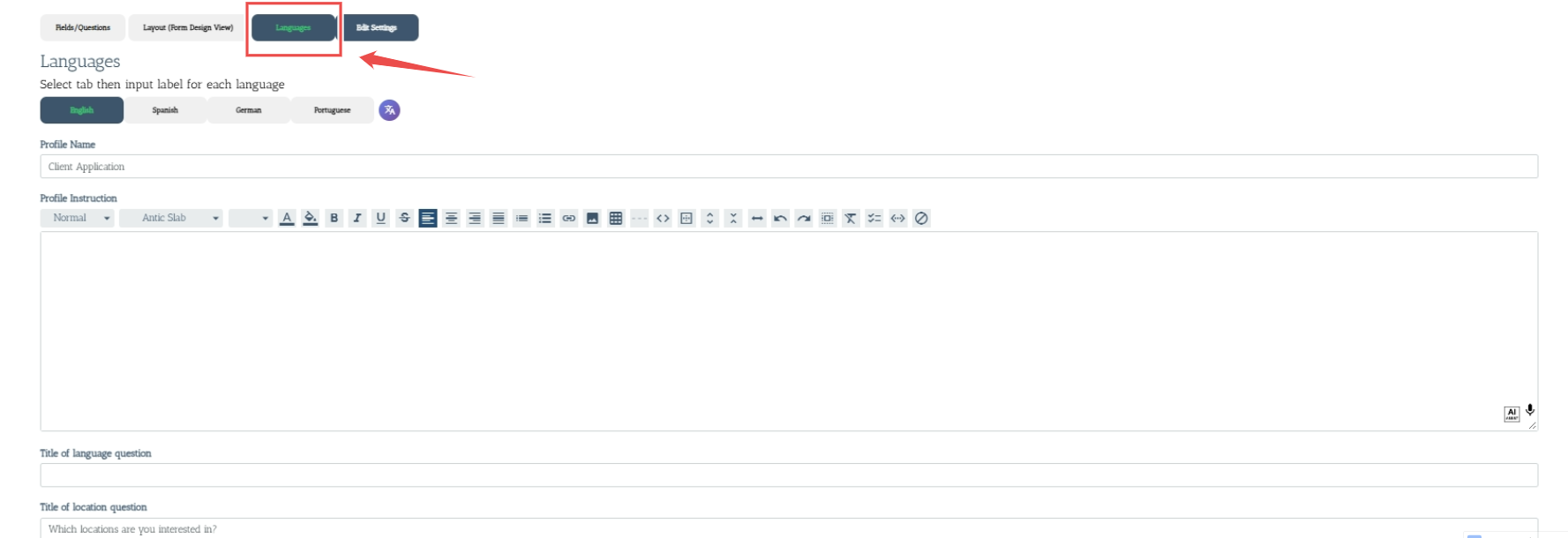
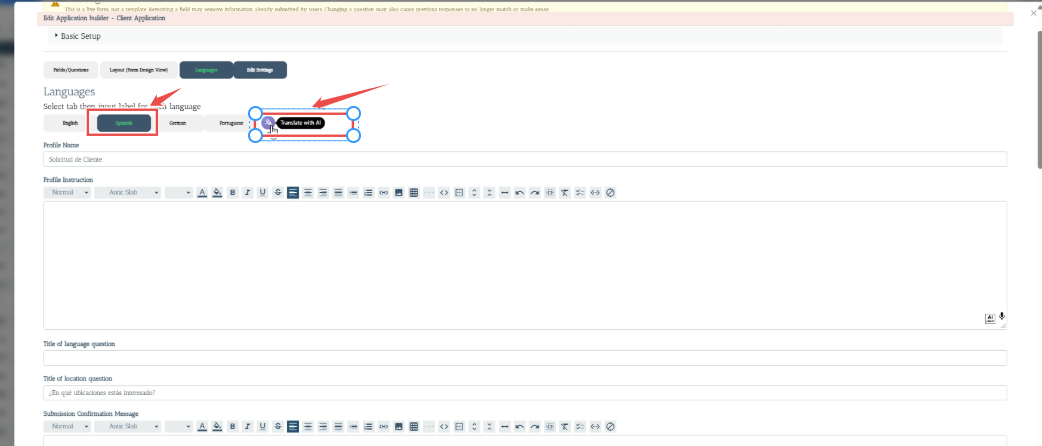
Step 11: Translate the Application:
Select the language into which you want to translate the application.Click Translate with AI.
The system will automatically translate the application's questions, fields, and other applicable form content into the selected language.
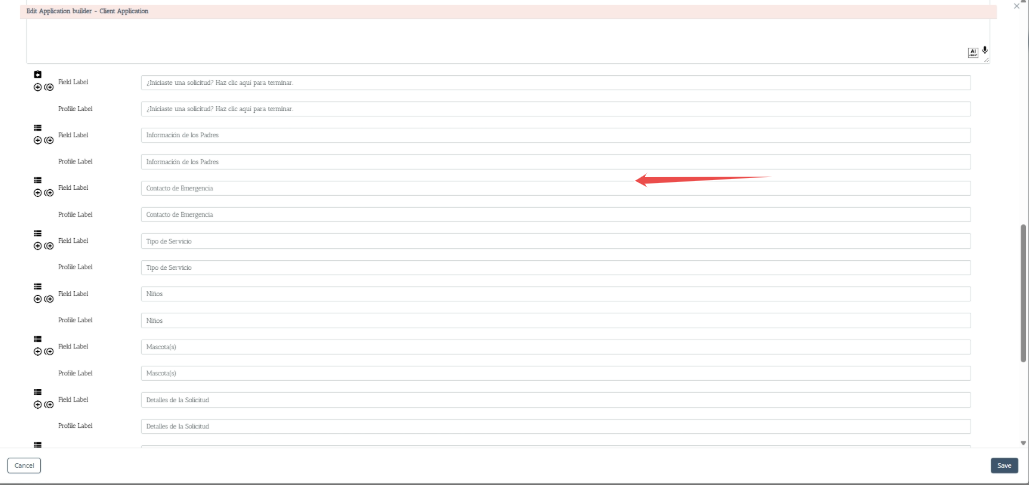
Review the translated application content to ensure that the questions and fields have been translated correctly.