![enginehire logo thin dark 1.0.png]](https://learn.enginehire.io/hs-fs/hubfs/enginehire%20logo%20thin%20dark%201.0.png?height=40&name=enginehire%20logo%20thin%20dark%201.0.png)
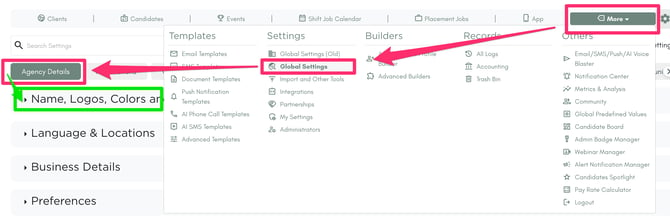
Step 1: Navigate to Agency Branding Settings
From the left navigation menu:
- Select More
- Select Global Settings
- Select Agency Details
- Click Name, Logos, Colors, and Font
Scroll down until you see Login Screen Background Image.
- Click Choose File
- Select your image from your computer
- Once the image has been uploaded, click Submit
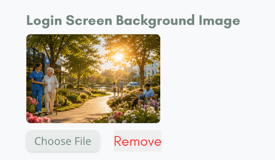
Your new login screen background image is now saved.
Step 3: Preview Your ChangesTo view your updated login page:
- Open your agency's login screen in a new browser tab or window
- Refresh the page if it's already open
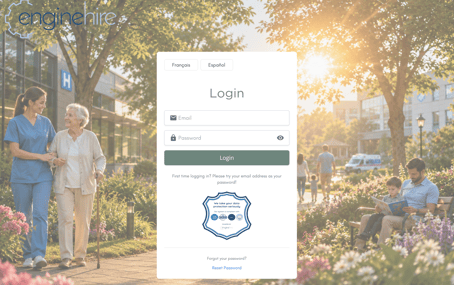
- Your new background image will appear behind the login form
Tips for Best Results
- Use a high-quality image for the best appearance.
- Landscape images generally work best.
- Keep important subjects or text toward the left or right edges of the image, as the login form may cover the center area.
- Bright, professional images with plenty of open space tend to create the best user experience.
That's it! Your custom login screen background will now be displayed for anyone accessing your agency's login page.