![enginehire logo thin dark 1.0.png]](https://learn.enginehire.io/hs-fs/hubfs/enginehire%20logo%20thin%20dark%201.0.png?height=40&name=enginehire%20logo%20thin%20dark%201.0.png)
Let's get started 🚀
Add a Rich Text Editor Field Type
Create a Rich Text Editor field type in the section where you want to add the clickable link.
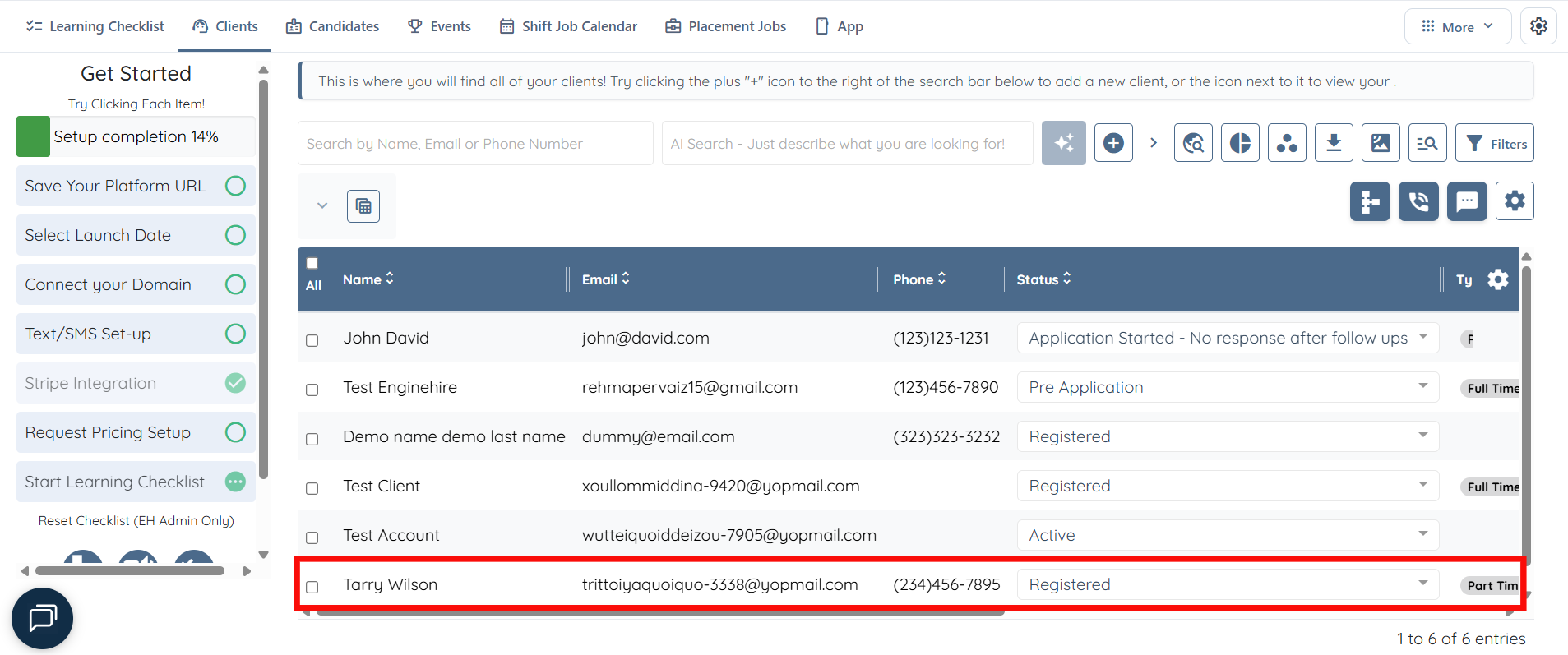
Step 1: Log in to your agent dashboard and open the client profile where you want to add the clickable link.
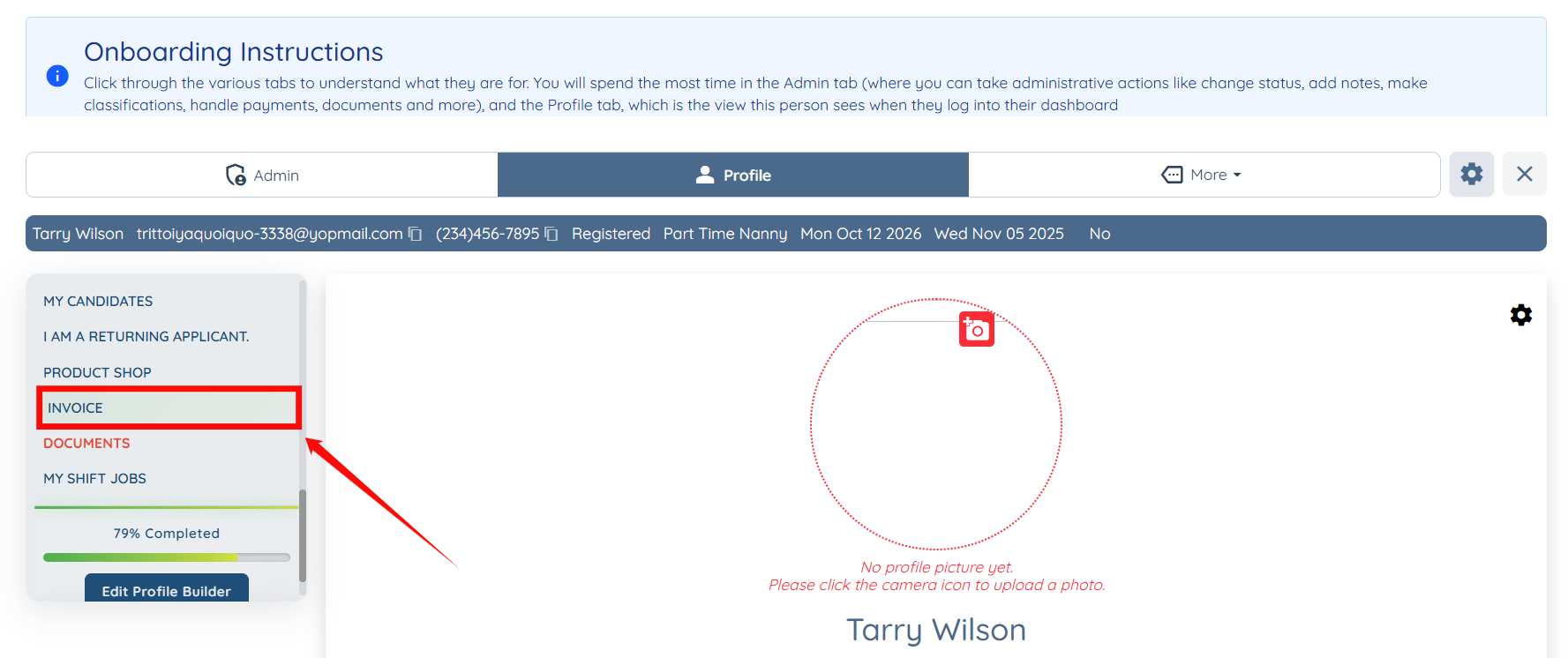
Step 2: Navigate to the section in the left sidebar where you want to add the clickable link.
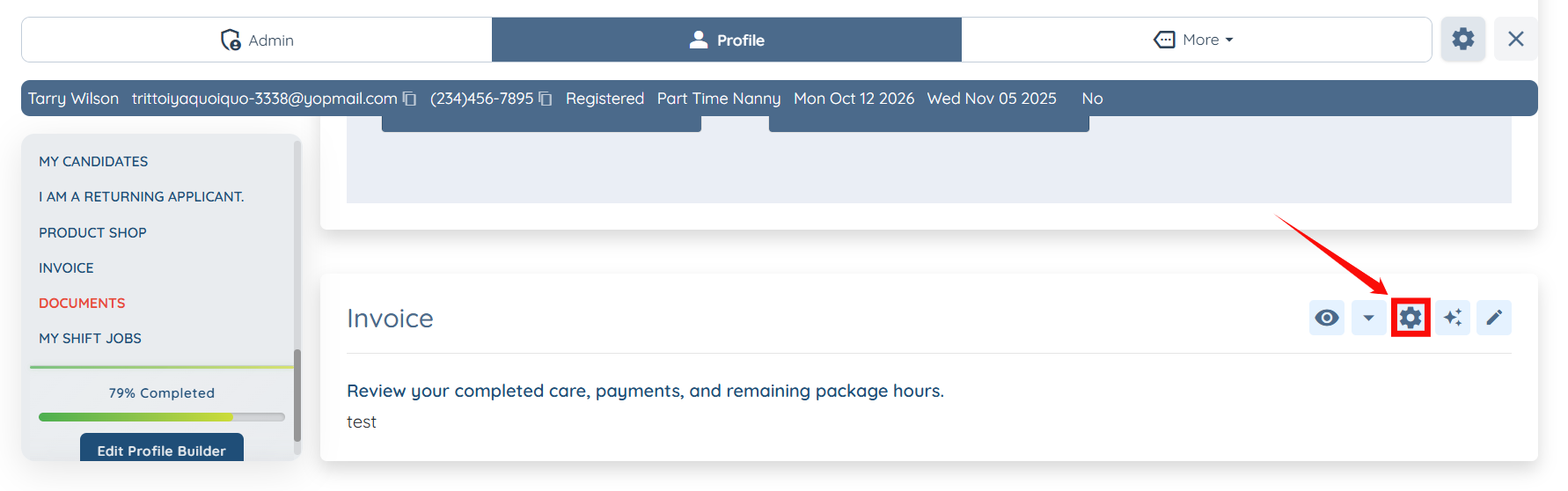
Step 3: Click the Modify Section Builder icon.
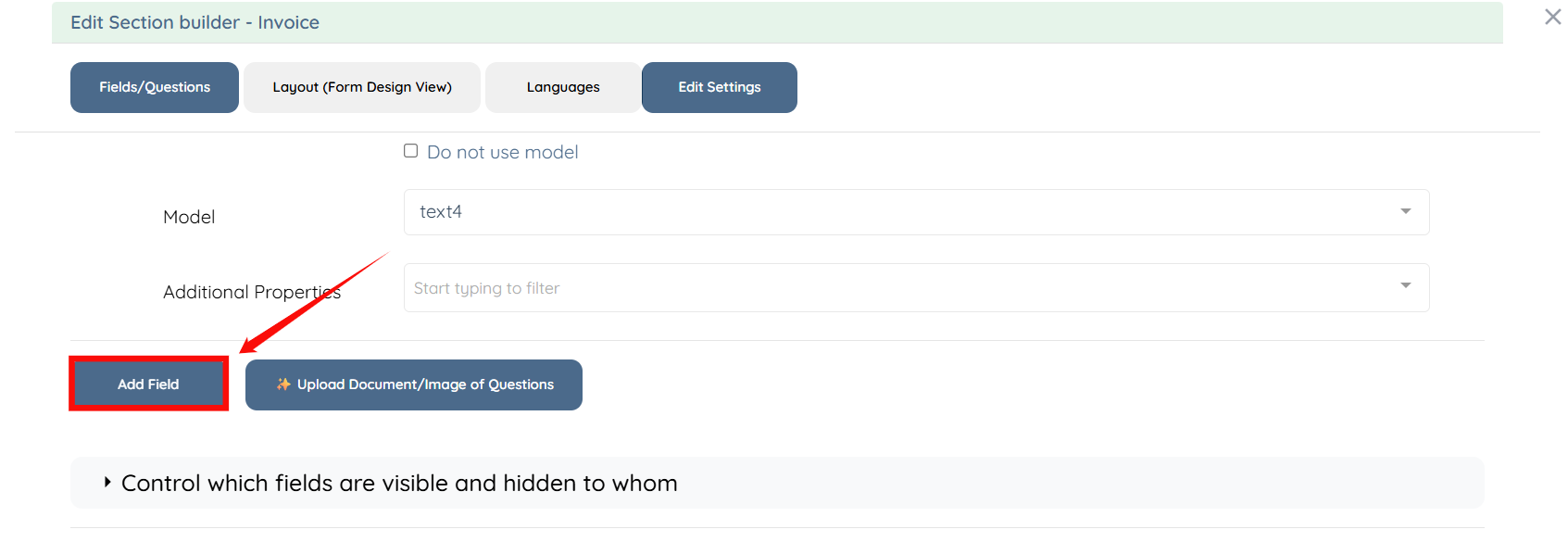
Step 4: Scroll to the bottom and click the Add Field button.
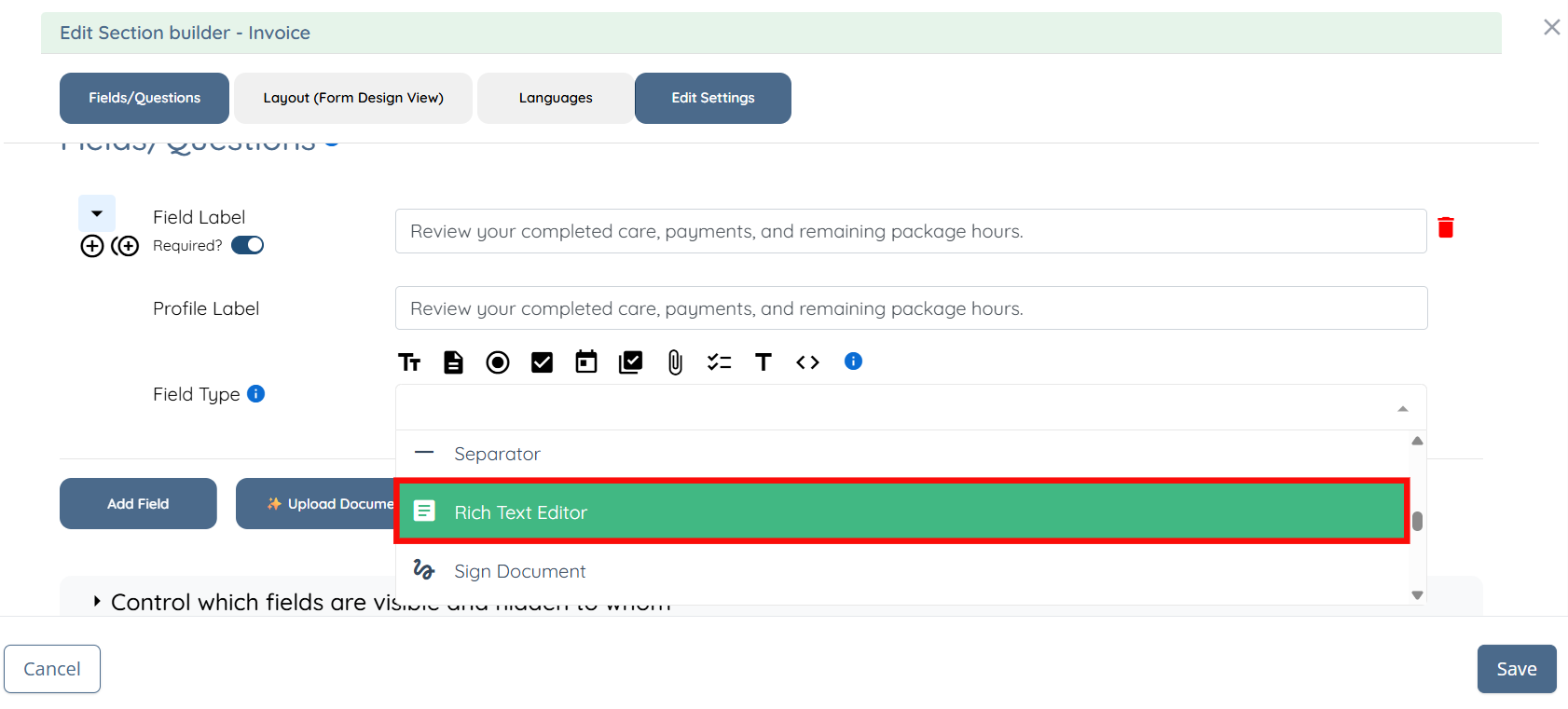
Step 5: Enter the required field details and select Rich Text Editor as the Field Type.
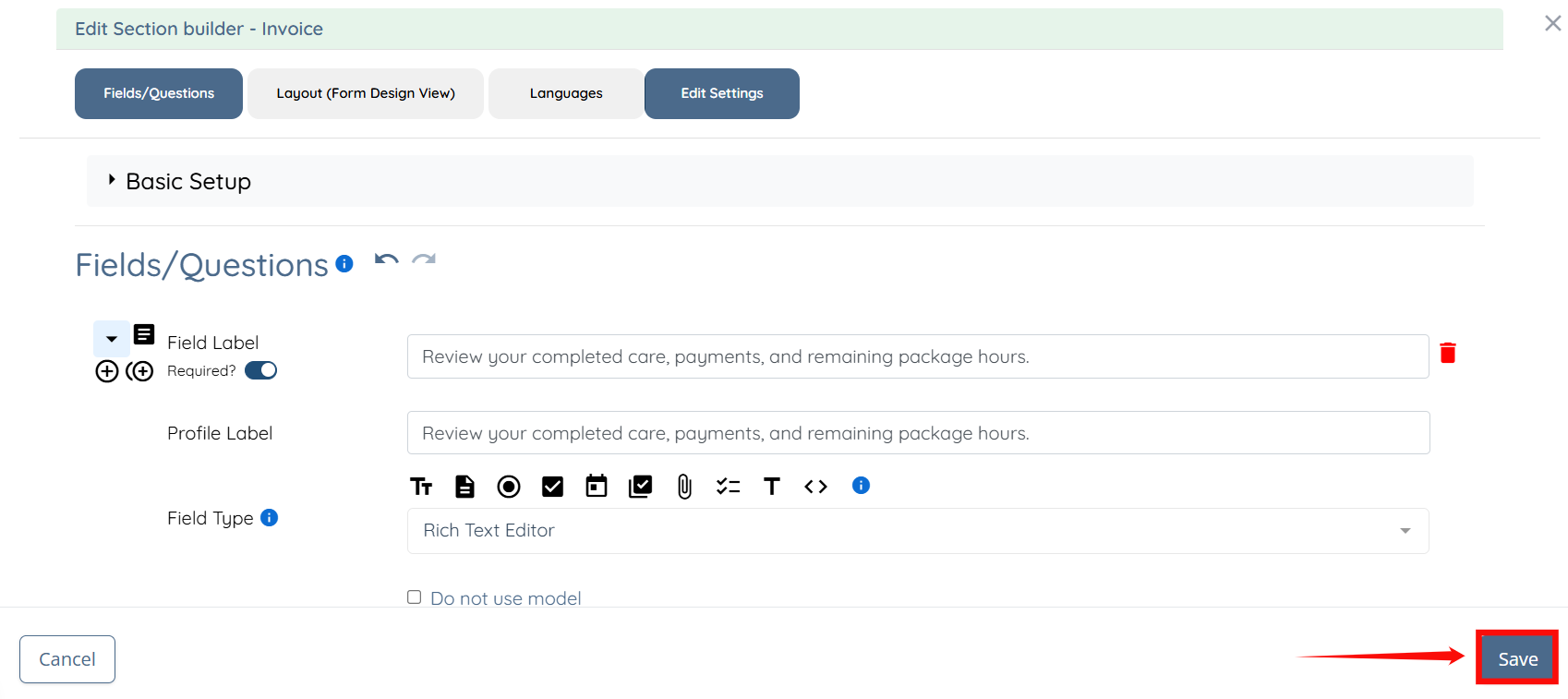
Step 6: Click Save.
Add a Clickable Link
Add the link to the Rich Text Editor field in the client profile.
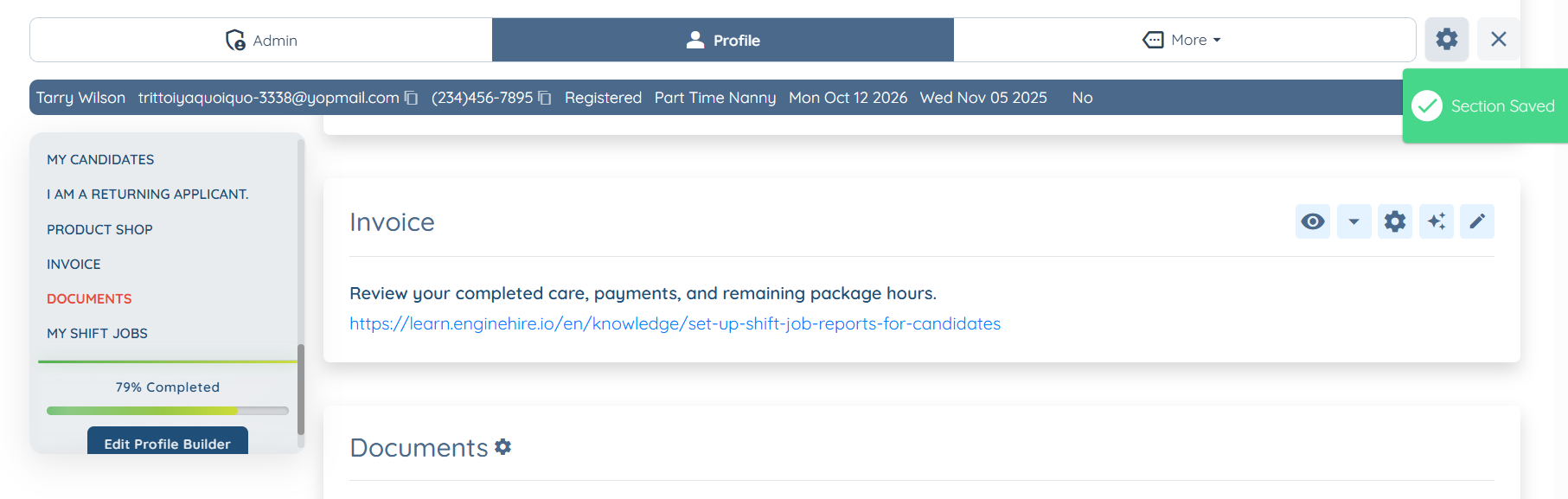
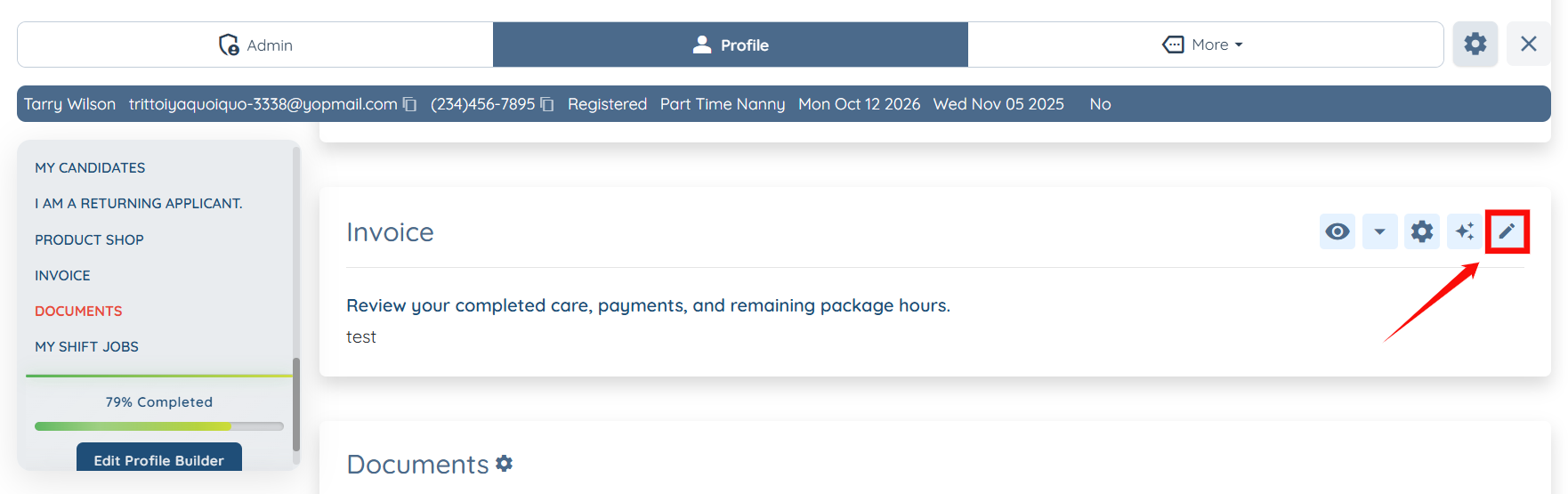
Step 1: Click the Edit icon in the section where you added the Rich Text Editor field.
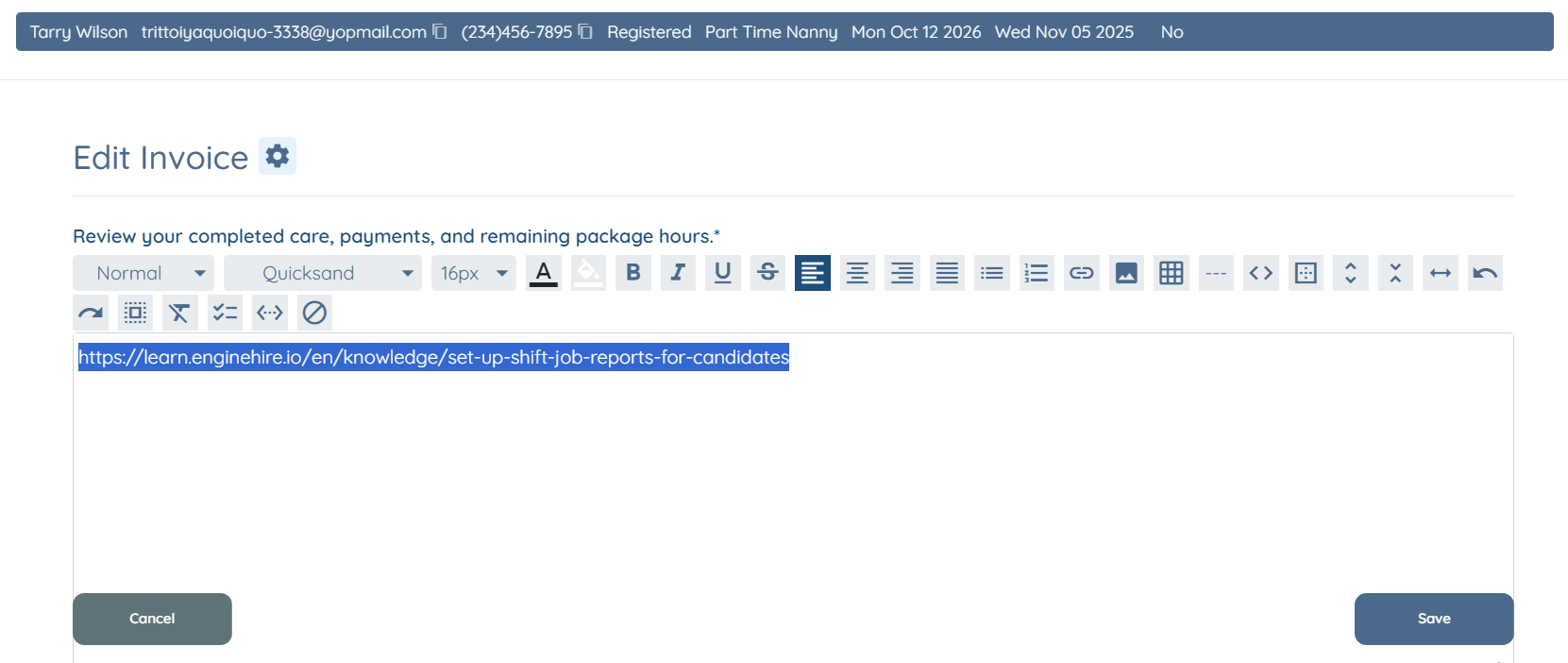
Step 2: Enter the link you want to add in the provided text field and select it.
For demonstration purposes, we are adding a link to the EngineHire knowledge base. You can add a link to any resource you want to include, such as a spreadsheet.
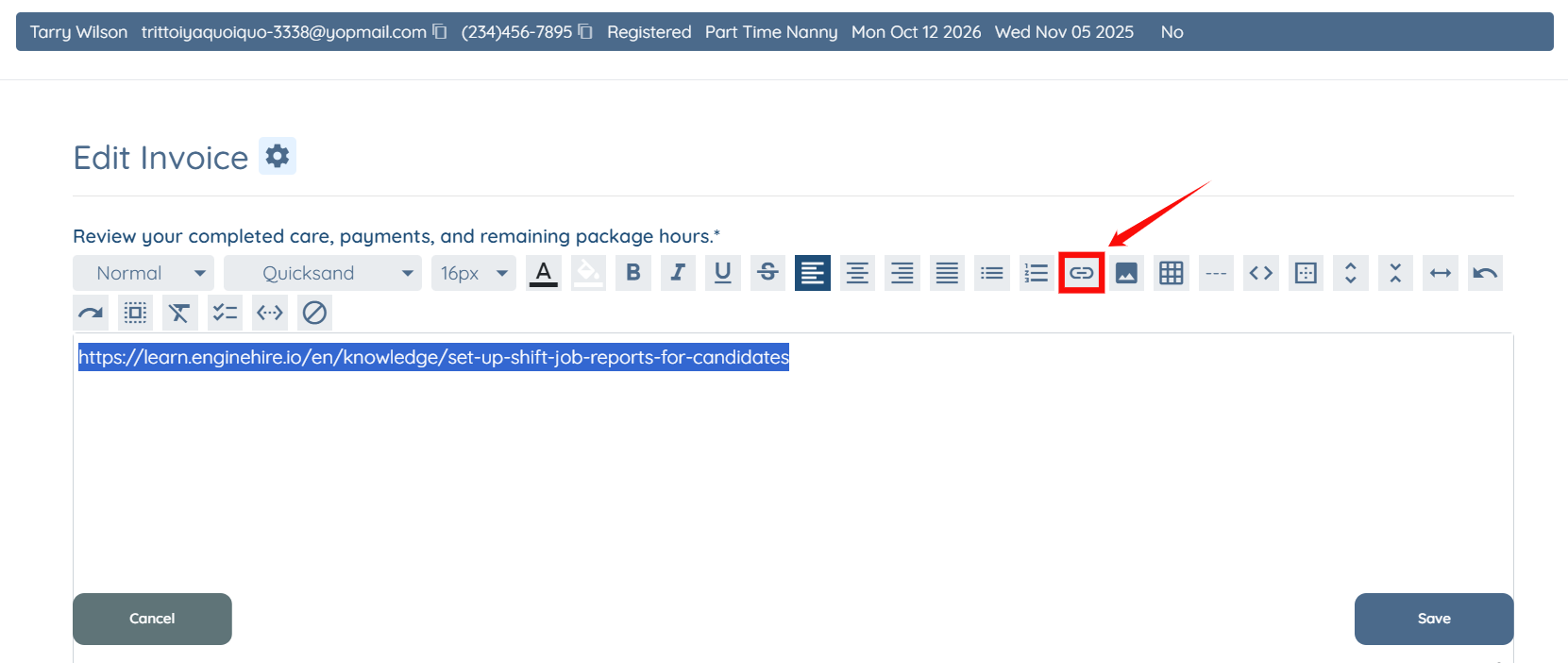
Step 3: Click the Insert Link icon.
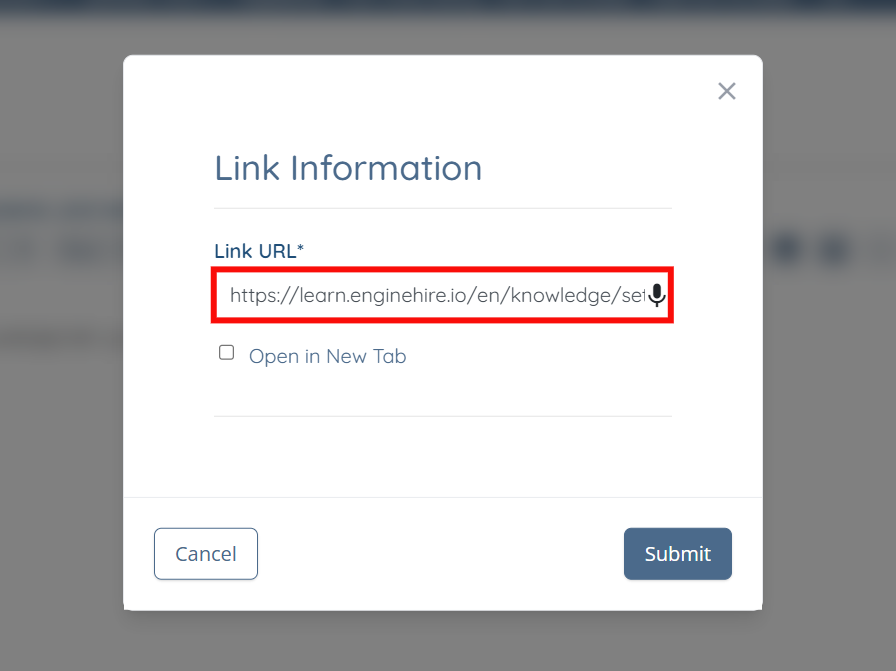
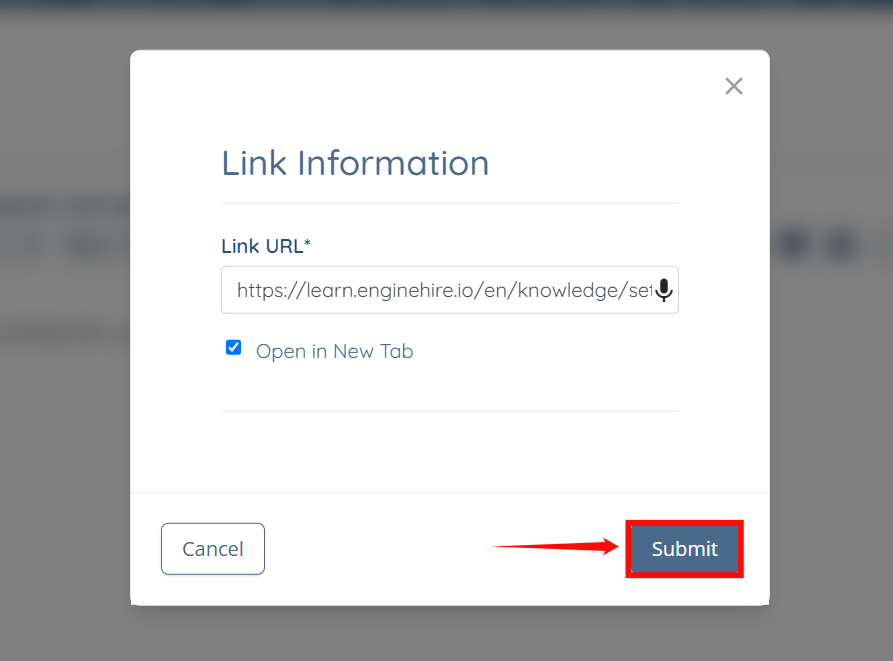
Step 4: Enter the link in the Link URL field.
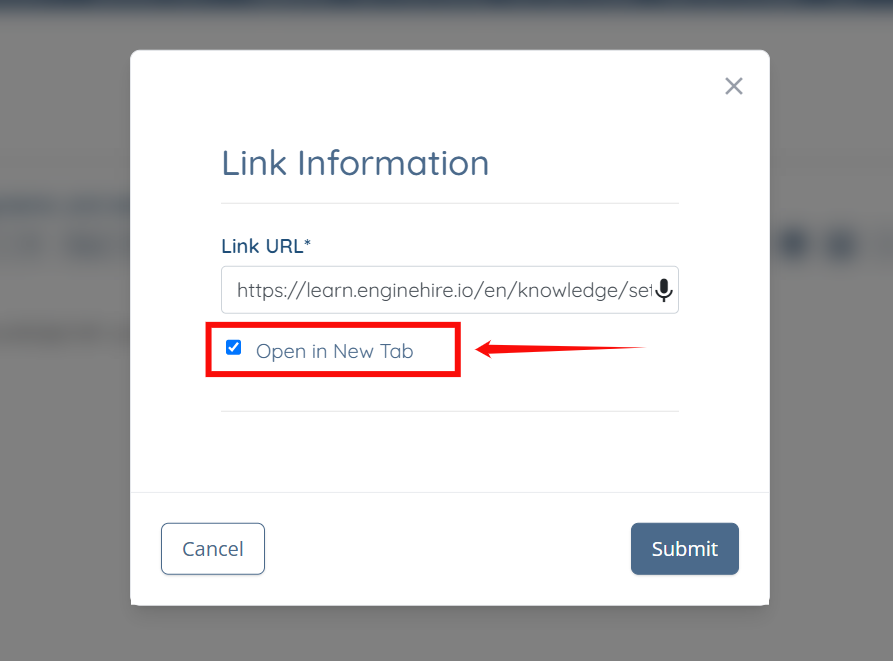
Step 5: Select the Open in New Tab checkbox if you want the link to open in a new tab.
Step 6: Click Submit.
Step 7: Click Save.
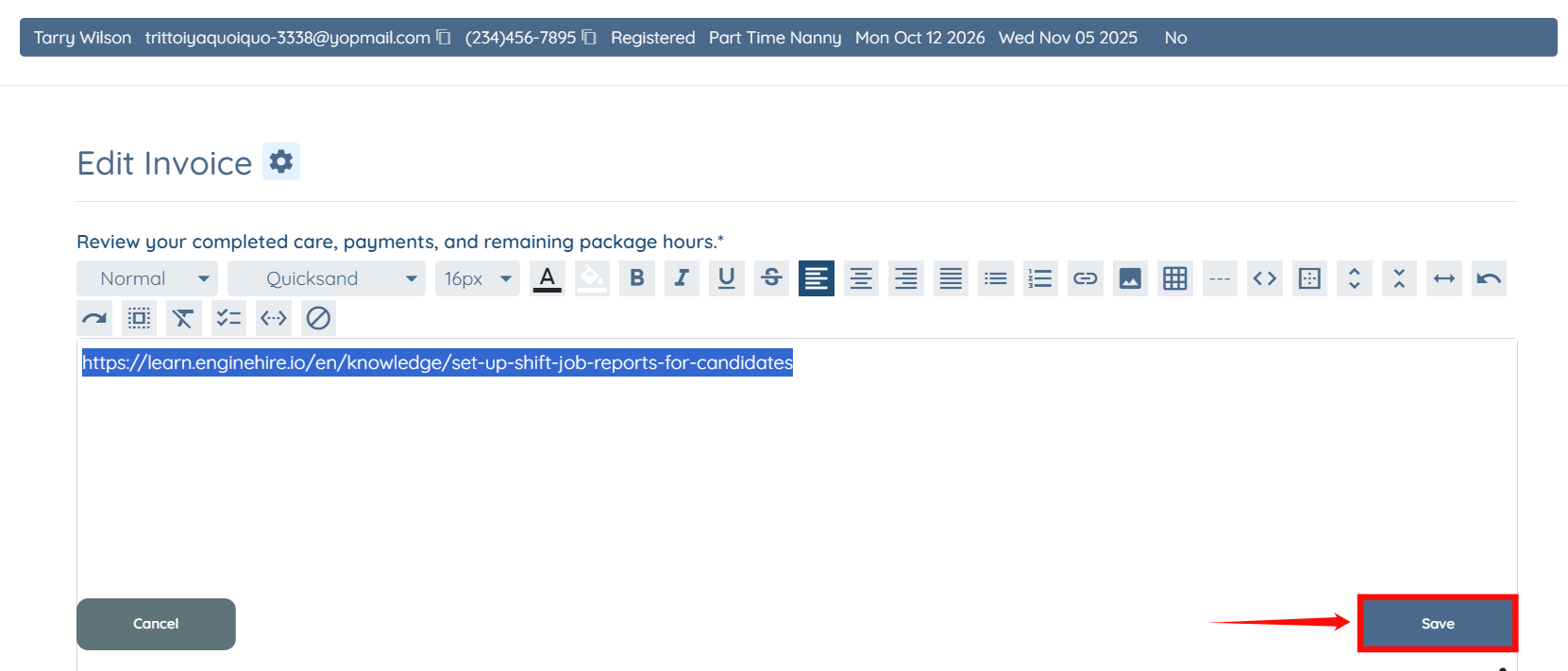
The clickable link will be successfully added to the selected section of the client profile.