![enginehire logo thin dark 1.0.png]](https://learn.enginehire.io/hs-fs/hubfs/enginehire%20logo%20thin%20dark%201.0.png?height=40&name=enginehire%20logo%20thin%20dark%201.0.png)
Prerequisites
- A paid WordPress.com plan or a self-hosted WordPress (WordPress.org) site.
- Permission to add Custom HTML blocks to pages.
Let’s get started 🚀
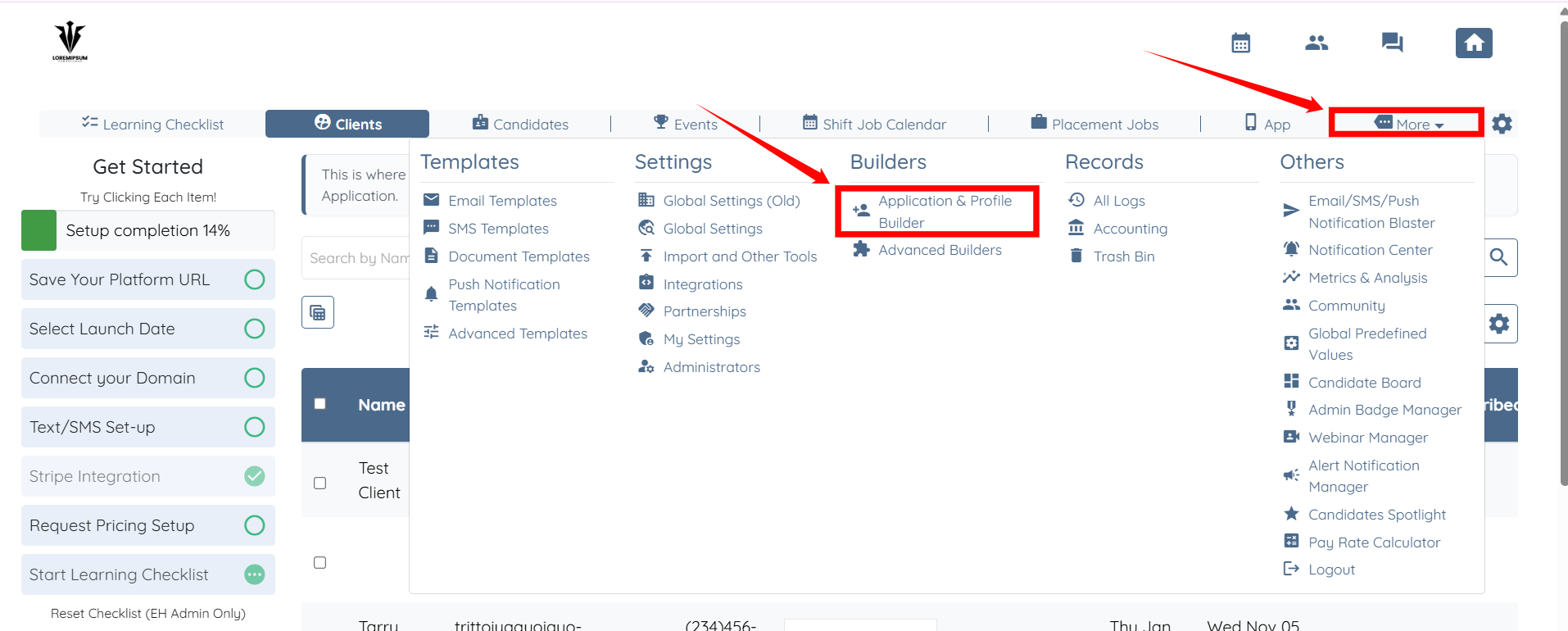
Step 1: Log in to your agent dashboard and click More > Application & Profile Builder, as shown in the screenshot below.
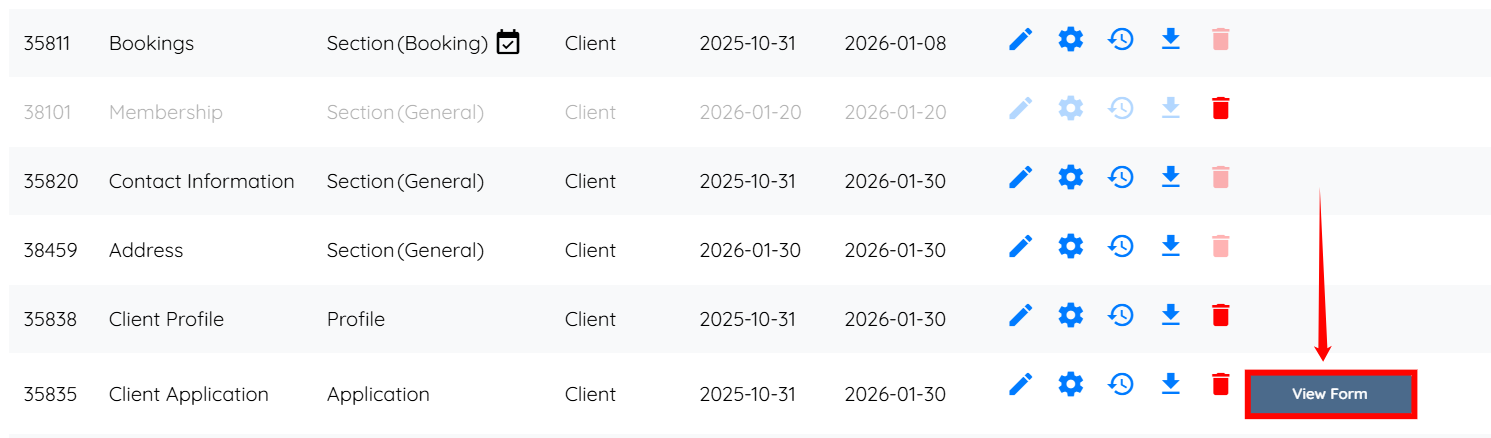
Step 2: Locate the application that you want to embed in your website, and then click the corresponding View Form button to open the application.
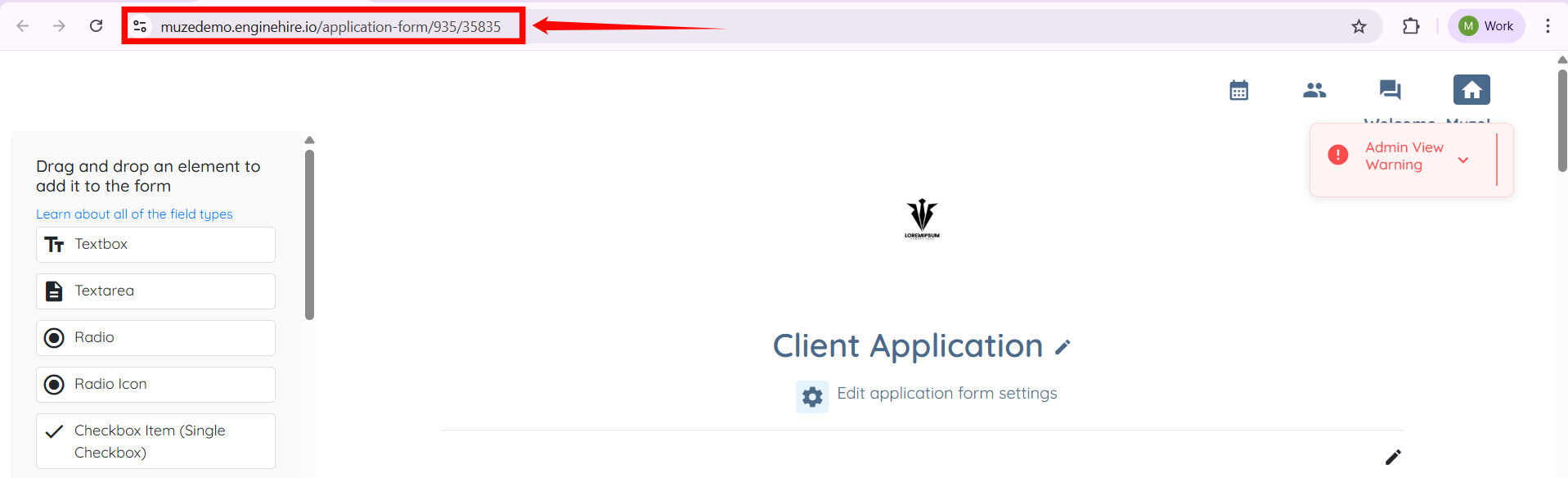
Step 3: Copy the application’s URL and securely save it on your system, preferably in a Notepad file.
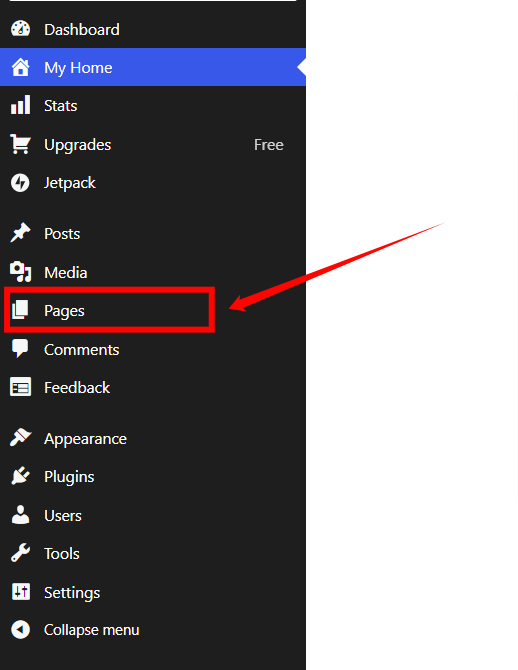
Step 4: Open WordPress, then click Pages in the left-hand side navigation bar.
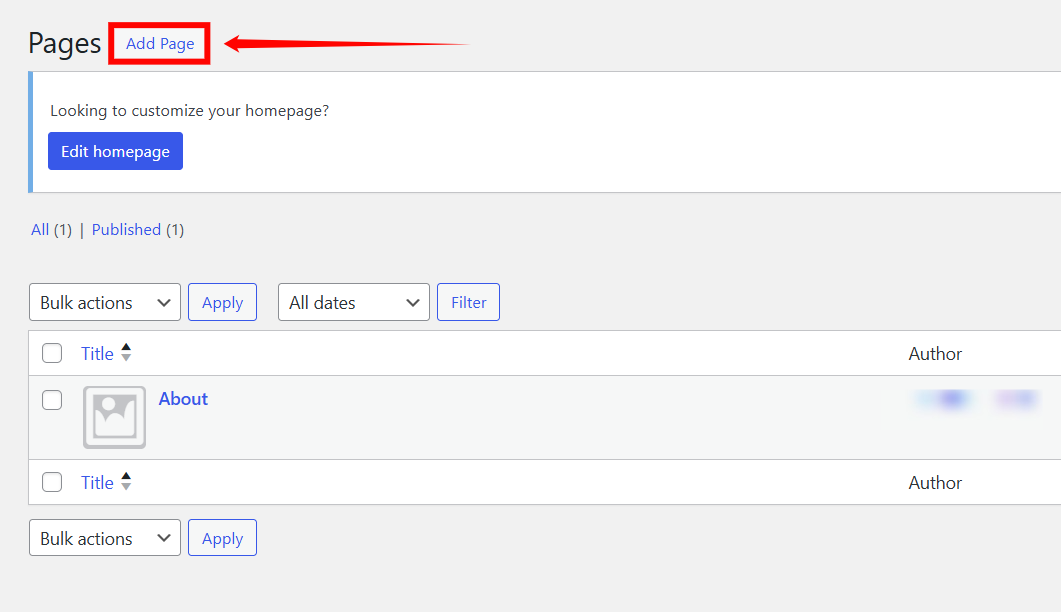
Step 5: Click the Add Page button to start adding a new page.
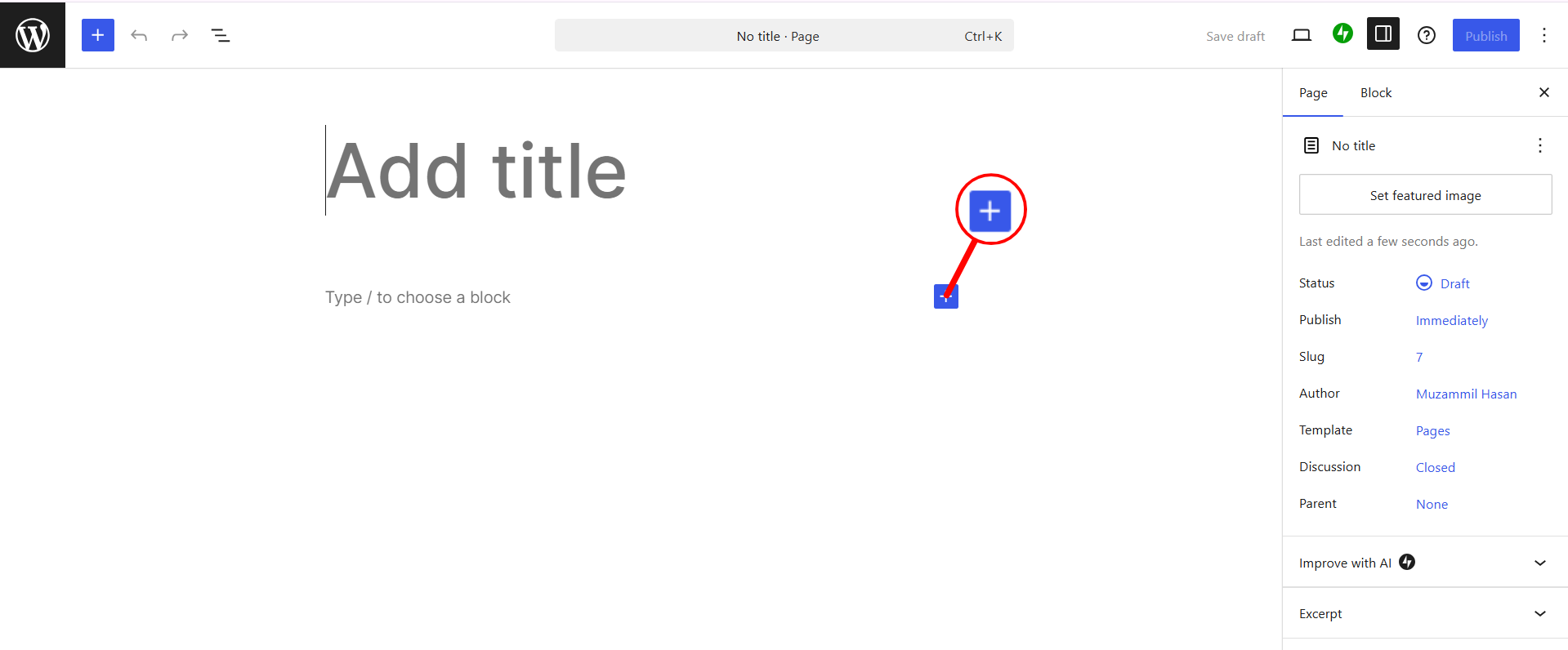
Step 6: Click the + button to add a new block.
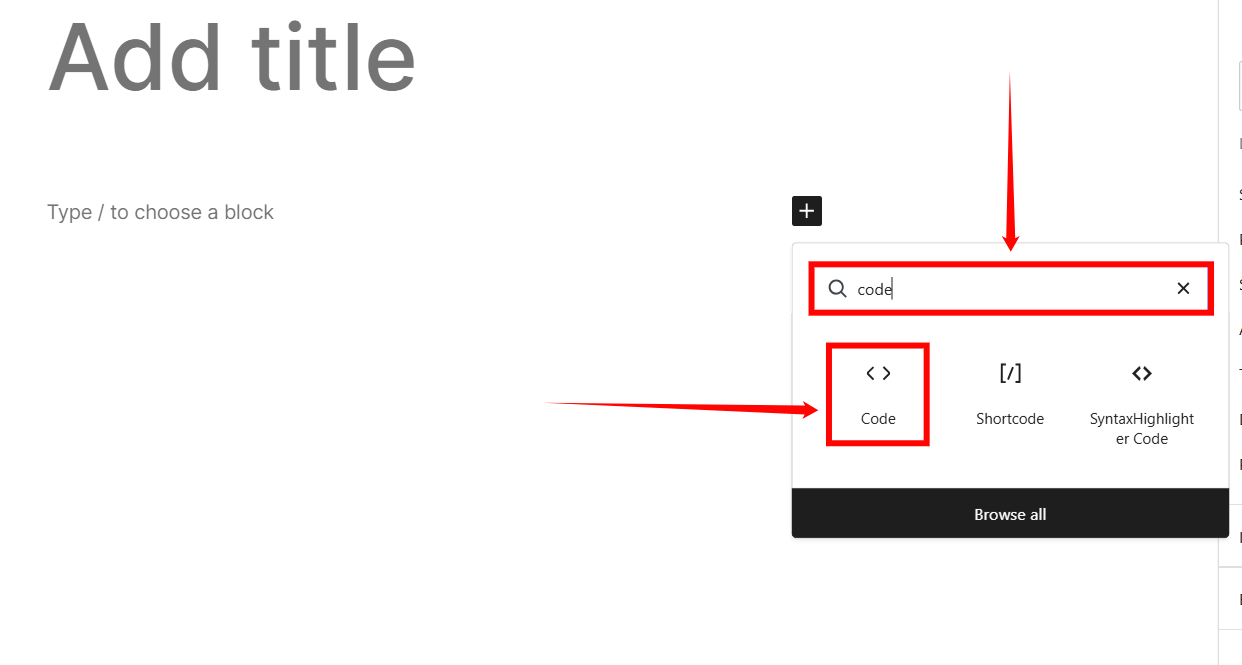
Step 7: Search for the code using the search bar, and then select the Code option from the search results.
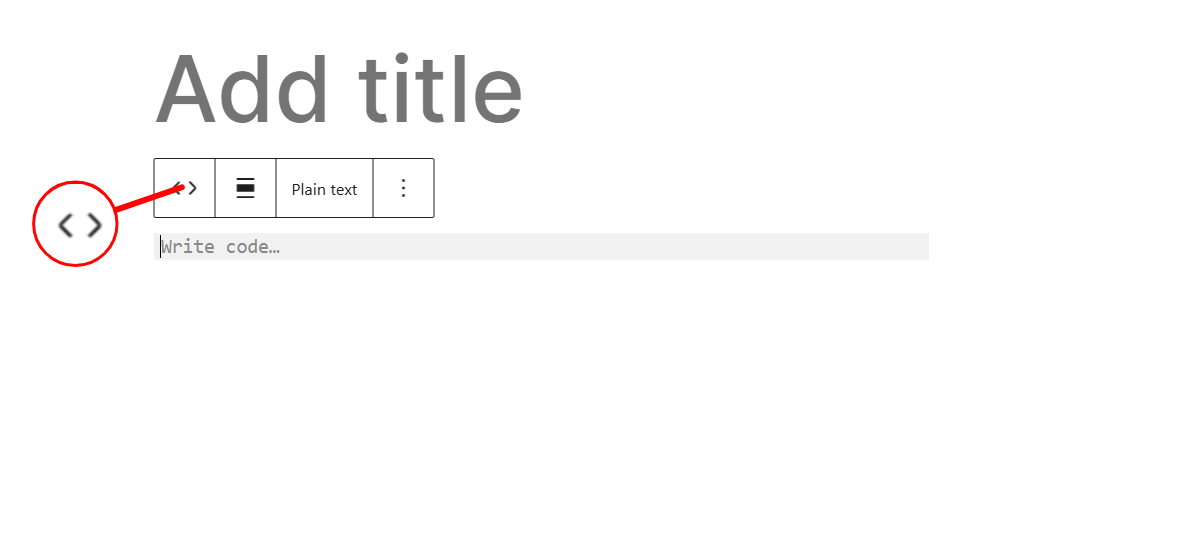
Step 8: Click the option as shown in the screenshot below.
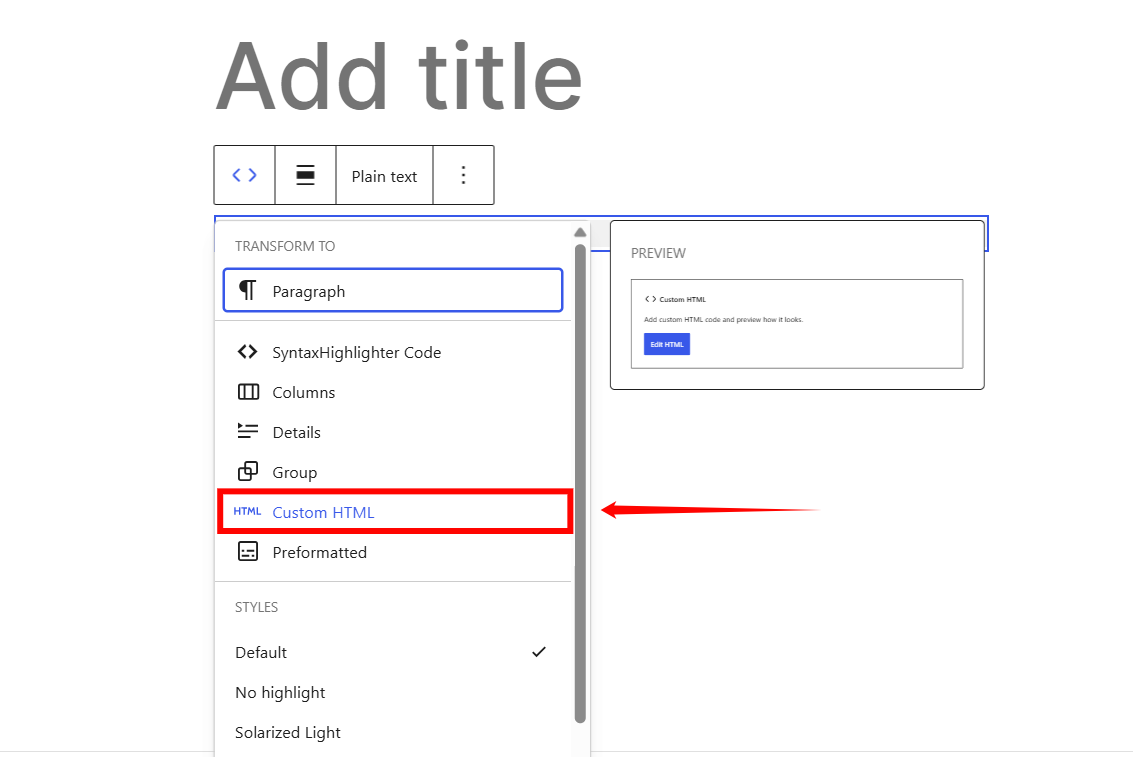
Step 9: Click the Custom HTML option.
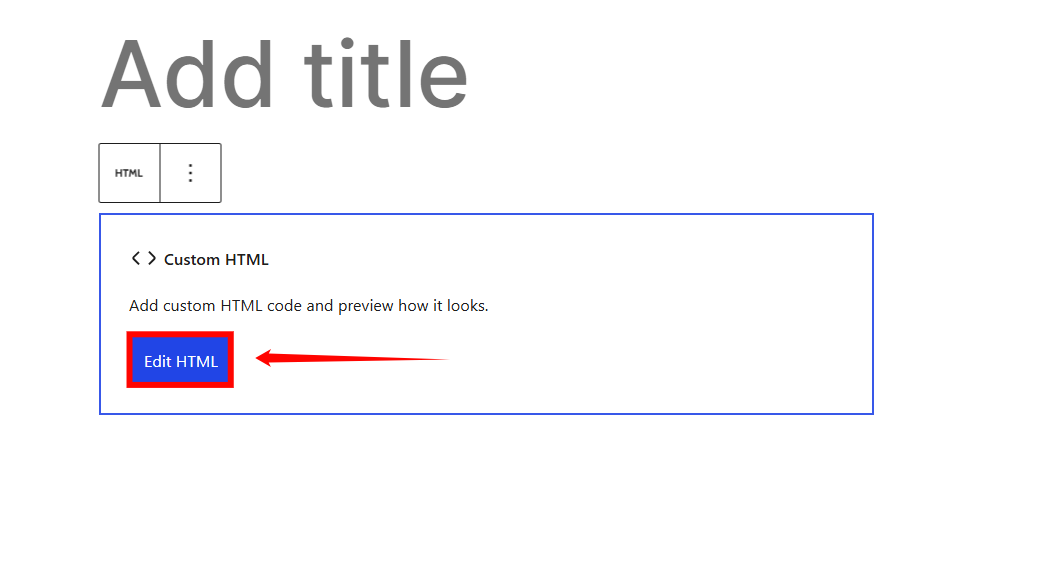
Step 10: Click the Edit HTML button.
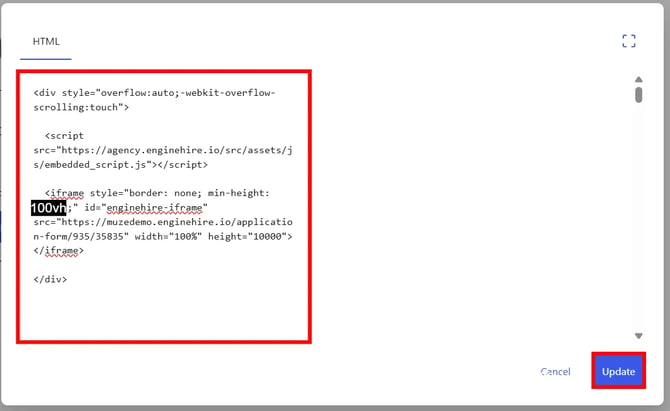
Step 11: Paste the application URL you copied in step 3 at the place of PASTE URL HERE in the following code.
<div style="overflow:auto;-webkit-overflow-scrolling:touch">

  <script src="https://agency.enginehire.io/src/assets/js/embedded_script.js"></script>

  <iframe style="border: none; min-height: 100vh;" id="enginehire-iframe" src="PASTE URL HERE" width="100%" height="10000"></iframe>

</div>
For Example:
<div style="overflow:auto;-webkit-overflow-scrolling:touch">
<script src="https://agency.enginehire.io/src/assets/js/embedded_script.js"></script>
<iframe style="border: none; min-height: 100vh;" id="enginehire-iframe" src="https://application-form.enginehire.io/application-form/108/1840" width="100%" height="10000"></iframe>
</div>
Step 12: Paste the code you created in the previous step, and then click the Update button.
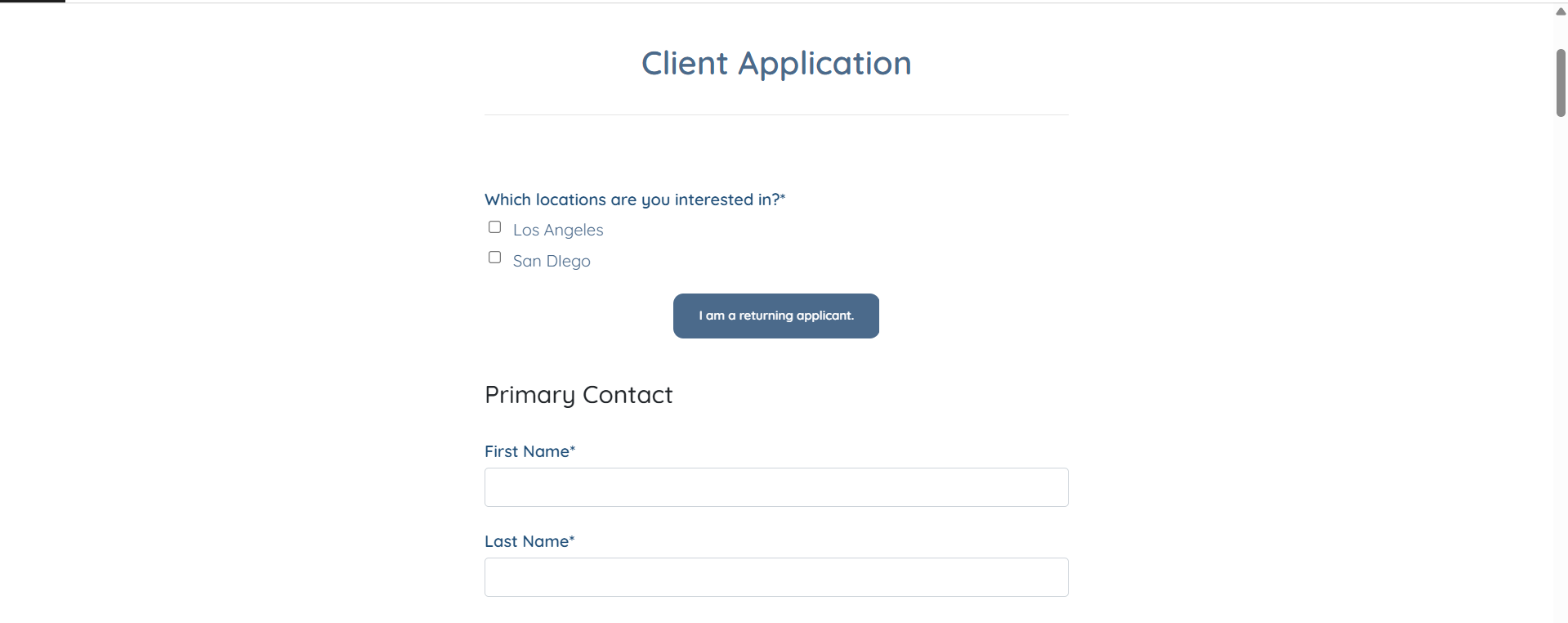
The Code block will be updated successfully.
Embedding external applications using iframes is not supported on free WordPress.com plans. A paid plan or a self-hosted WordPress site is required.