---
title: Add an Application to a Wix Website
description: Embed or link your application, registration page, or external content into your Wix website so users can access it seamlessly without leaving the page.
---
[Skip to content](https://learn.enginehire.io/en/knowledge/add-an-application-to-a-wix-website#main-content)
English
Show submenu for translations
[Contact us](https://learn.enginehire.io/en/knowledge/kb-tickets/new?hsLang=en) [Customer portal](https://learn.enginehire.io/tickets-view?hsLang=en)
![enginehire logo thin dark 1.0.png\]](https://learn.enginehire.io/hs-fs/hubfs/enginehire%20logo%20thin%20dark%201.0.png?height=40&name=enginehire%20logo%20thin%20dark%201.0.png)
- Home
- Products
- Pricing
- Blog
- Company
Open main navigation
Close main navigation
- Home
- Products
- Pricing
- Blog
- Company
- English
Show submenu for translations
- [Contact us](https://learn.enginehire.io/en/knowledge/kb-tickets/new)
- [Customer portal](https://learn.enginehire.io/tickets-view)
- Go to main page
Go to main page
Hello! You can find guides on how to do everything in Enginehire here. If you can't find what you are looking for or anything feels out of date, please contact us!
- There are no suggestions because the search field is empty.
1. [Enginehire Help Center](https://learn.enginehire.io/en/knowledge?hsLang=en)
2. [Integrations](https://learn.enginehire.io/en/knowledge/integrations?hsLang=en)
# Add an Application to a Wix Website
## Add your application, registration page, or any external page to your Wix website by embedding it directly or linking to it. This allows you to integrate your application into your Wix website so users can access it without leaving the page.
Let’s get started 🚀
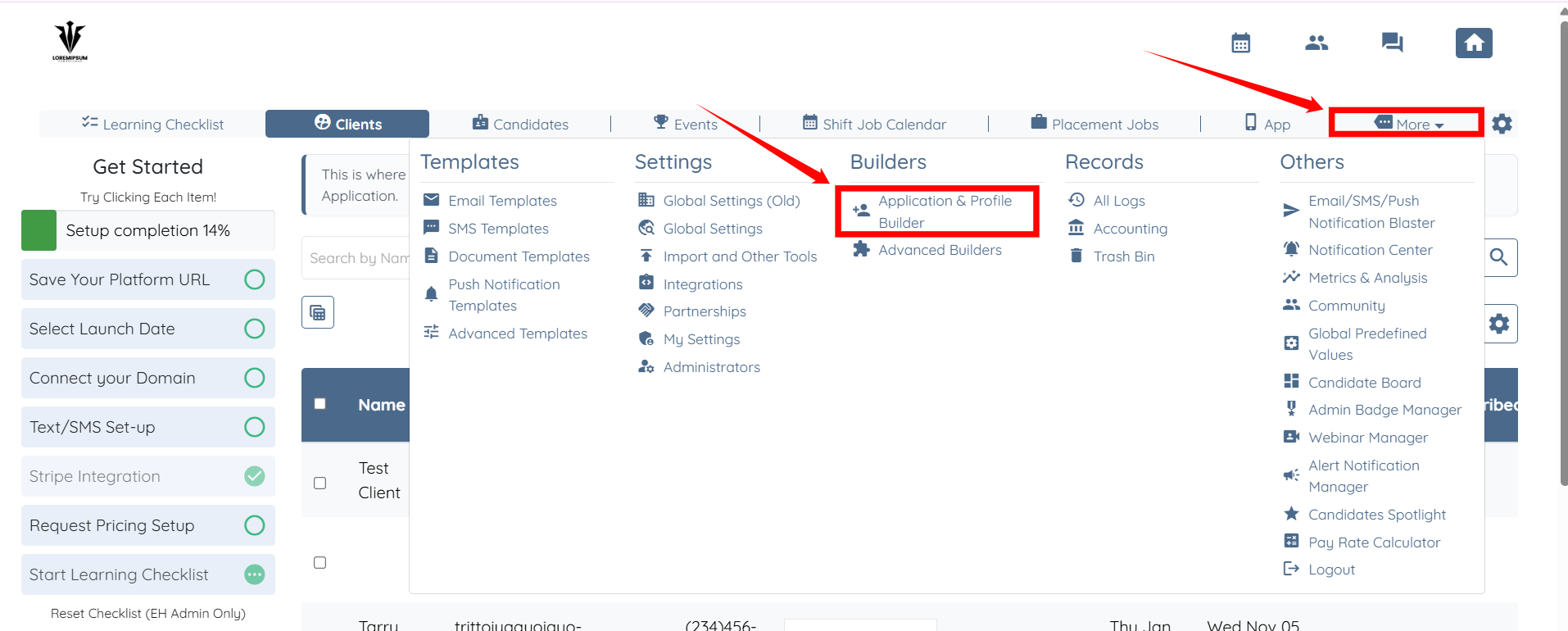
**Step 1**: Log in to your agent dashboard and click **More \> Application & Profile Builder**, as shown in the screenshot below.
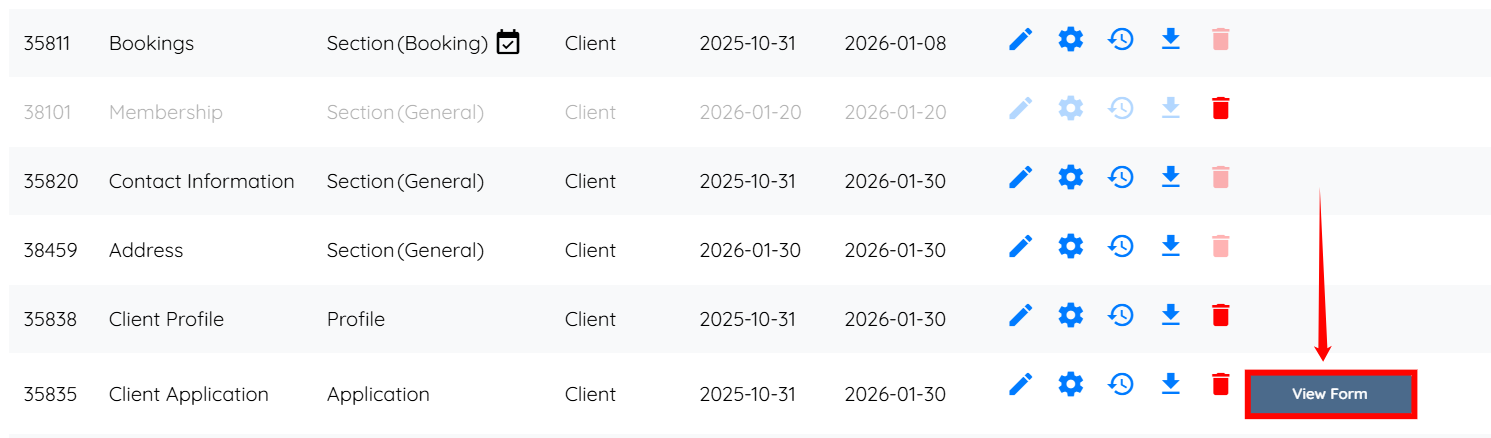
**Step 2**: Locate the application that you want to embed in your website, and then click the corresponding **View Form** button to open the application.
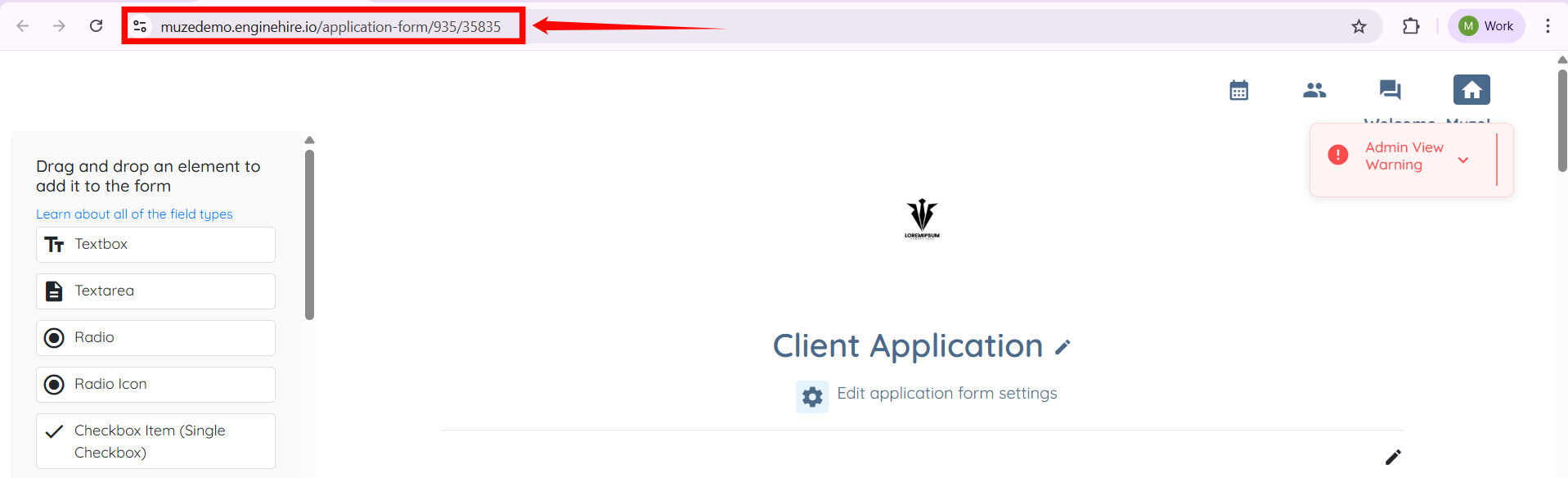
**Step 3**: Copy the application’s URL and securely save it on your system, preferably in a Notepad file.
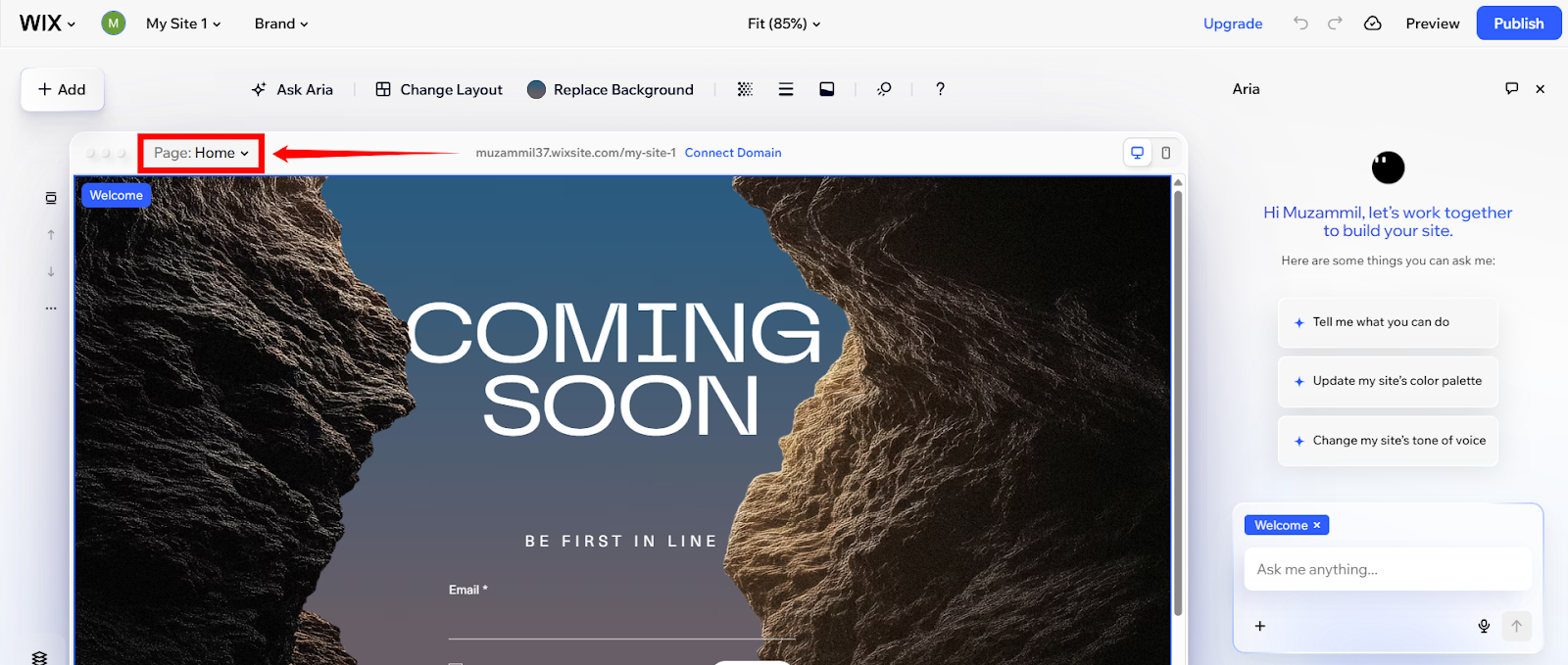
**Step 4**: Open the Wix Editor and click the box shown in the screenshot below to open the Pages panel.
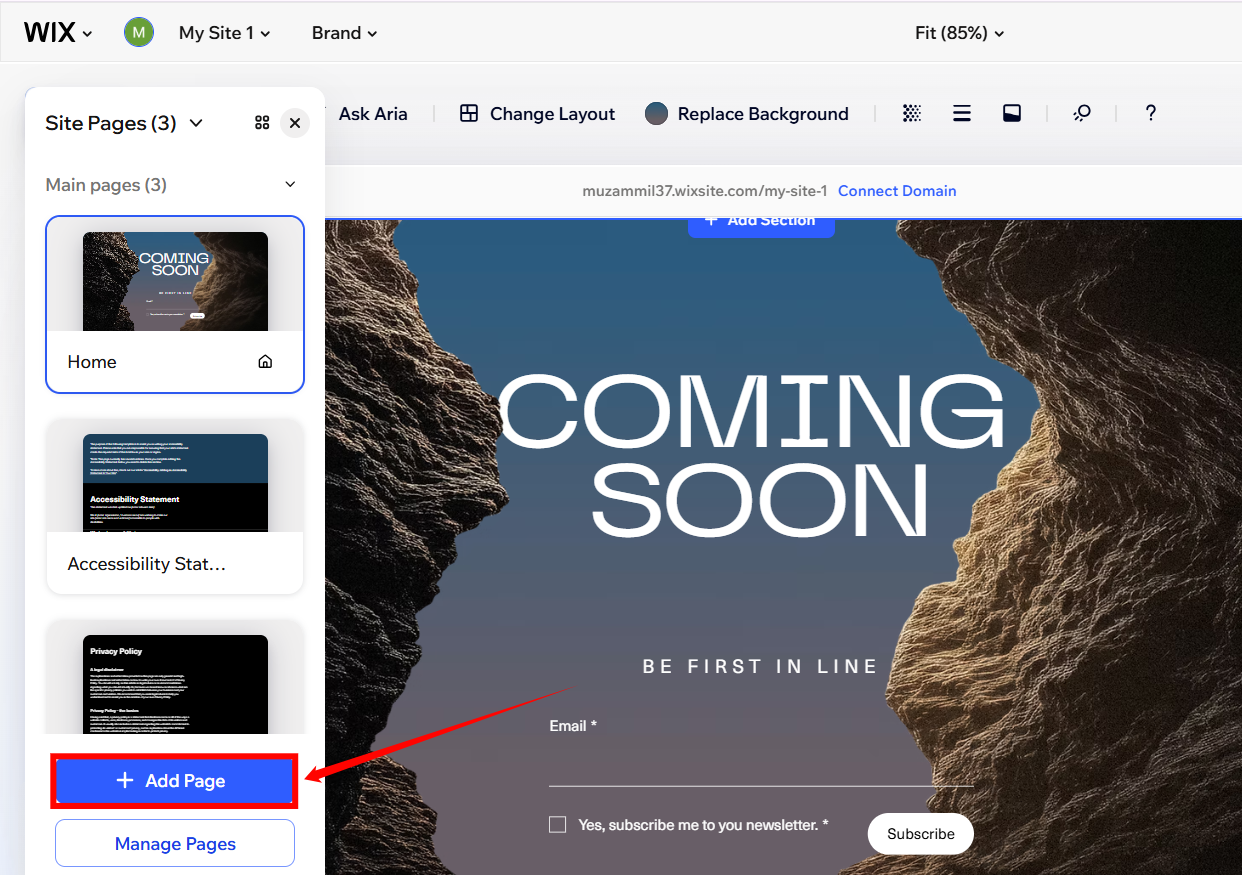
**Step 5**: Click the **Add Page** button to start adding a new page.
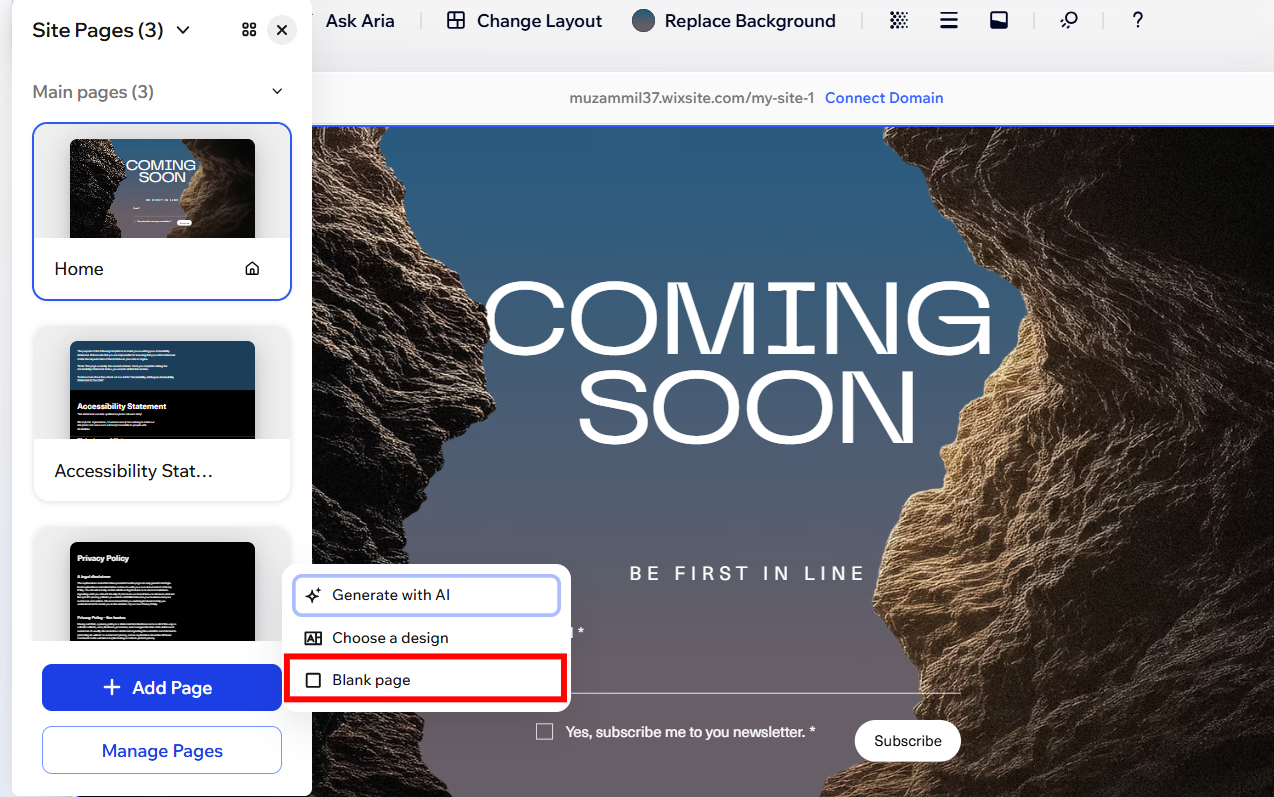
**Step 6**: Click the **Blank Page** option to continue.
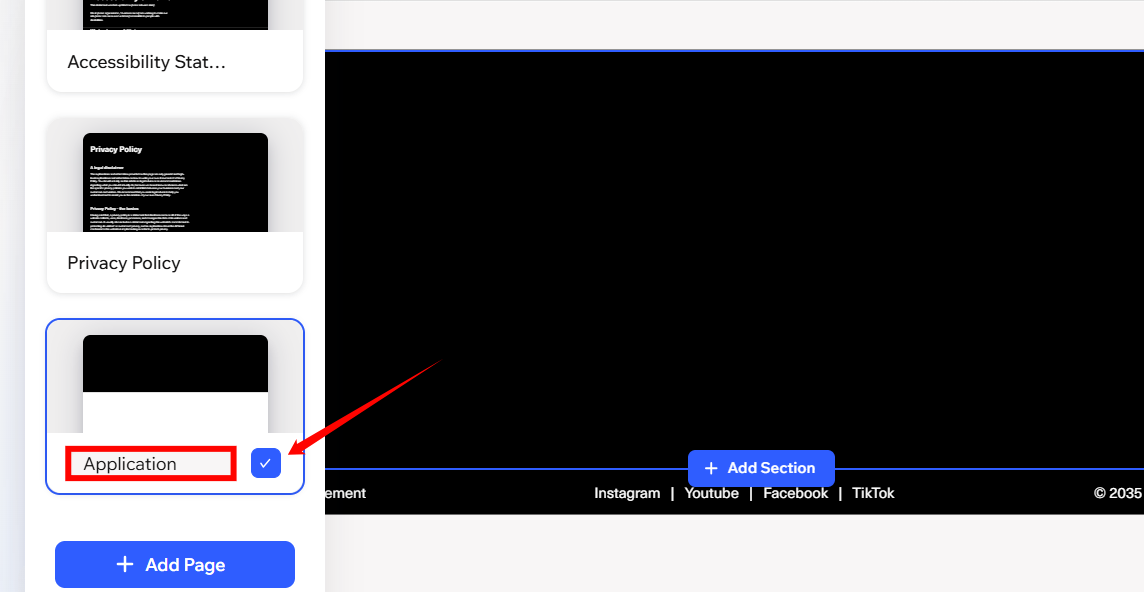
**Step 7**: Enter the name you want for the page, then click the **tick** button to save it.
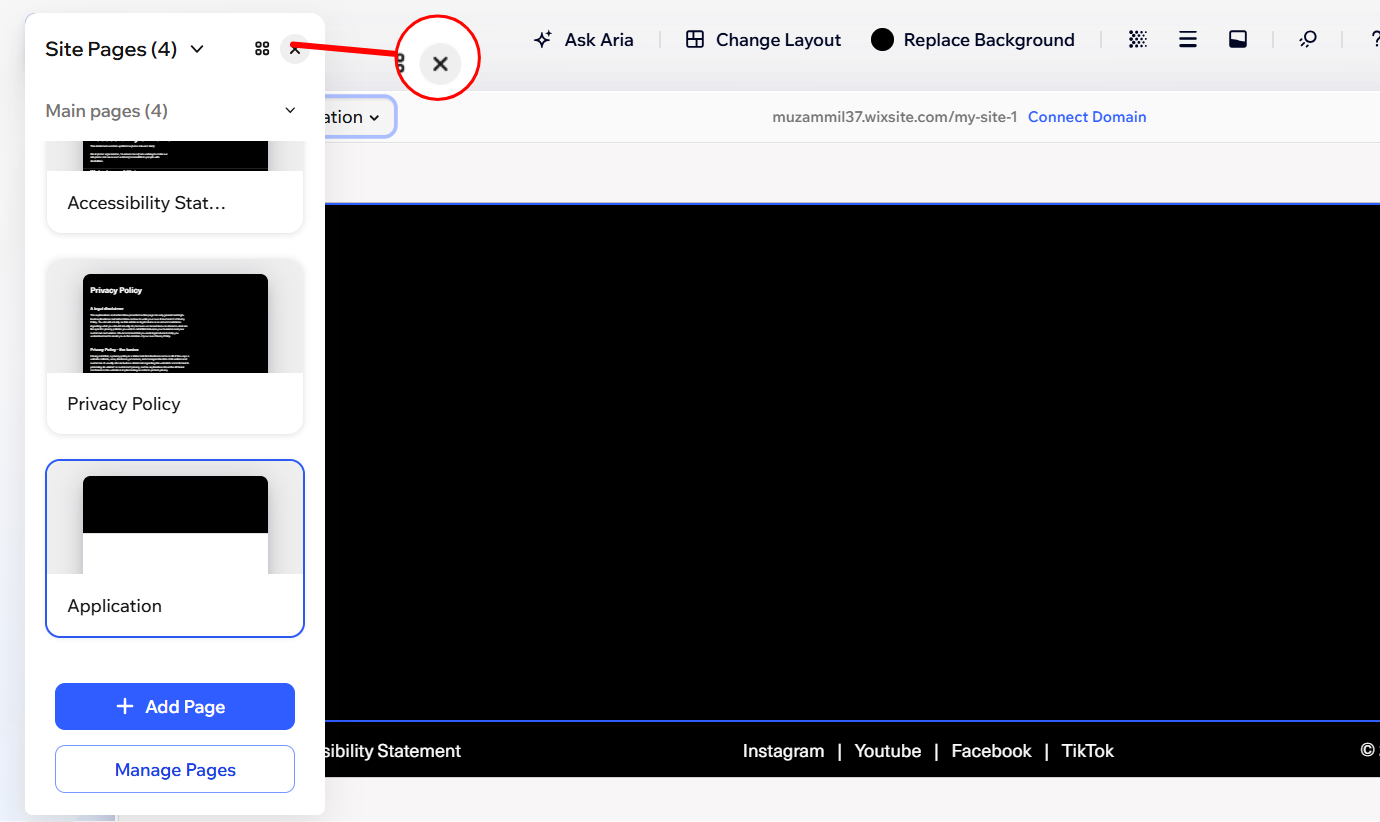
**Step 8**: Click the **cross** icon to close the Pages panel.
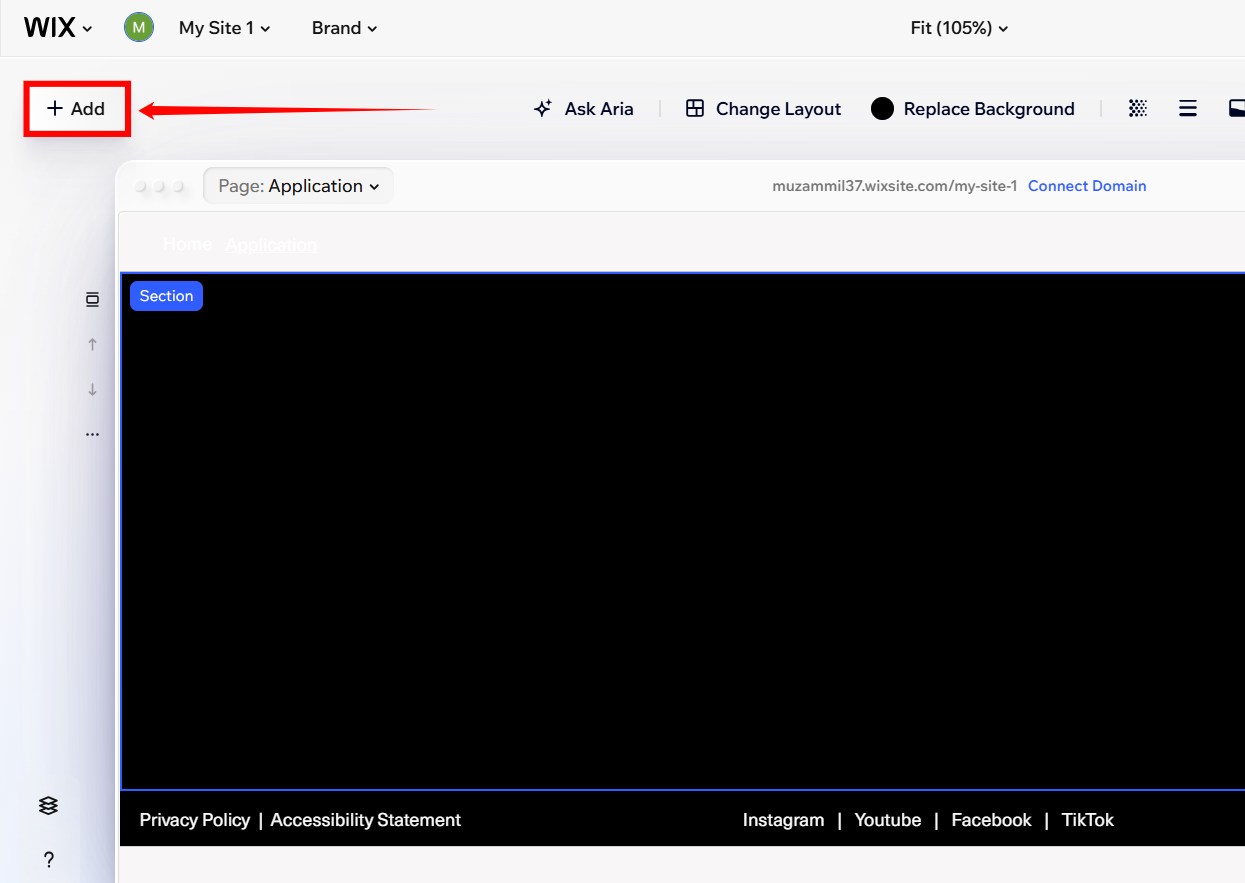
**Step 9**: Click the **+ Add** button.
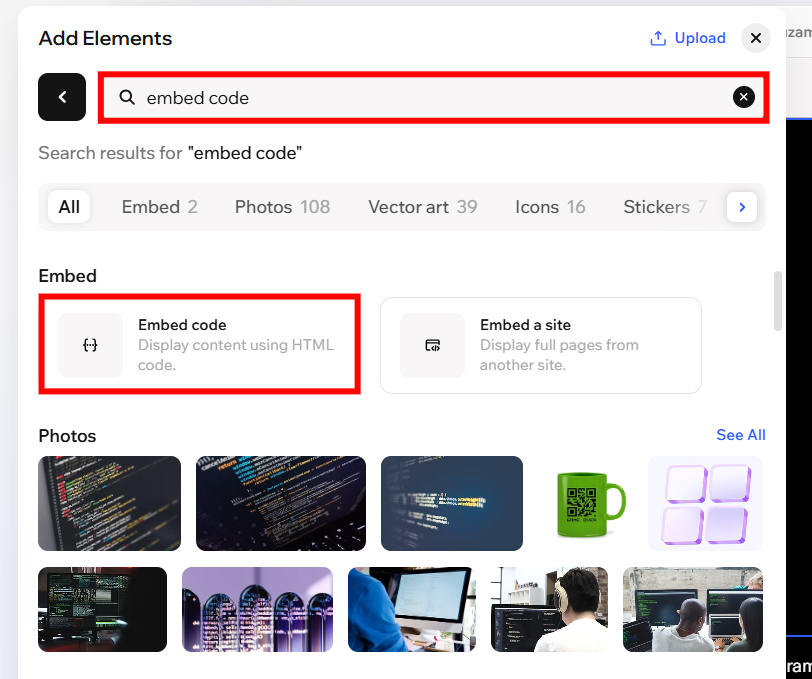
**Step 10**: Use the search bar to find the embed code, and then choose the **Embed code** option as shown in the screenshot below.
**Step 11**: Paste the application URL you copied in **step 3** at the place of **PASTE URL HERE** in the following code.
```
```
For Example:
\
\