![enginehire logo thin dark 1.0.png]](https://learn.enginehire.io/hs-fs/hubfs/enginehire%20logo%20thin%20dark%201.0.png?height=40&name=enginehire%20logo%20thin%20dark%201.0.png)
Let’s get started 🚀
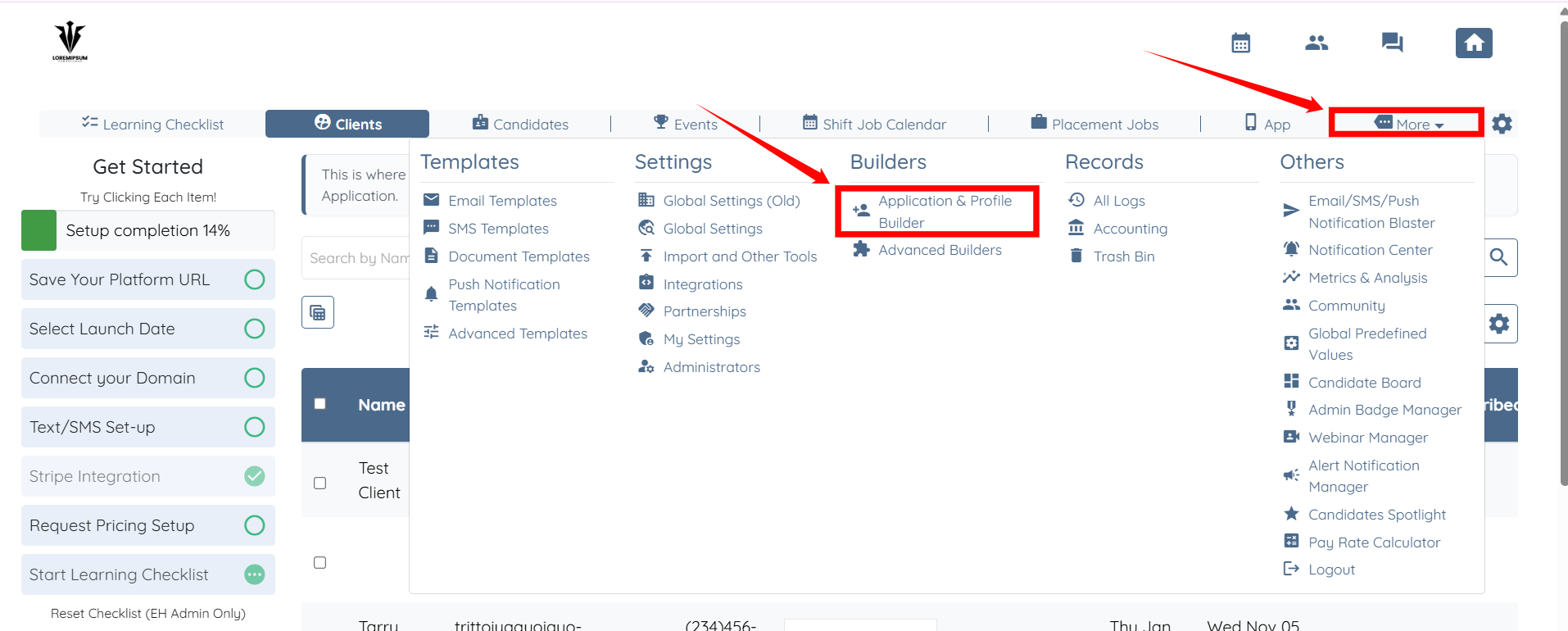
Step 1: Log in to your agent dashboard and click More > Application & Profile Builder, as shown in the screenshot below.
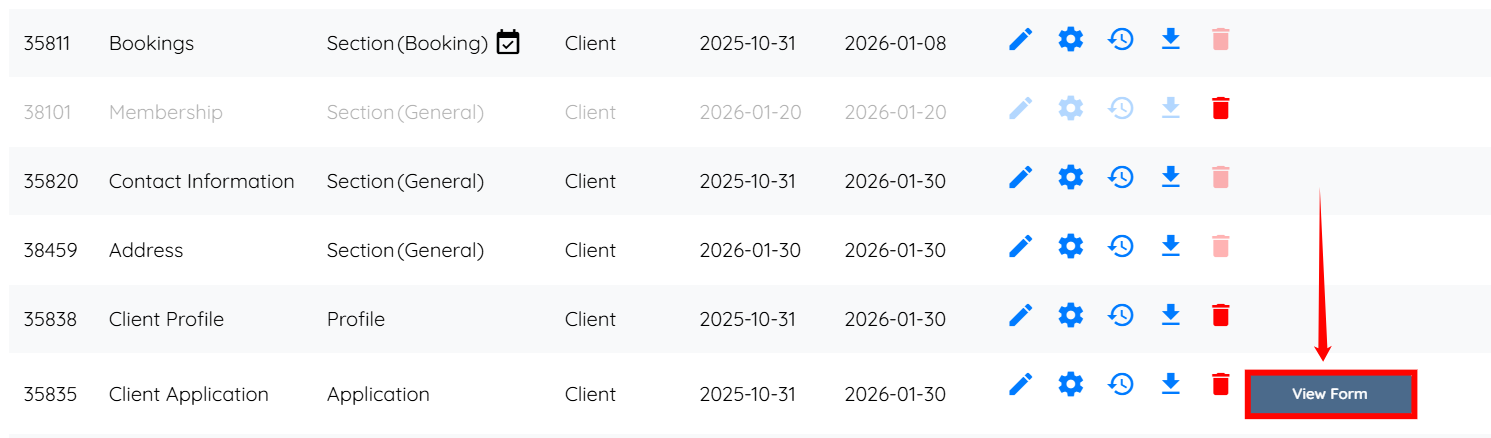
Step 2: Locate the application that you want to embed in your website, and then click the corresponding View Form button to open the application.
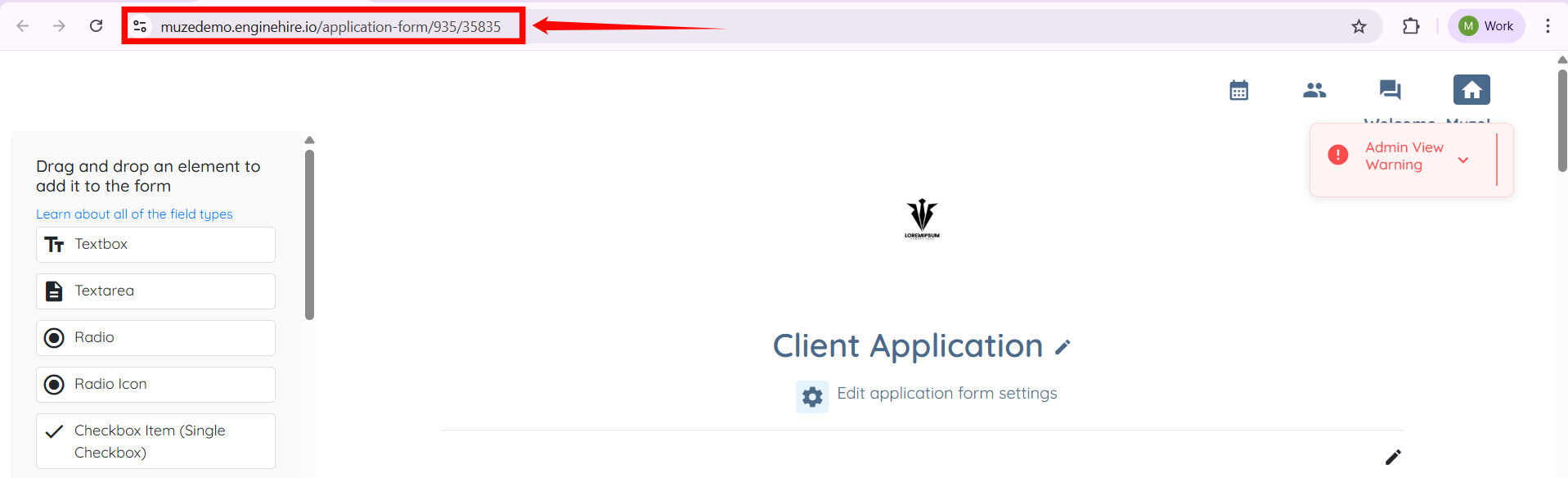
Step 3: Copy the application’s URL and securely save it on your system, preferably in a Notepad file.
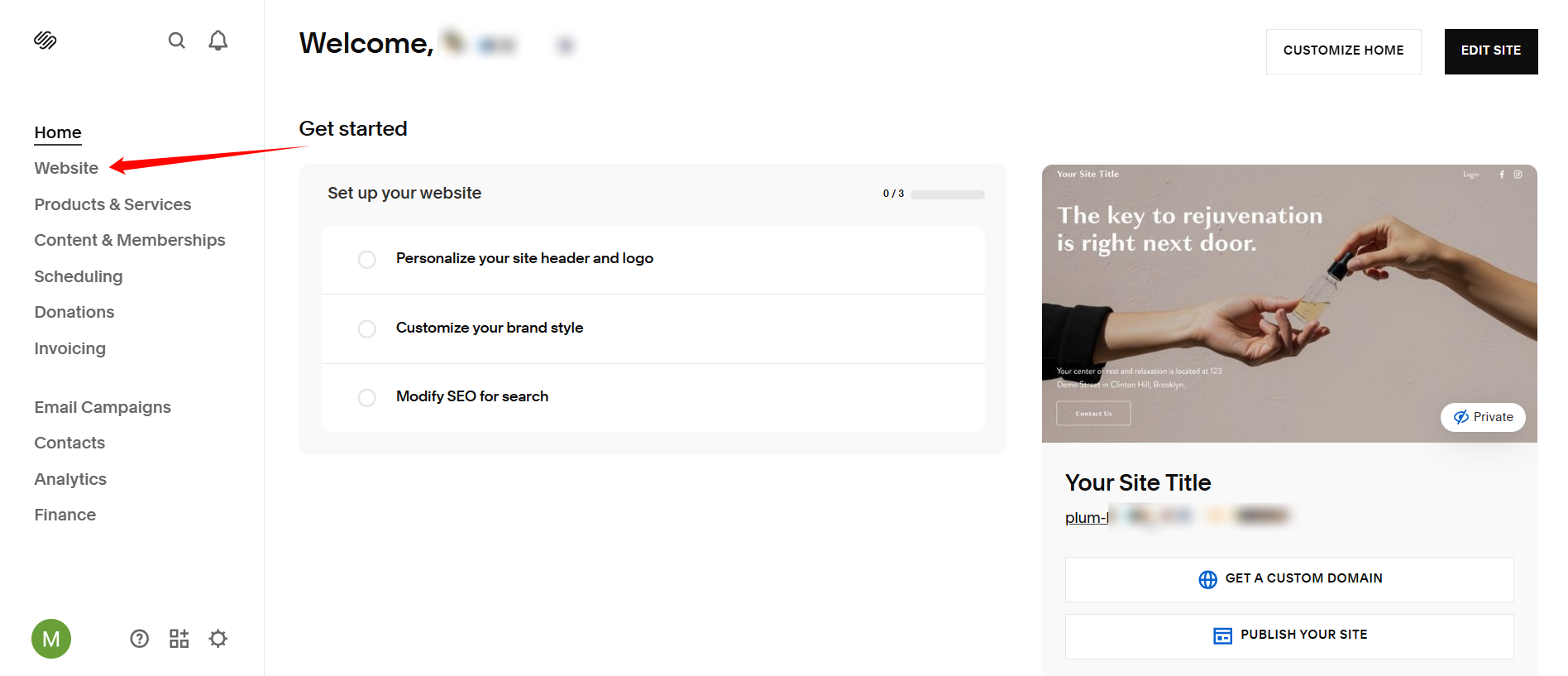
Step 4: Open the Squarespace Editor, and in the left-hand side navigation bar, click the Website option.
Step 5: Click the Pages option to access the pages panel.
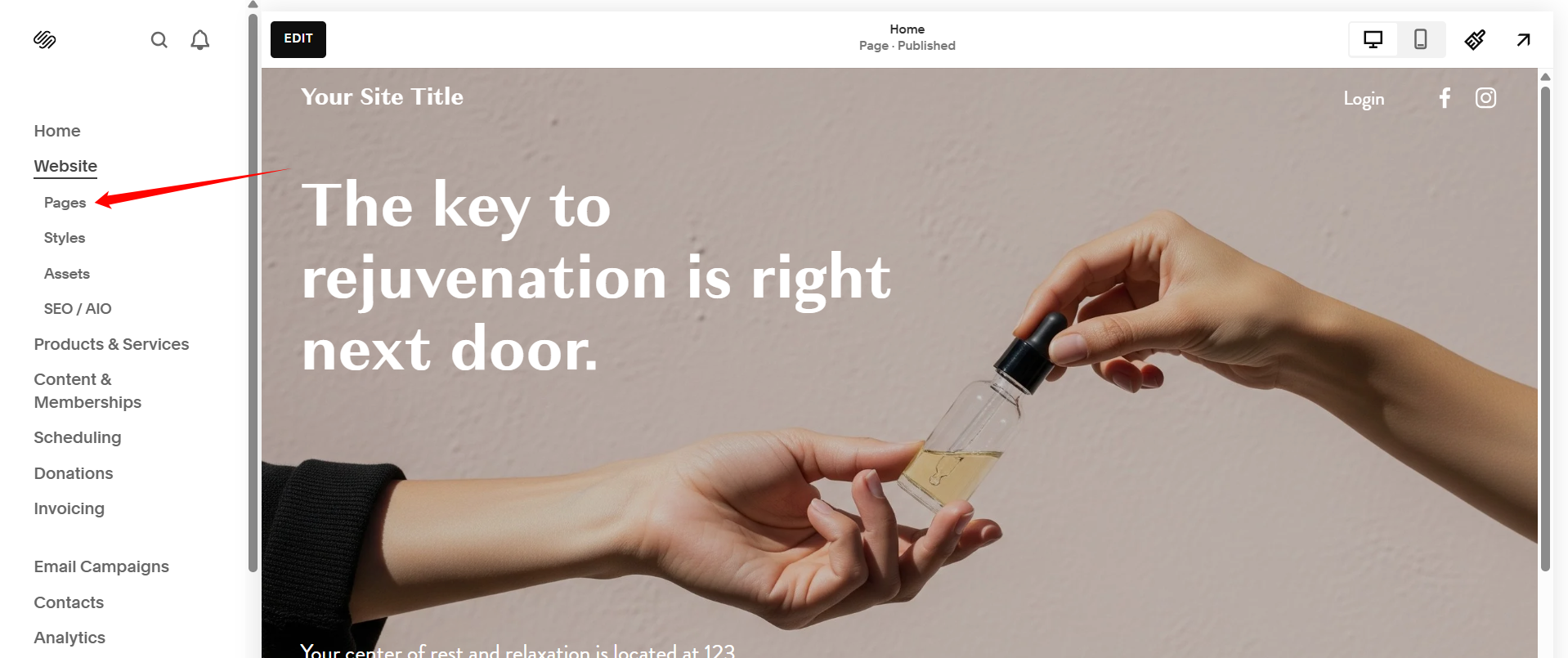
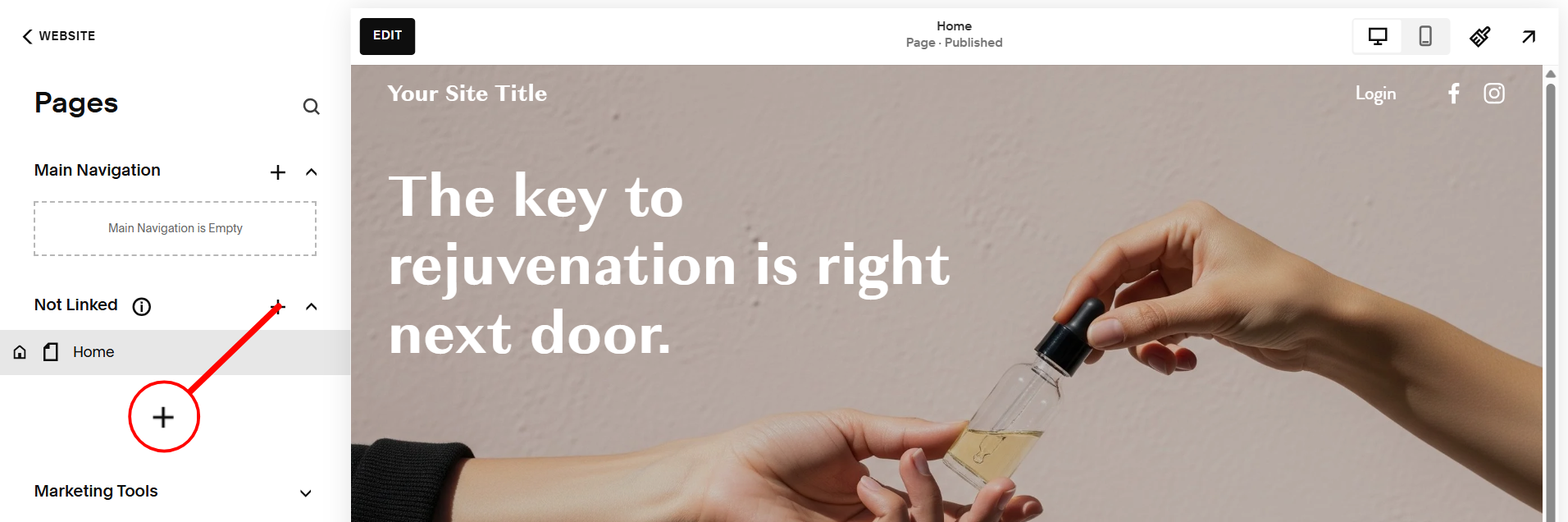
Step 6: Click the + button to begin adding a new page.
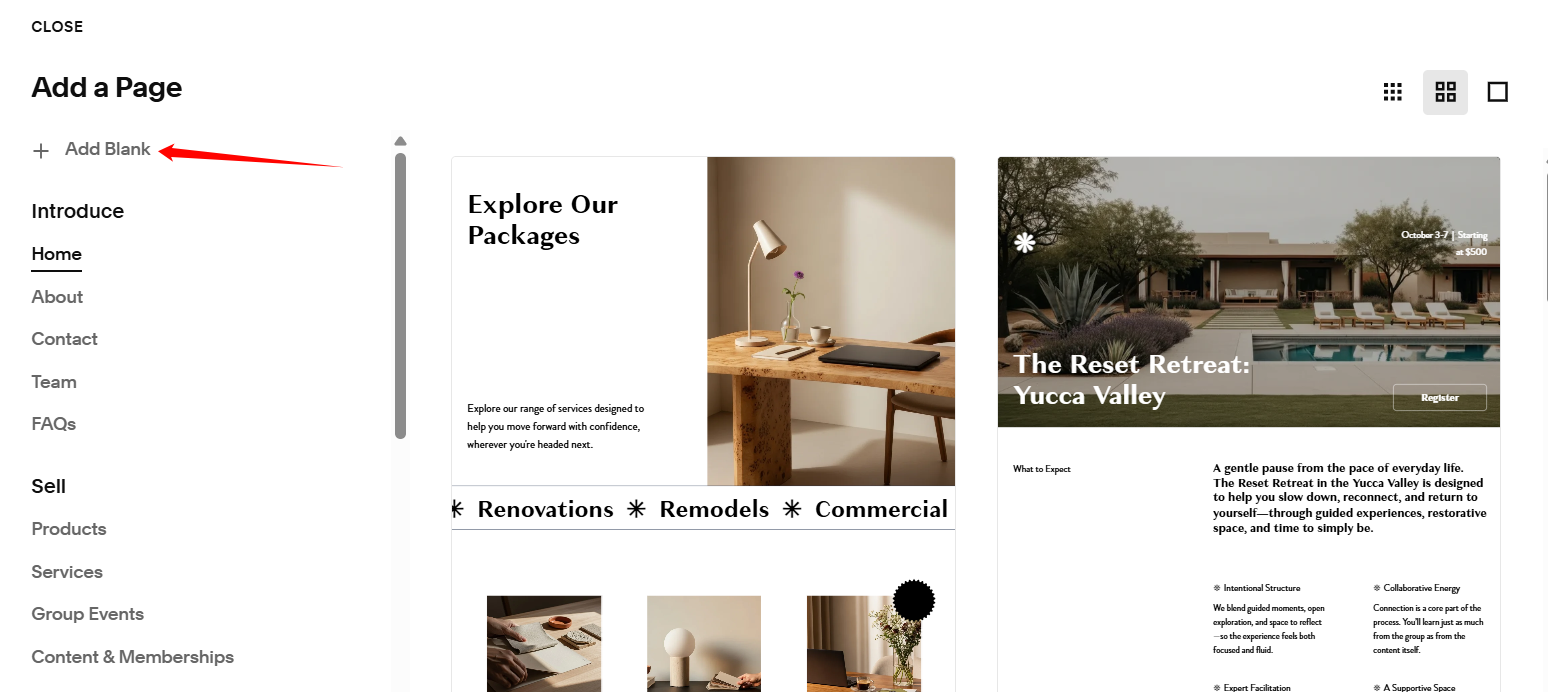
Step 7: Click the + Add Blank option to add a blank page.
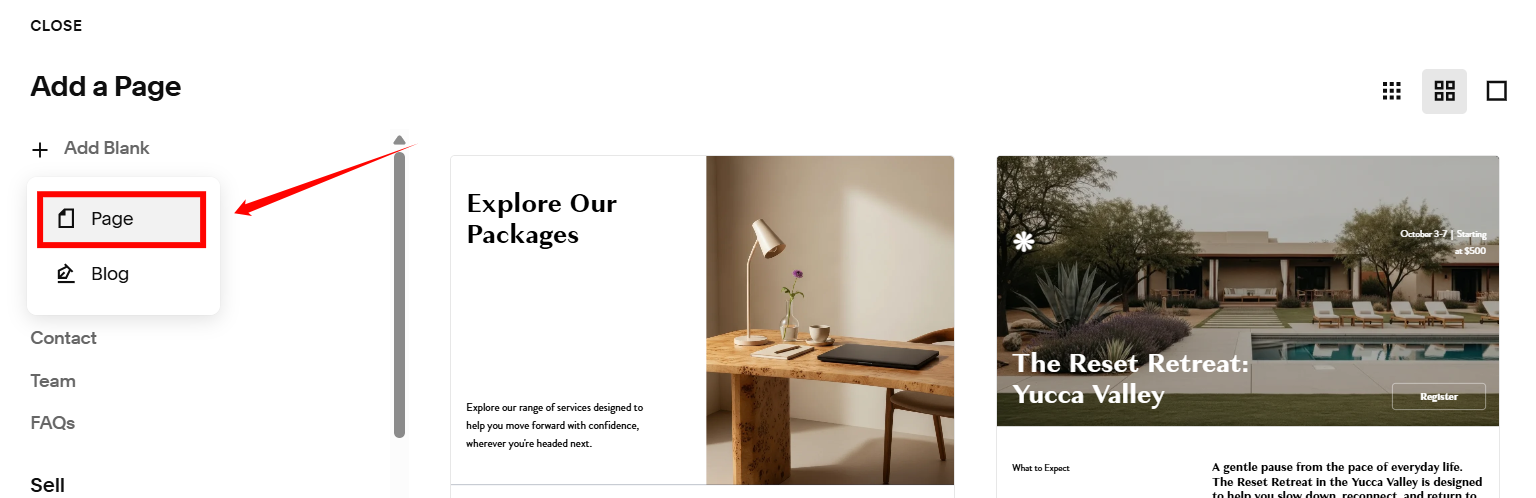
Step 8: Select the Page option.
Step 9: Type the name of your page, and then press Enter.
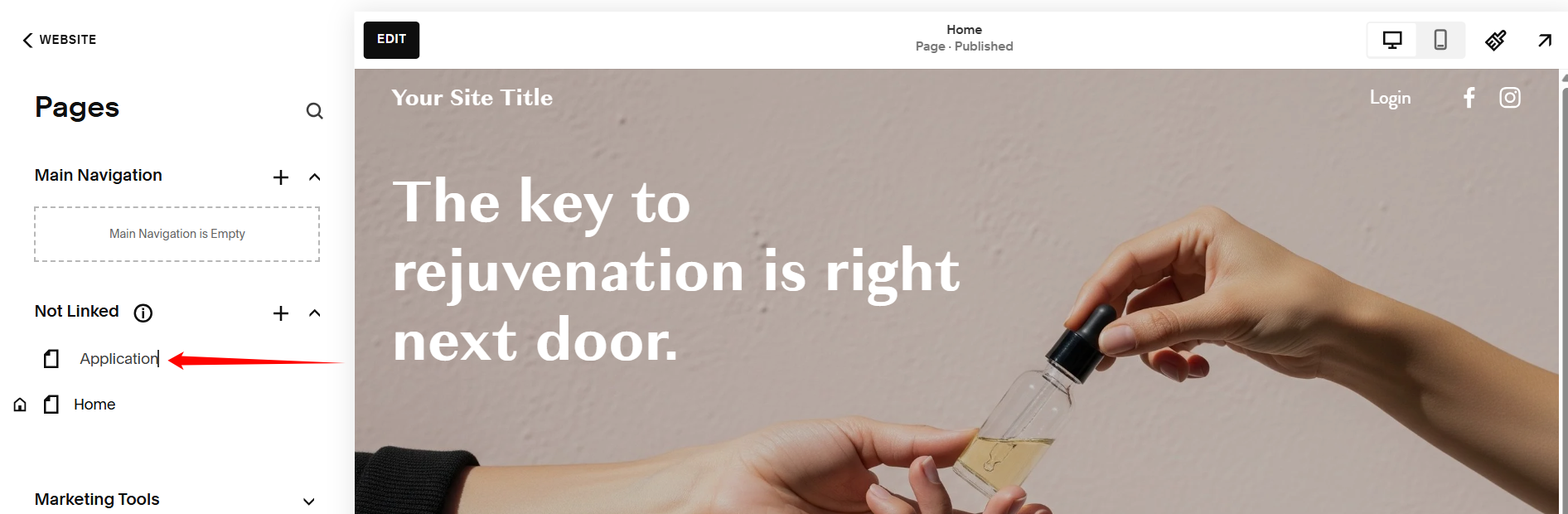
Step 10: Click the EDIT button, as shown, to begin editing the newly added page.
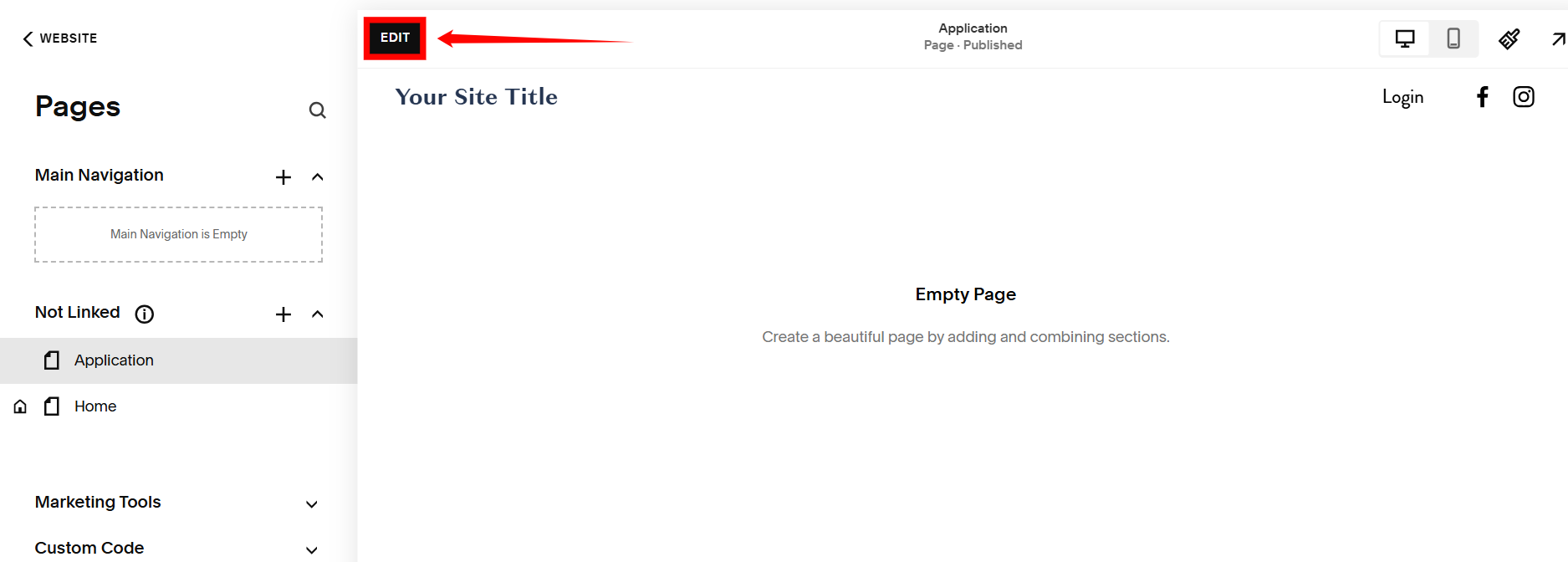
Step 11: Click the ADD SECTION button.
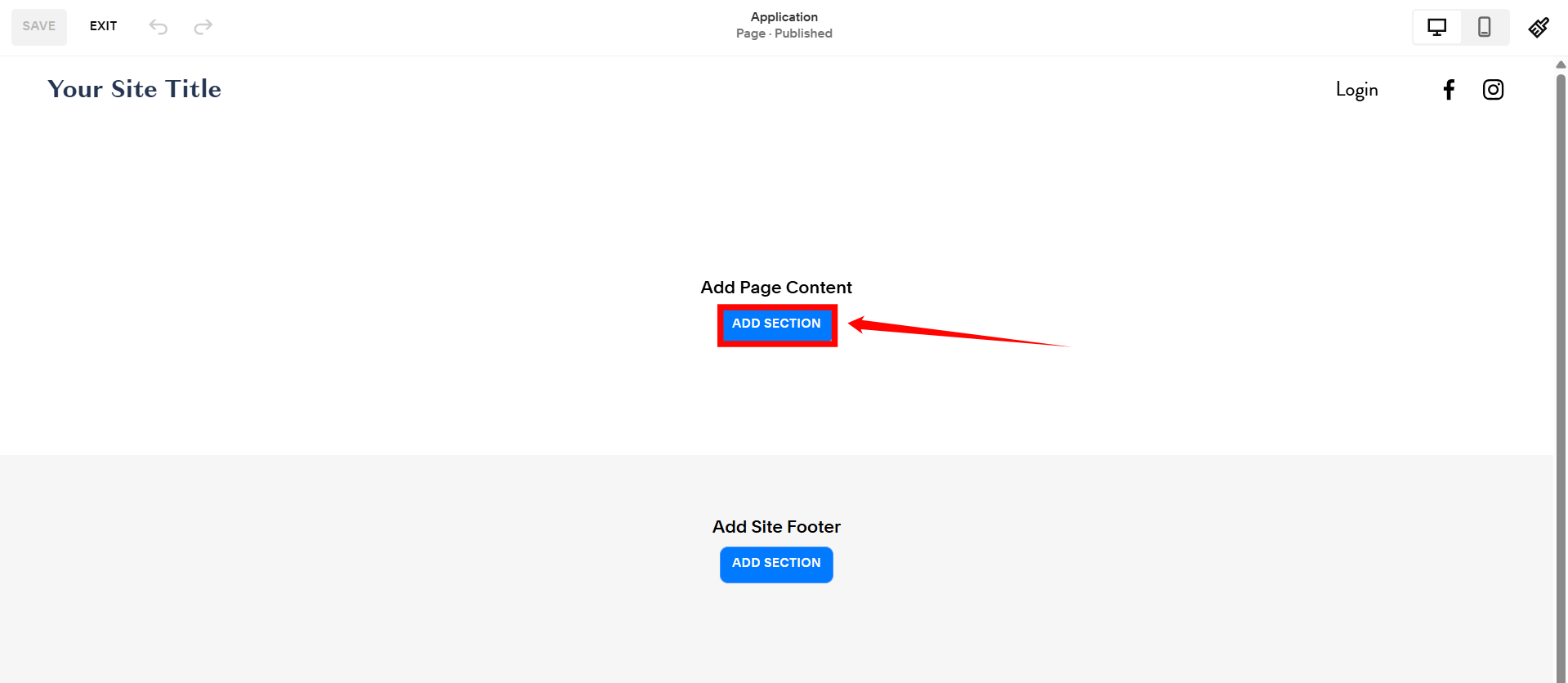
Step 12: Click the Add Blank option to add a blank section.
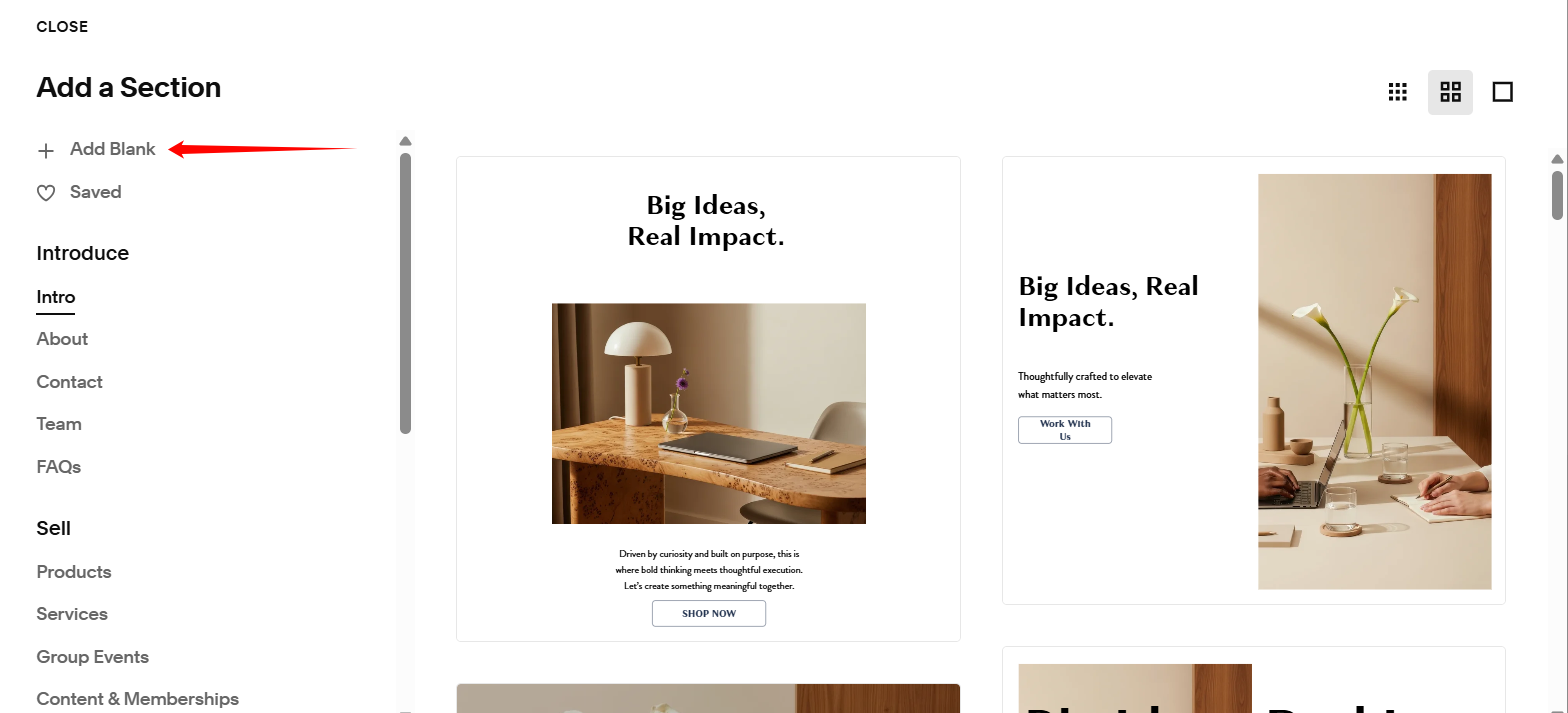
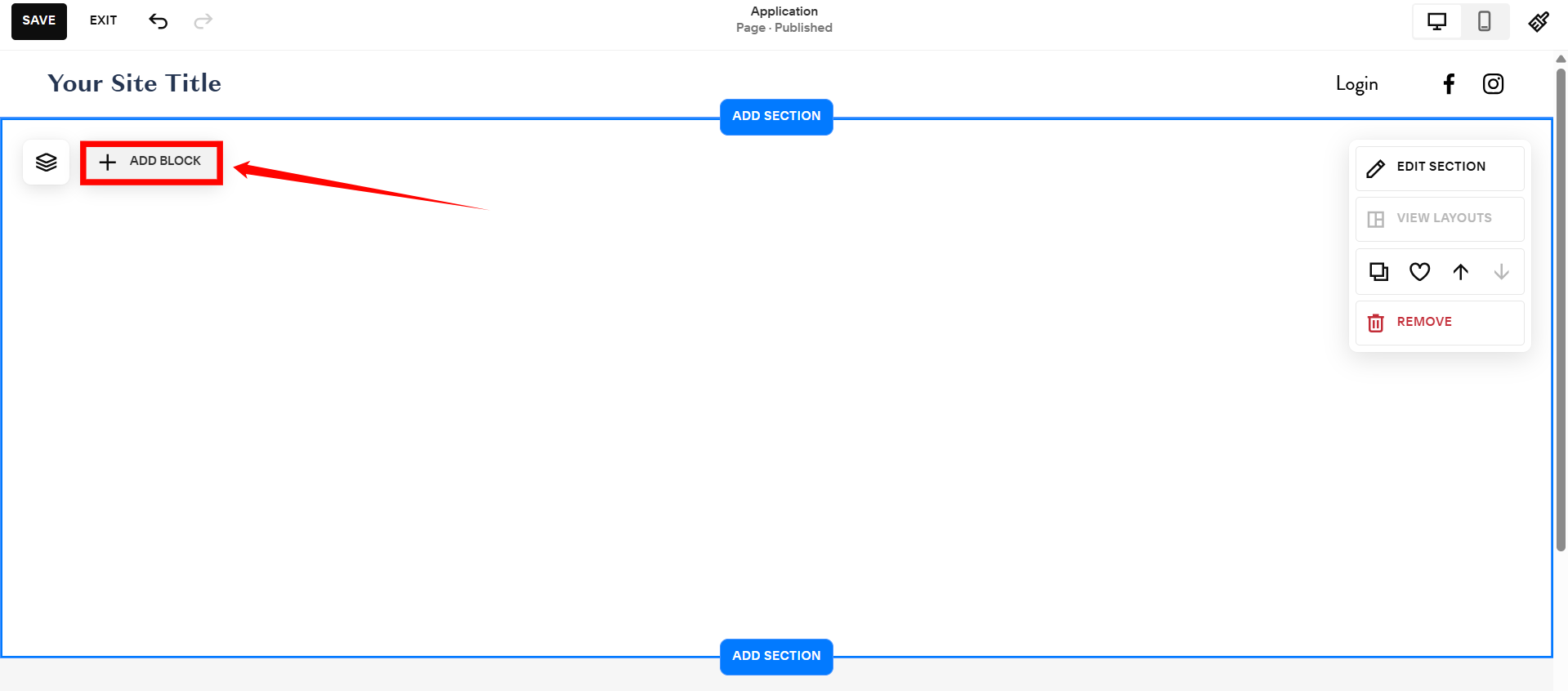
Step 13: Click the + ADD BLOCK button.
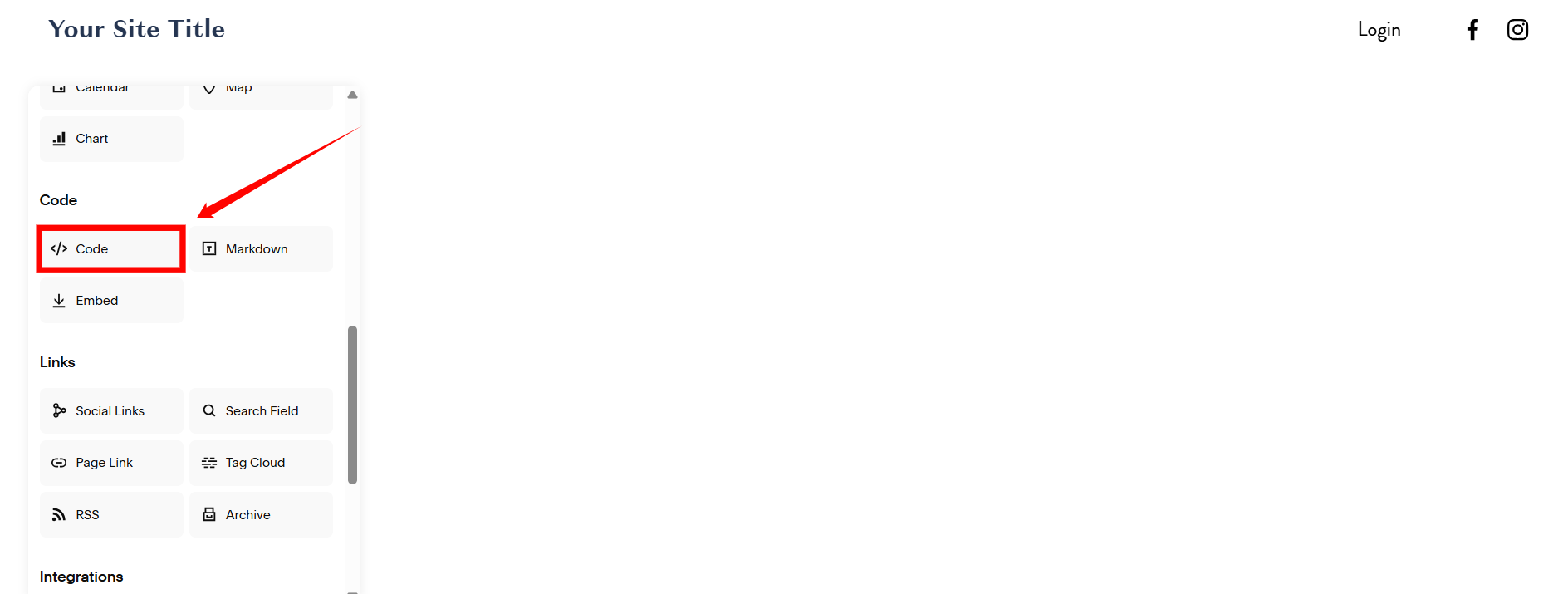
Step 14: Scroll down and click the Code option in the left-hand side menu bar.
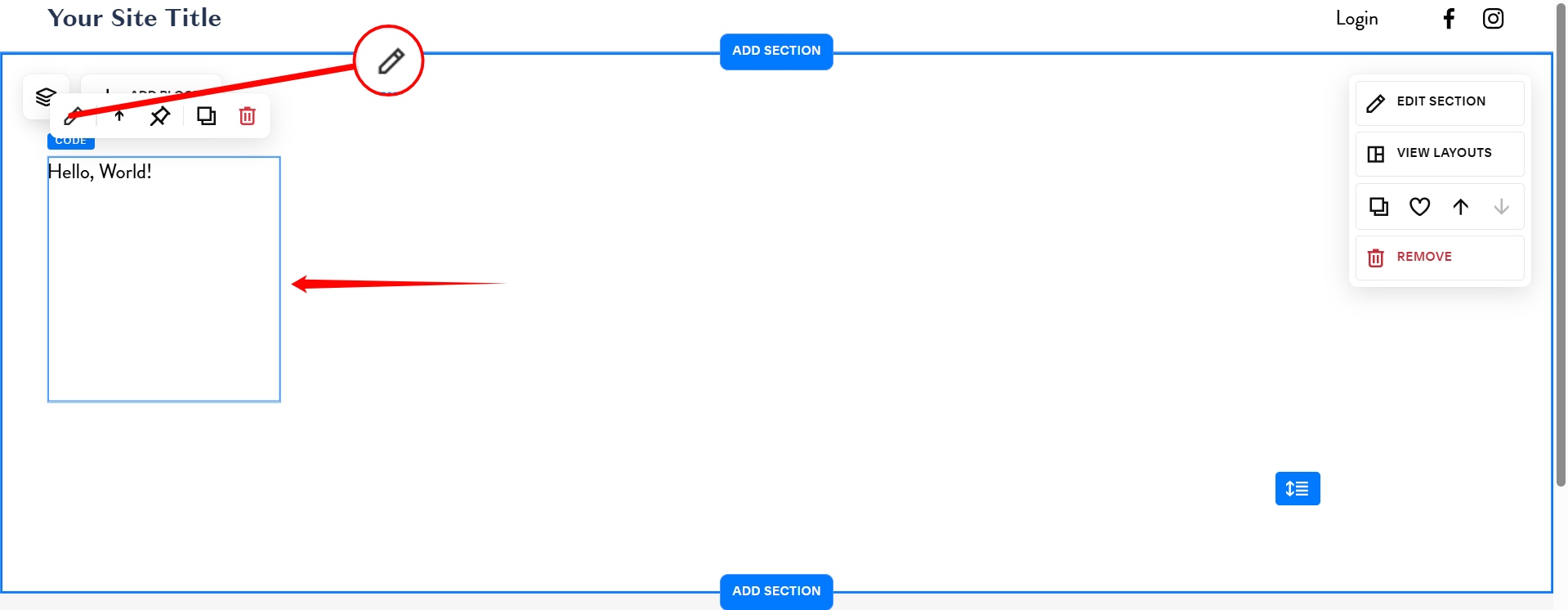
Step 15: Select the code block, and then click the pencil icon to continue.
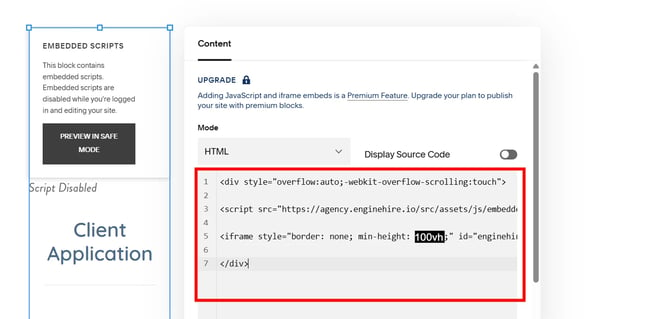
Step 16: Paste the application URL you copied in step 3 at the place of PASTE URL HERE in the following code.
<div style="overflow:auto;-webkit-overflow-scrolling:touch">

  <script src="https://agency.enginehire.io/src/assets/js/embedded_script.js"></script>

  <iframe style="border: none; min-height: 100vh;" id="enginehire-iframe" src="PASTE URL HERE" width="100%" height="10000"></iframe>

</div>
For Example:
<div style="overflow:auto;-webkit-overflow-scrolling:touch">
<script src="https://agency.enginehire.io/src/assets/js/embedded_script.js"></script>
<iframe style="border: none; min-height: 100vh;" id="enginehire-iframe" src="https://application-form.enginehire.io/application-form/108/1840" width="100%" height="10000"></iframe>
</div>
Step 17: Paste the code that you created in the previous step.
Step 18: Click the SAVE button to save the pasted code.
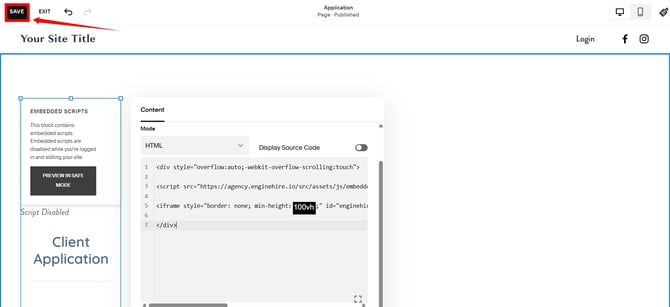
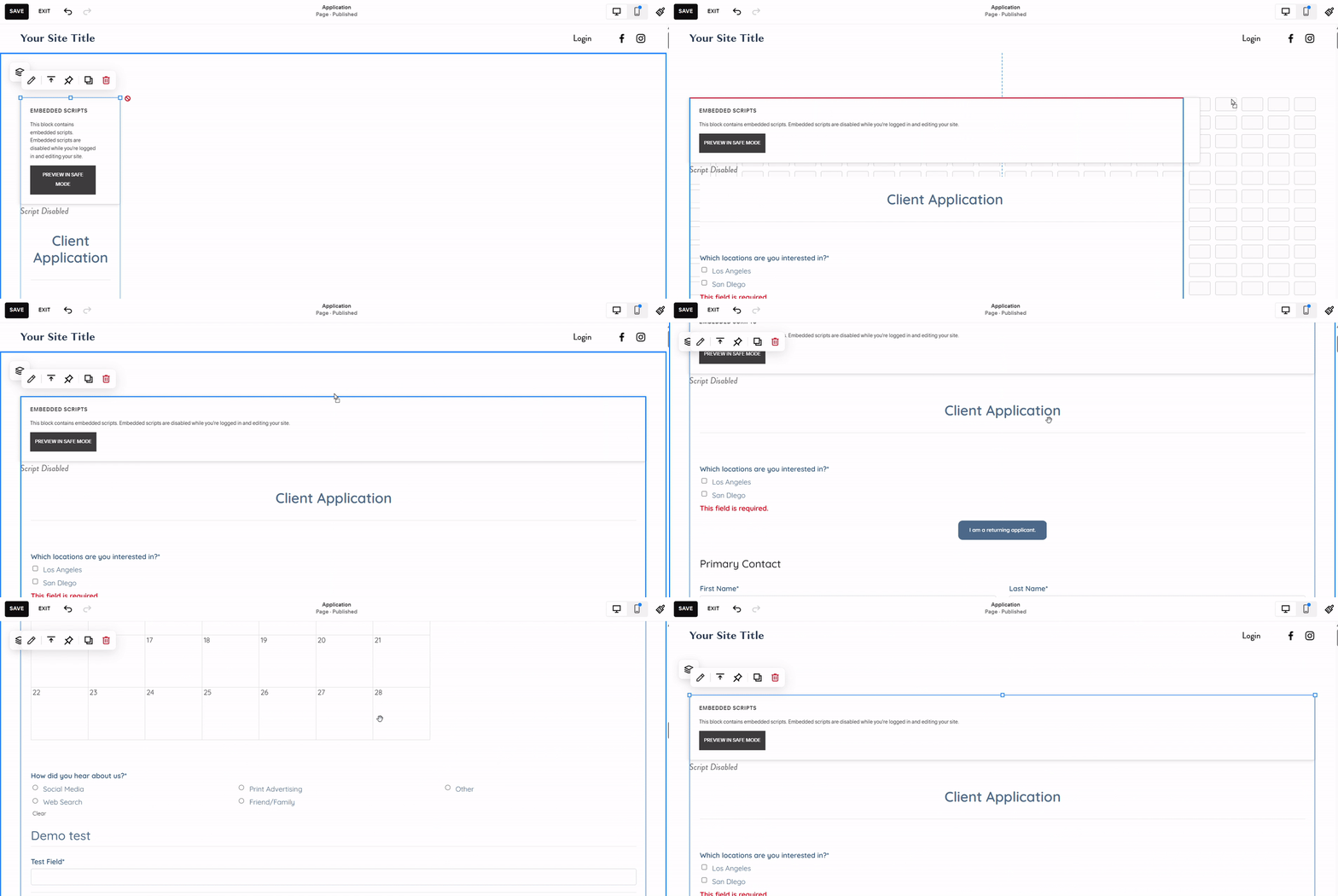
Step 19: Resize the code block to occupy the full page to enhance its visual appeal.
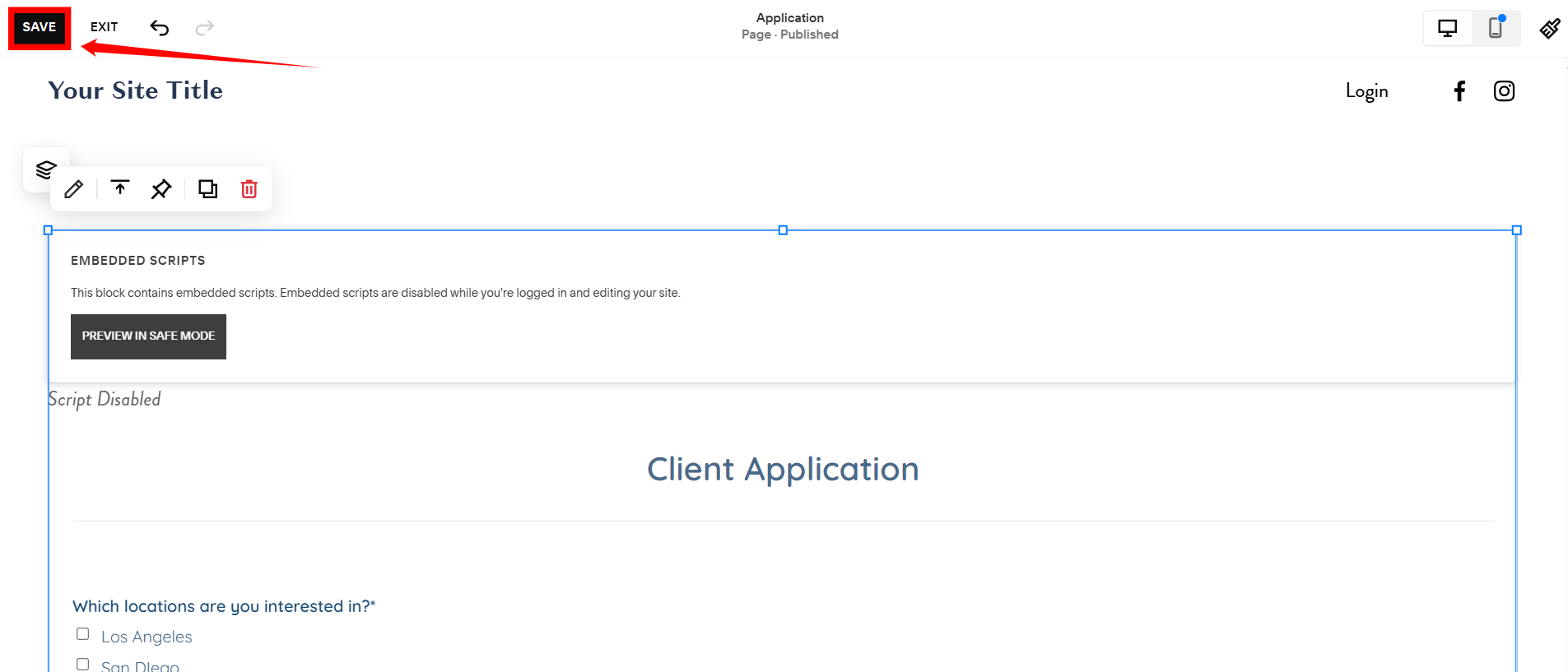
Step 20: Click the SAVE button to save the code block.
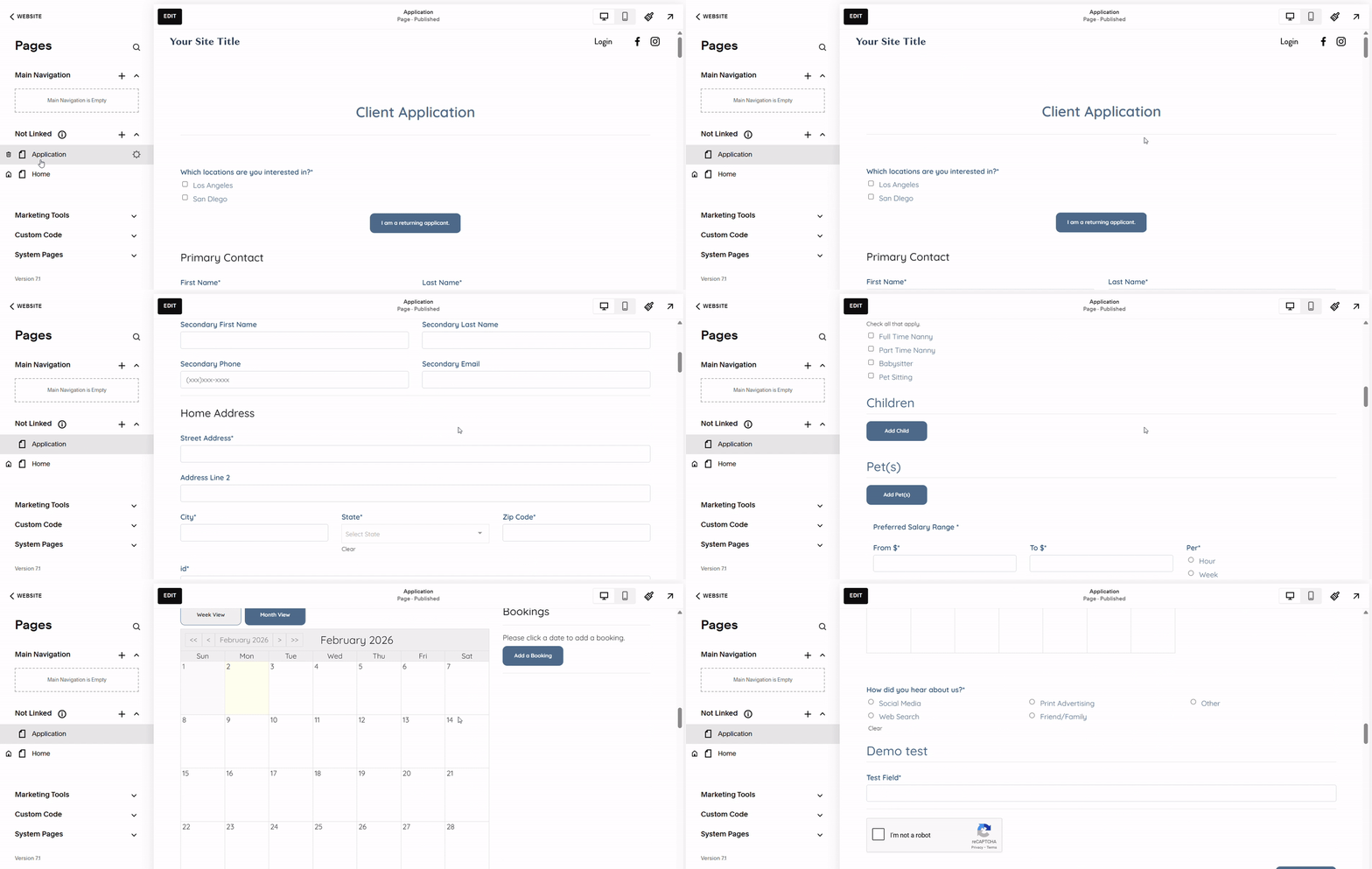
Step 21: Click the EXIT Button to exit the page.

You can preview your embedded application form successfully.
If you simply choose to link your application, copy and paste the URL into a button or add it as hyperlinked text.