![enginehire logo thin dark 1.0.png]](https://learn.enginehire.io/hs-fs/hubfs/enginehire%20logo%20thin%20dark%201.0.png?height=40&name=enginehire%20logo%20thin%20dark%201.0.png)
Let’s get started. 🚀
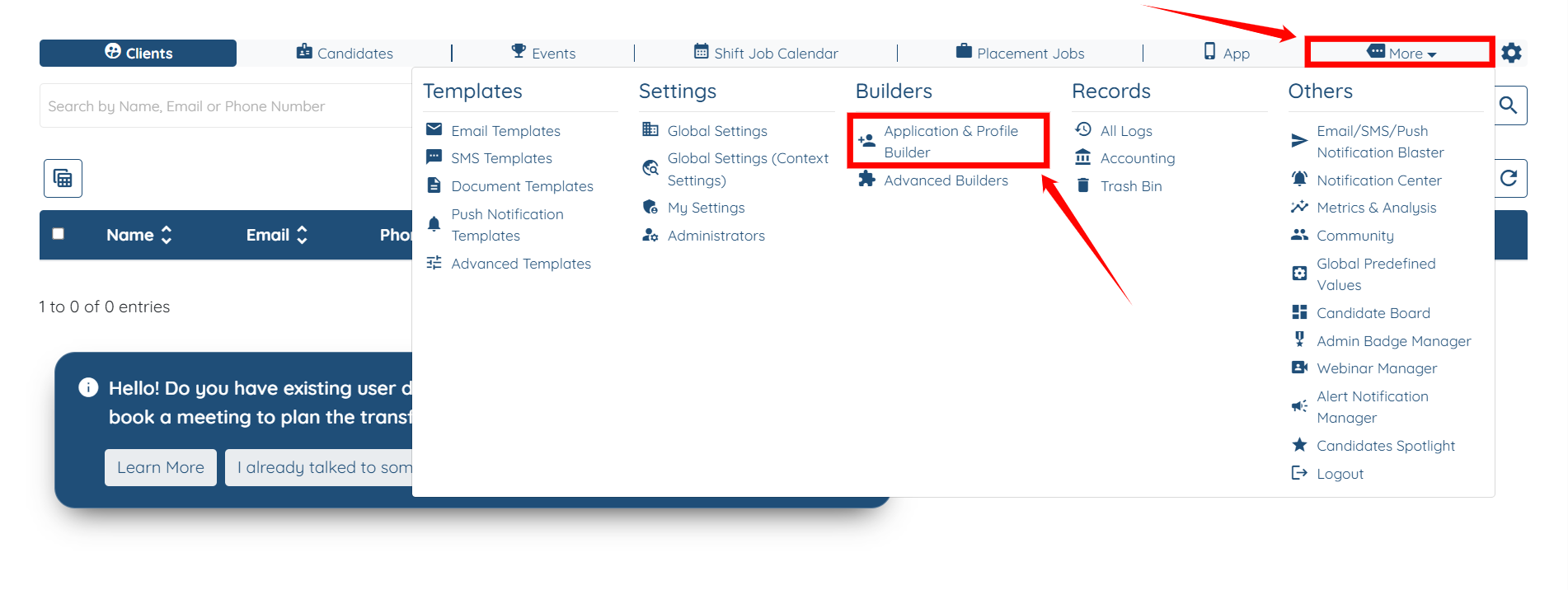
Step 1: Log in to your agent dashboard, then navigate to More > Application & Profile Builder, as shown in the screenshot below.
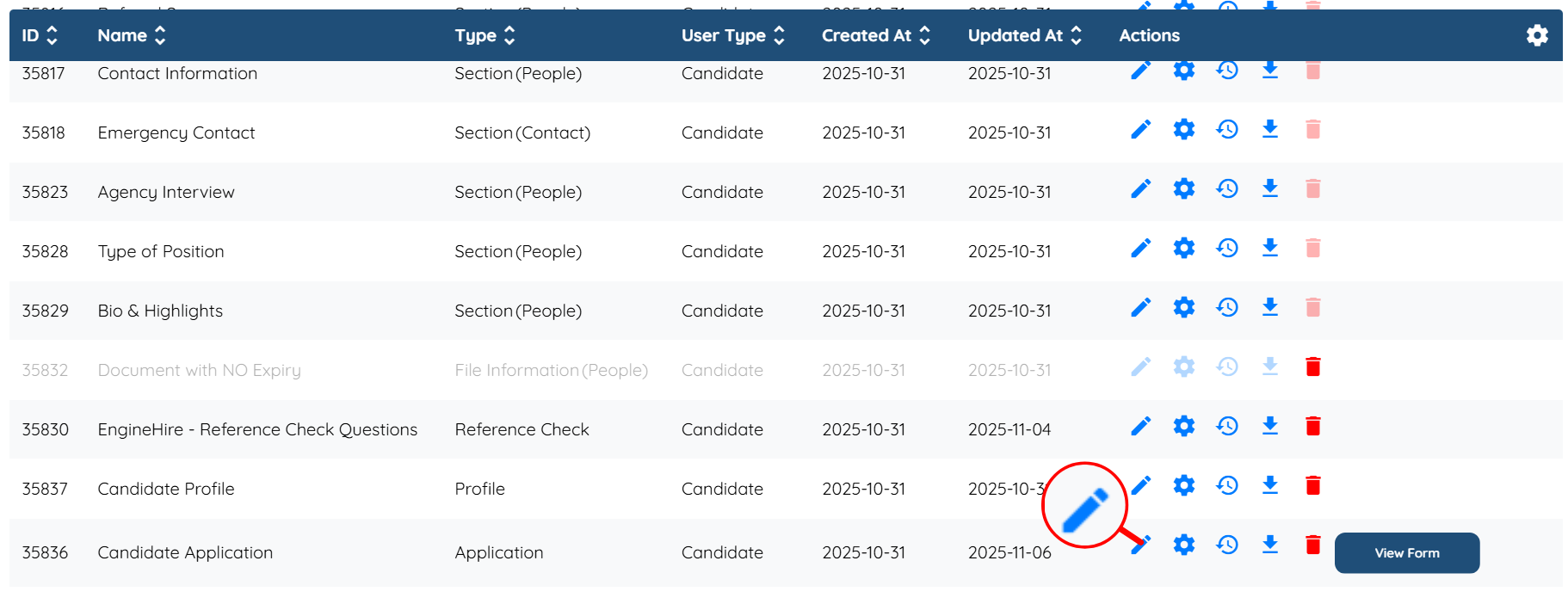
Step 2: Locate the application form where you want to add a field remark, and then click the Pencil icon corresponding to that form in the Actions column.
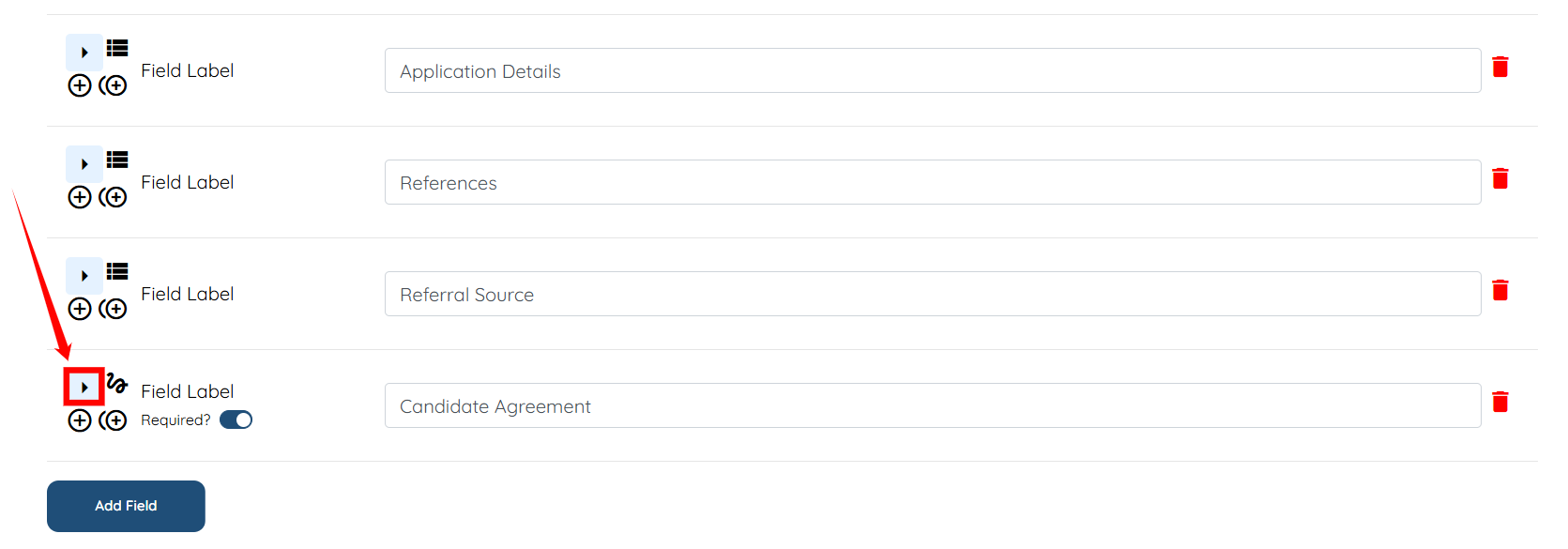
Step 3: Click on the arrow button next to the field to expand its details.
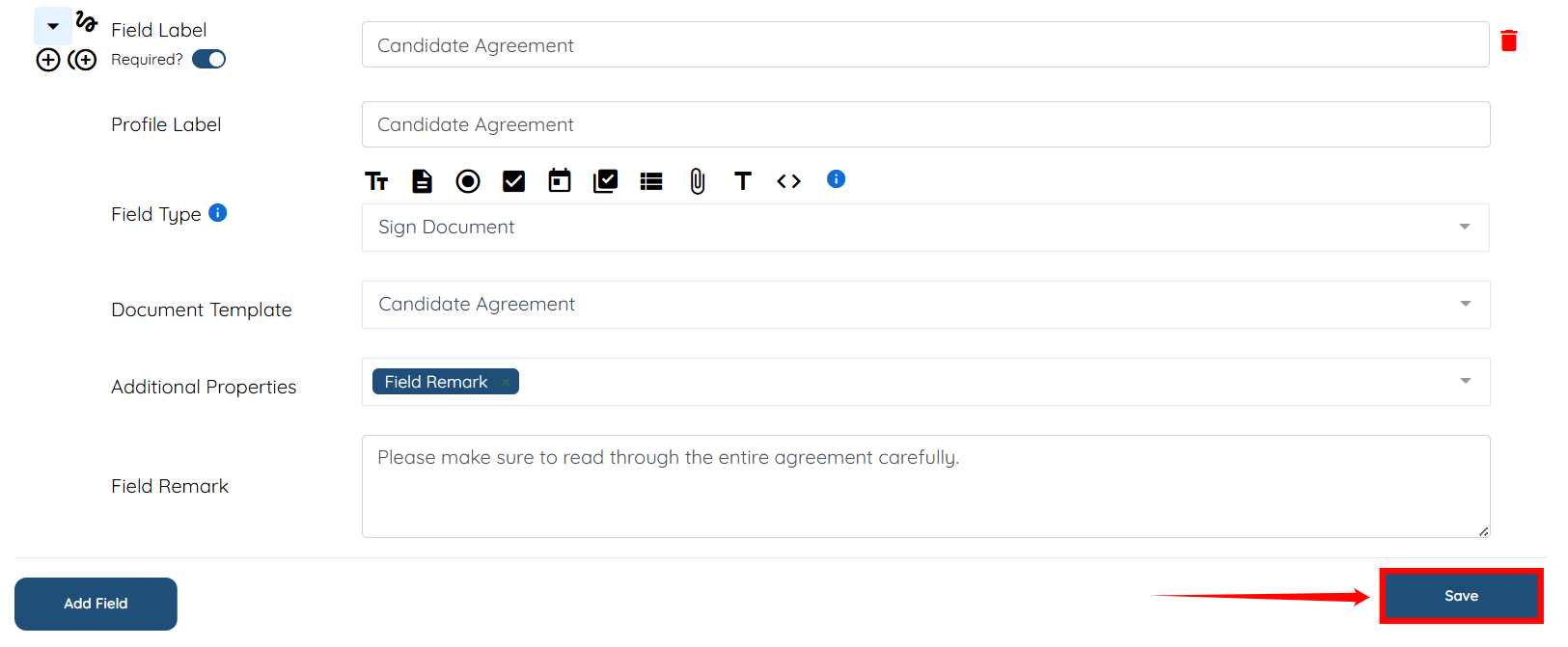
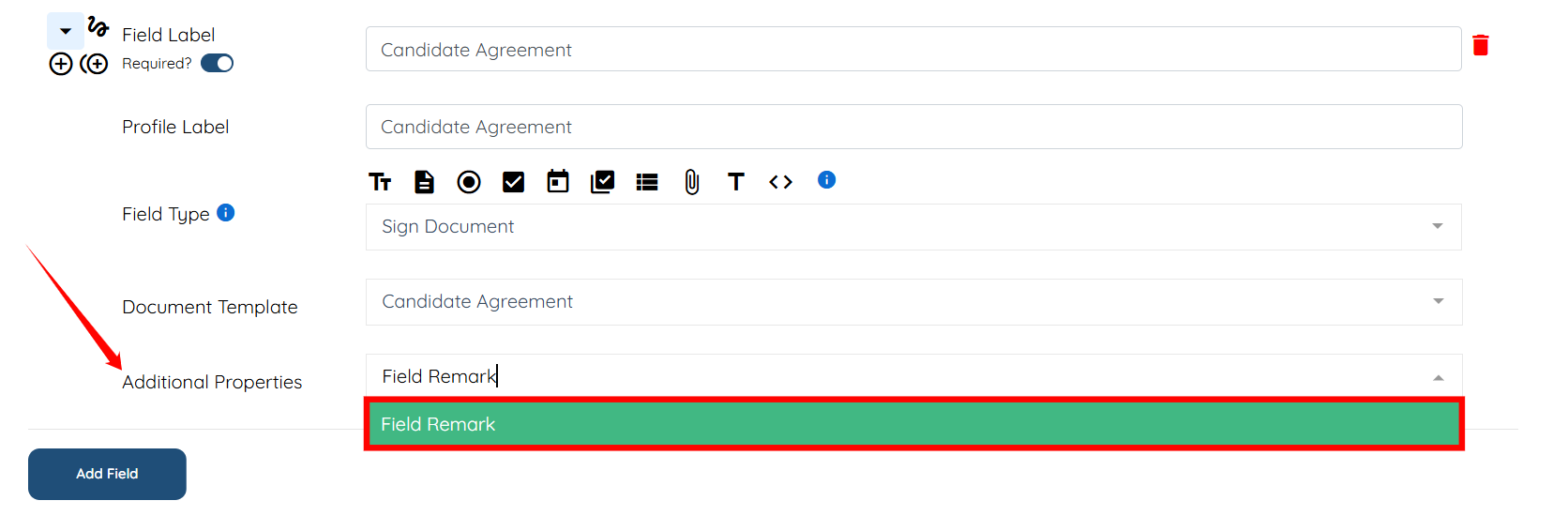
Step 4: In the Additional Properties field, select the Field Remark option.
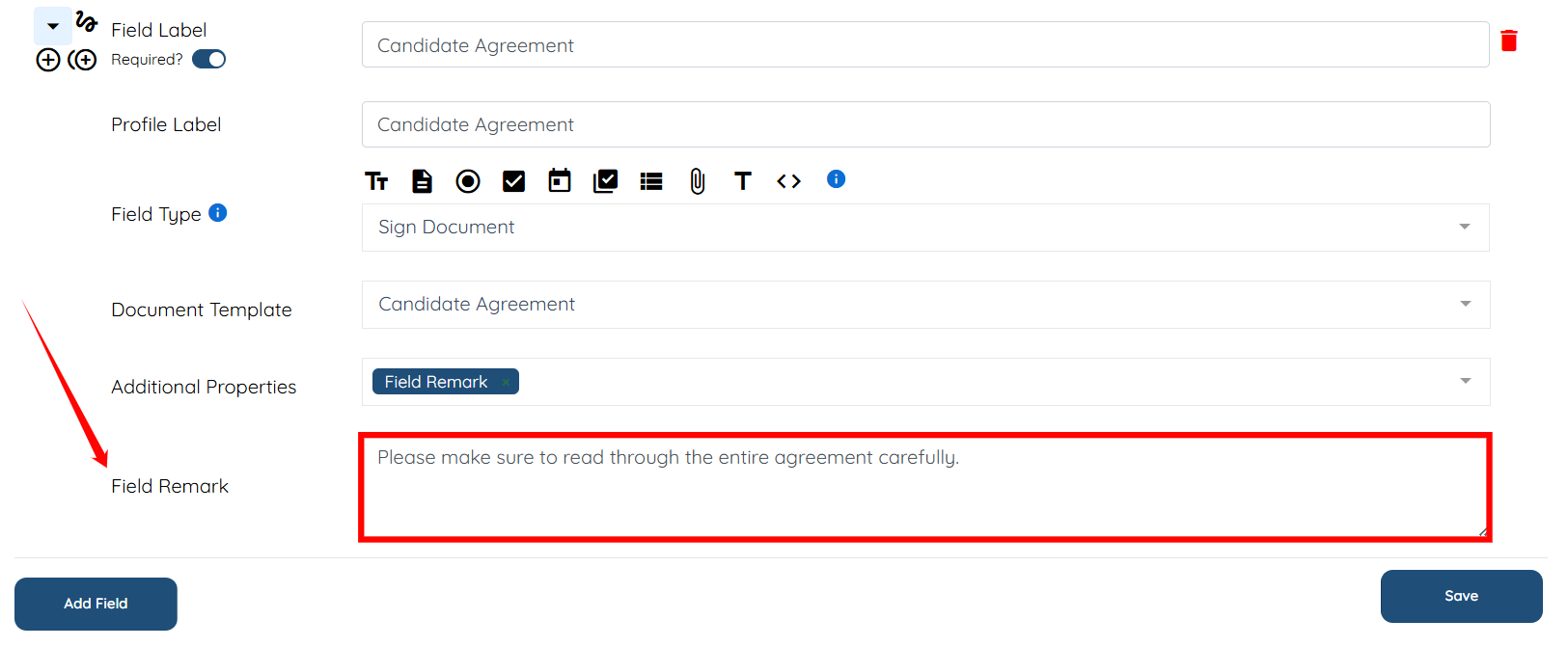
Step 5: In the Field Remark field, enter the instructions or information you want the candidate to see. For example, “Please make sure to read through the entire agreement carefully.”
Step 6: Click on the Save button to proceed. A Field Remark on the selected field will be added successfully.