![enginehire logo thin dark 1.0.png]](https://learn.enginehire.io/hs-fs/hubfs/enginehire%20logo%20thin%20dark%201.0.png?height=40&name=enginehire%20logo%20thin%20dark%201.0.png)
Goal tracking gives your agency a simple, signature-backed way to measure how independently a client completes everyday activities — and to prove that progress with signed, exportable records. This guide explains how the system works from the ground up, then walks through the full workflow: creating goals, assigning staff, daily tracking, and reporting. No prior experience with goal tracking needed.
What is goal tracking and how does it work?
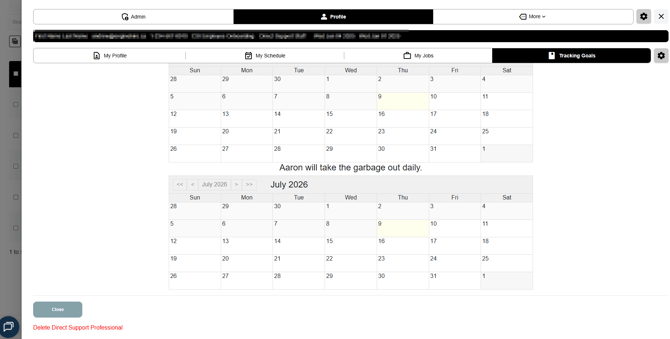
Start with the idea of a goal: a specific, recurring activity you want a client to do on their own. For example: "Aaron will take the garbage out daily."
Now the key concept: a prompt. A prompt is any reminder, cue, or nudge a staff member gives the client to get the activity done — saying "don't forget the garbage," pointing at the trash bag, or physically guiding them through it. Prompts are how we measure independence: a client who takes the garbage out with no reminders is more independent than one who needed to be reminded four times. The fewer prompts needed, the closer the client is to doing the activity on their own.
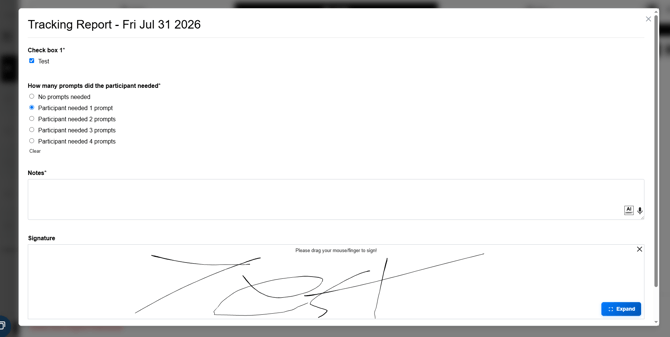
Goal tracking simply counts those prompts, every day, and turns the counts into progress data. Here's what a single day looks like:
- The staff member works with the client on the activity, keeping track of how many prompts they gave.
- At the end of the visit, they open the goal in Enginehire, pick the matching option from a dropdown — for example No prompts needed, Participant needed 1 prompt, Participant needed 2 prompts — add any notes, and sign.
- Enginehire compares their selection against the goal's success threshold. If your agency defines success as "two or fewer prompts," then a day with two prompts is recorded as a positive outcome (a successful day), and a day with three or more as a negative outcome.
Do that every day for a month and you get a success rate: the percentage of tracked days that were positive. If a client had 20 positive days out of 25 tracked, that's an 80% success rate — a clear, documented measure of independence. Because every daily entry carries the staff member's signature, the record is audit-ready, and Enginehire can generate a completed monthly tracking document from it automatically.
The prompt options and the success threshold are configured per goal, so the system adapts to how your agency measures progress. Many agencies also use goal tracking for care plans: break the care plan into individual goals, and staff confirm and sign off on each one during their daily visits.
One note on words: Enginehire agencies use different terms for the same roles. Your agency might call clients "participants," and the staff who support them "direct support professionals" — in Enginehire's interface, staff members appear as Candidates. In this guide, "client" means the person with the goal, and "staff member" means the person tracking it.
How to enable goal tracking for your agency
Goal tracking is enabled by the Enginehire team as part of your agency's setup. If you don't see a Goals section on your client profiles, reach out to your Enginehire contact or support — we'll switch the feature on and work with you to configure your goal form, daily tracking form, and document template to match your agency's requirements.
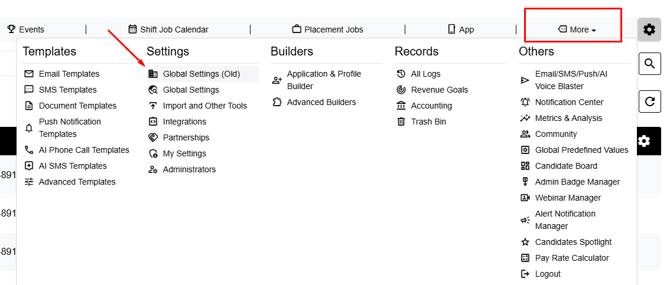
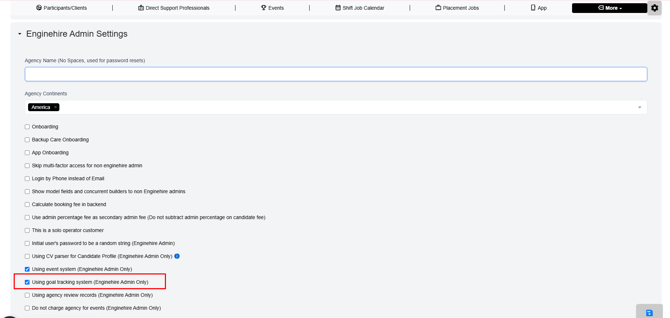
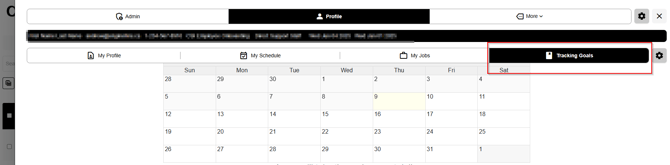
Once enabled, a Goals section appears on every client profile, and your staff see a Tracking Goals tab on their dashboard.
How to create a goal for a client
- Go to Participants/Clients and open the client's profile.
- Click More, then select Goals.
- Click Add Goal and complete the form. Your agency's form will include the fields configured for you, but every goal has a few essentials:
- Goal name — write it so it identifies both the activity and the client, for example "Aaron will take the garbage out daily." Staff see this name on their tracking calendar, so a clear, client-specific name keeps things unambiguous when someone supports multiple clients.
- Start and end dates — these define the goal's active window. Staff can only record entries for dates inside this range, so double-check that the dates cover your intended tracking period and that the end date comes after the start date.
- Prompt options and success logic — the list of daily outcome choices staff will pick from (such as No prompts needed through Participant needed 4 prompts), and which of those choices count as a positive outcome.
- Click Submit. The goal now appears in the client's Goals table with its name, dates, and creation time.
To review or edit a goal later, use the actions next to it in the Goals table: the Manage Goal icon opens the full details, the pencil edits the goal, and the trash icon deletes it.

How to assign staff to a goal
A staff member can only see and track a goal after being assigned to it — think of it like assigning a shift. Until they're assigned, the goal simply doesn't appear for them.
- In the client's Goals table, click the Manage Goal icon next to the goal.
- Scroll to the bottom of the goal details, search for the staff member in the dropdown, and click Assign.
- The person now appears under Assigned Candidates. You can assign as many staff members to a goal as you need, and remove an assignment at any time with the trash icon next to their name.
How staff track goals each day
Assigned staff members log in and open the Tracking Goals tab on their dashboard, next to My Profile, My Schedule, and My Jobs. Each of their active goals appears as its own calendar, titled with the goal's name. Goals whose date range has ended are automatically hidden to keep the view clean.
To record a day's progress, the staff member clicks the date, selects from the dropdown how many prompts the client needed, adds any notes, signs, and submits. Every entry is individually signed, which keeps your records audit-ready.
How to view goal tracking reports and success rates
Reports live in the goal's details and are tracked per staff member. Open Manage Goal and find the person under Assigned Candidates — next to their name you'll see two report icons.
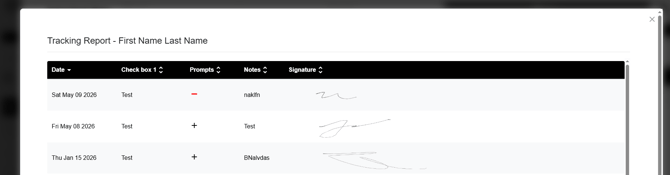
View Tracking Report shows every daily entry that person has recorded for the goal: the date, the outcome marked as + (positive) or − (negative), their notes, and their signature.
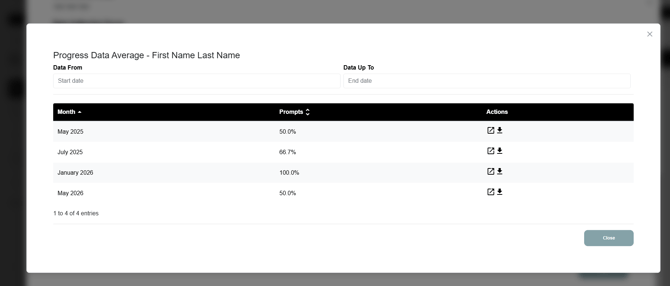
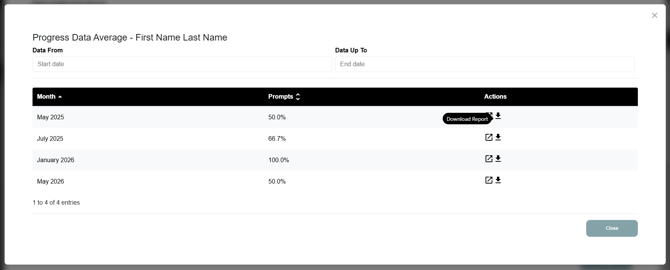
View Progress Data Average shows the monthly success rate — the percentage of tracked days with a positive outcome. Use the Data From and Data Up To filters to focus on a specific period.
How to export goal tracking documents
From the Progress Data Average view, each month has open and download actions that generate your agency's goal tracking document. The document is built from your agency's template and fills itself in automatically: the month's success rate, each day's outcome, and the collected staff signatures all populate without manual data entry, so the document is ready for review or submission the moment you download it.
If you'd like your tracking document redesigned or simplified, contact the Enginehire team — templates are customized per agency.
Tips and troubleshooting
A staff member can't record an entry. The most common cause is the goal's date range: entries can only be created within the goal's start and end dates. Open the goal, check the dates, and extend the end date if the tracking period is still active.
A staff member can't see a goal at all. Either they haven't been assigned to it yet (check Assigned Candidates under Manage Goal), or the goal's date range has ended, which removes it from their Tracking Goals view.
Staff support multiple clients. Since the tracking view lists goals by name, always include the client's name in the goal name so staff immediately know whose goal they're recording against.
You don't see any goal tracking options. The feature isn't enabled for your agency yet — contact Enginehire support to get set up.